Adding videos to your Shopify product pages can significantly boost sales, reduce returns, and keep visitors engaged longer. Videos provide a dynamic way to showcase your products, offering customers a better understanding of how they look and work in real life. Research shows that video content can increase conversion rates by over 80% and deliver up to a 50X ROI within 30 days.
To create video galleries for Shopify, you’ll need tools like UWidget. This app simplifies the process, allowing you to embed YouTube videos or playlists directly onto product pages without coding. Follow these steps:
- Prepare your videos: Host them on platforms like YouTube for faster loading. Ensure they’re set to "Public" or "Unlisted."
- Install UWidget: Download the app from the Shopify App Store.
- Build your gallery: Use UWidget's dashboard to create customizable galleries or carousels.
- Add to product pages: Copy the embed code and paste it into the HTML editor on your Shopify product page.
- Test and optimize: Check performance on desktop and mobile devices.
Videos not only improve the shopping experience but also enhance site performance by keeping users engaged longer and increasing trust. Use features like shoppable videos to drive even more sales while optimizing for mobile users, who now dominate online shopping traffic.
How to Add Video to Shopify Product Pages

sbb-itb-d9e5b3a
What You Need Before Getting Started
Before diving in, make sure your Shopify store is up and running, and your video content is ready to go - ideally hosted on YouTube. Hosting videos on YouTube is a smart choice because it helps your pages load faster. You can use videos from YouTube or upload ones you've created yourself. Also, double-check your store settings and video access to keep things running smoothly.
Verify Your Shopify Store and Video Content Access
To install apps and edit product pages, you'll need admin access to your Shopify store. For video content, if you're using YouTube, ensure your videos are set to "Public" or "Unlisted" - private videos won’t work. If you're using Vimeo, make sure embedding on external sites is enabled. Keep the URLs of your videos handy for easy access.
Using YouTube Shorts? Convert their URLs by swapping youtube.com/shorts/ with youtube.com/watch?v=.
Shopify's Video Upload Limitations
Shopify has some restrictions when it comes to uploading videos directly. Each video file can’t exceed 1GB or 10 minutes in length. Plus, a single product can only hold up to 250 media items, which includes images, videos, and 3D models.
Your video storage depends on the Shopify plan you’re on. Basic plans offer 50 GB of storage, while Plus plans provide a hefty 1 TB. Keep in mind, uploading videos directly to Shopify can slow down your page load times. For example, YouTube embeds alone add over 600kb of scripts to your page. That’s why many successful stores stick to embedding videos hosted on platforms like YouTube.
"If you upload videos to Shopify, your page will load slowly, causing your conversion rate to take a hit. To fix this, you need to upload your videos to third-party platforms." - Liana Turbureanu, Videowise
Tools and Apps You’ll Need
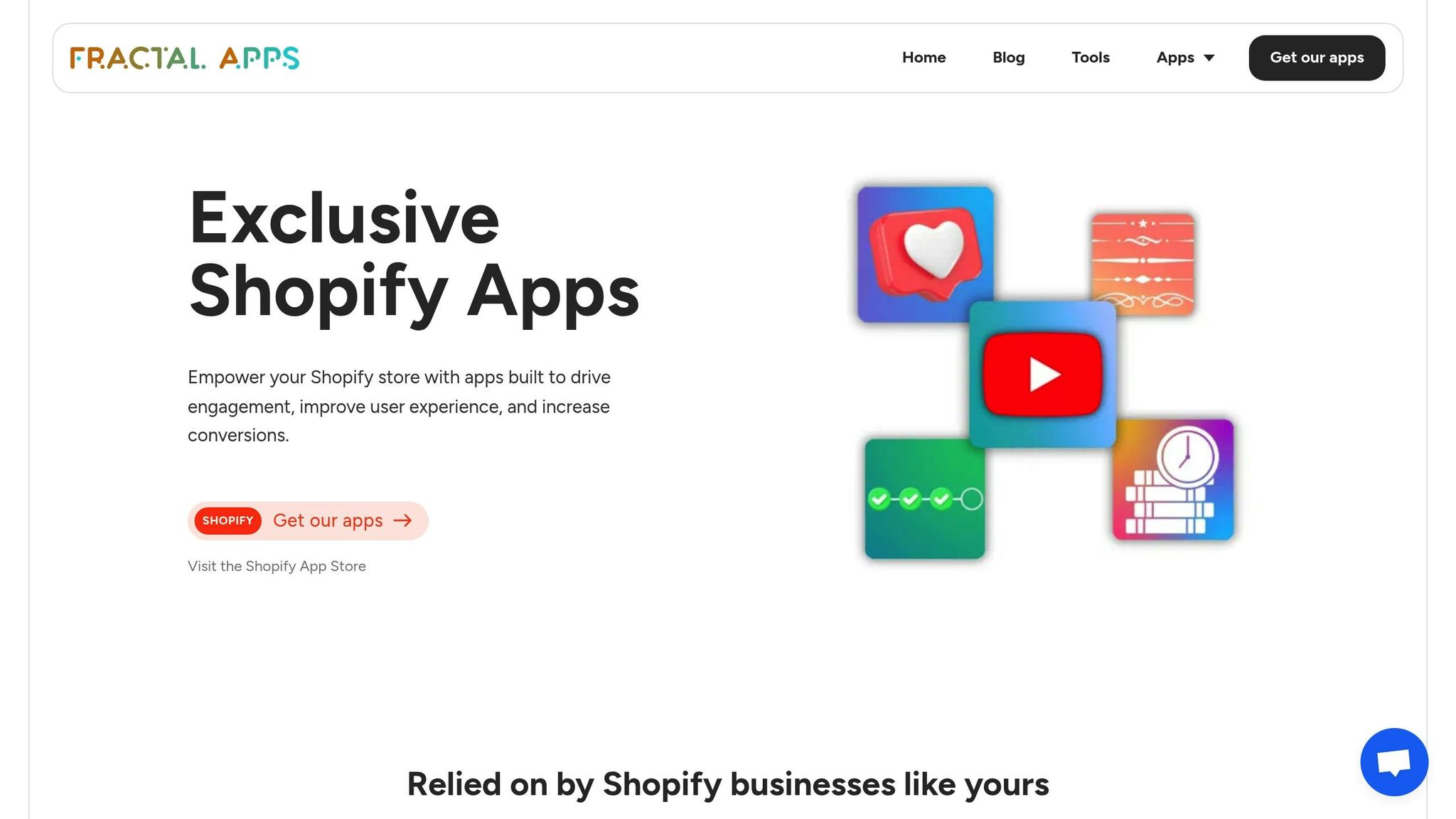
With everything set up, the next step is to use the right tools to use video marketing strategies to create dynamic video galleries. One great option is UWidget from Fractal Apps. This app makes it easy to build customizable video galleries, carousels, and sticky videos - no coding required. All you have to do is paste YouTube URLs or playlist links. UWidget is fully compatible with modern Shopify themes.
The app takes care of the technical details for you, like responsive design and avoiding embed code errors. It also optimizes video loading, which is crucial since 55% of online shoppers rely on video content to make purchasing decisions.
How to Add Video Galleries Using UWidget
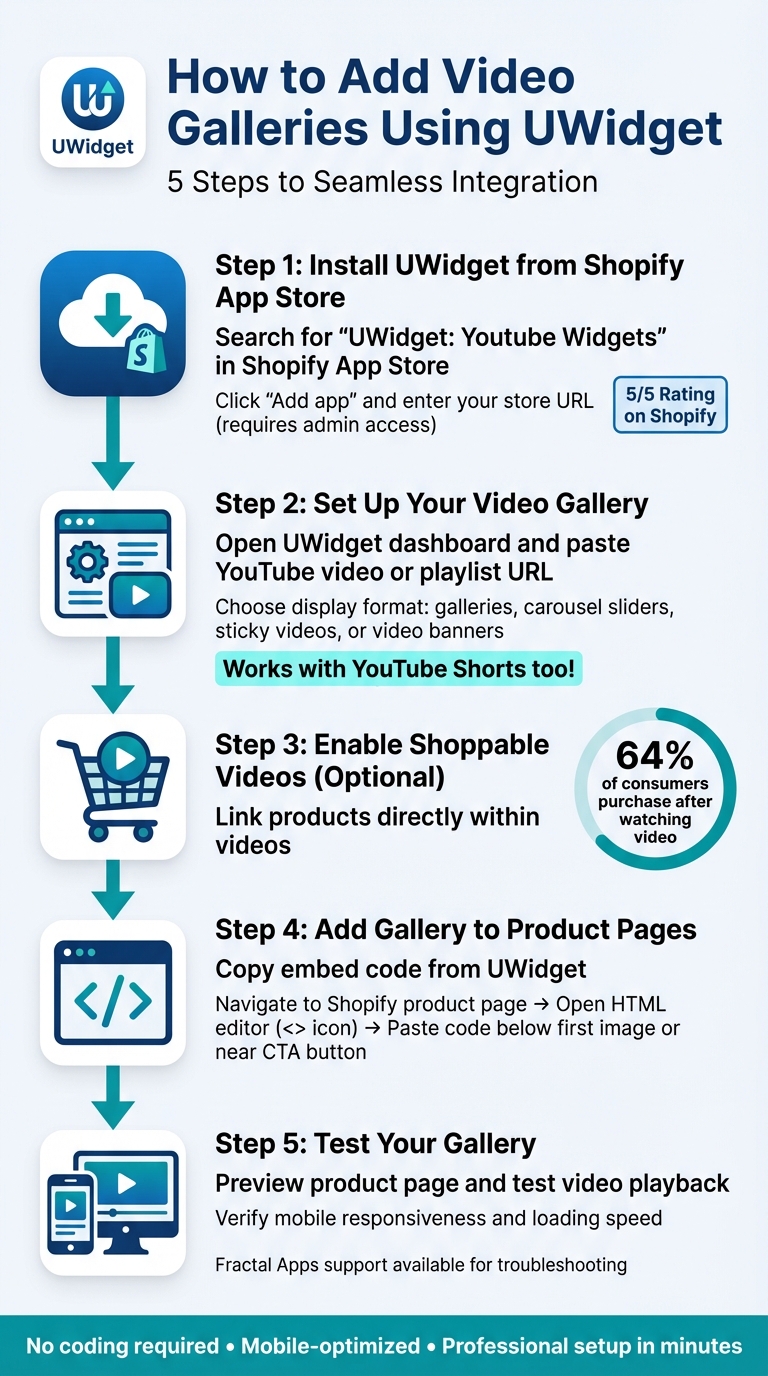
5 Steps to Add Video Galleries to Shopify Product Pages with UWidget
Ready to integrate a video gallery into your Shopify store? With UWidget, a tool developed by Fractal Apps, the process is straightforward. UWidget has earned a perfect 5/5 rating on the Shopify App Store, with users highlighting its ability to boost customer confidence and drive sales. Here's how you can get started.
Install UWidget from the Shopify App Store
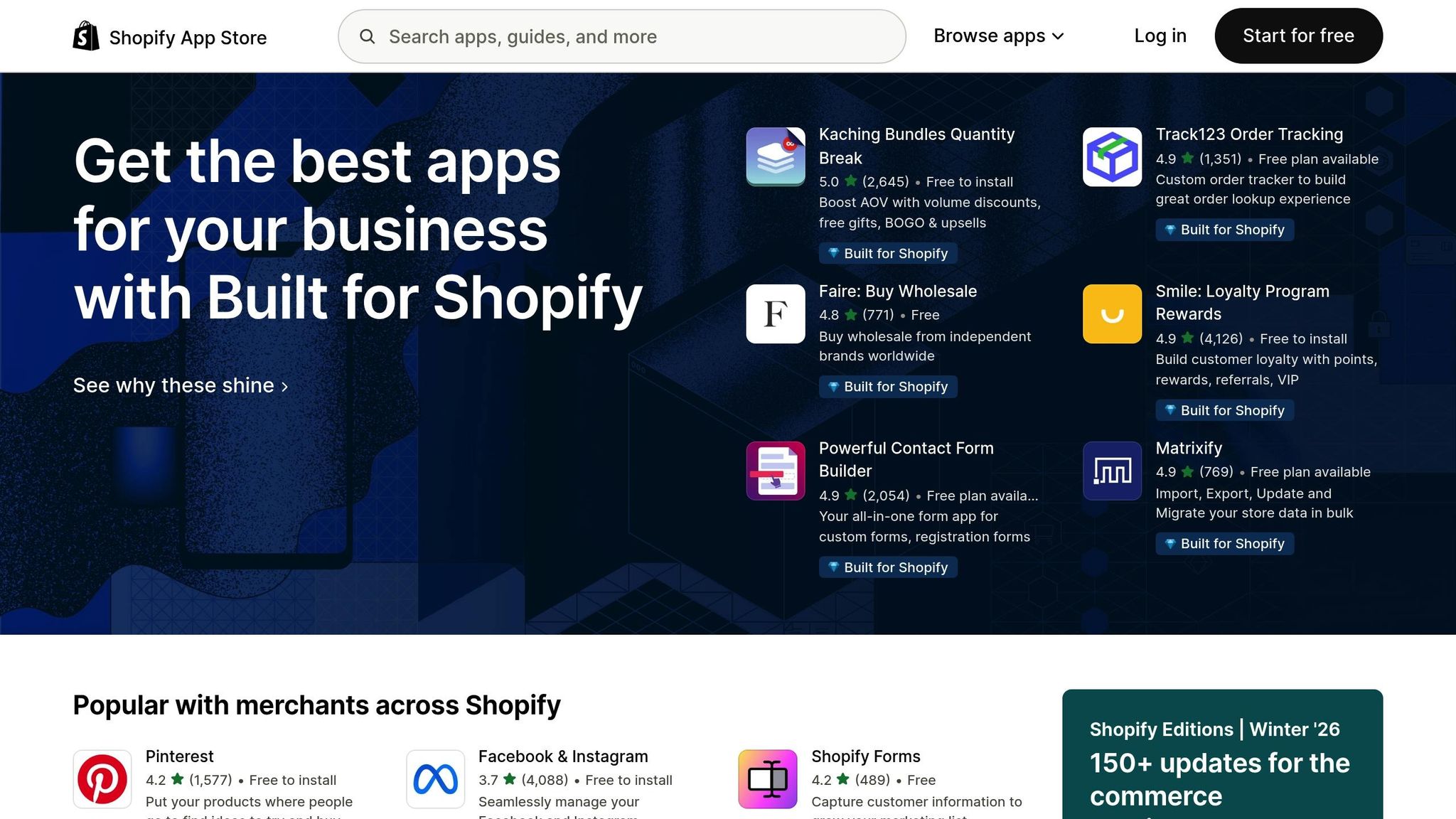
First, head over to the Shopify App Store and search for "UWidget: Youtube Widgets." Once you've found it, click "Add app" and enter your store's URL when prompted. Make sure you have admin access to complete the installation.
Set Up Your Video Gallery in UWidget
Once installed, open the UWidget dashboard to start building your gallery. Simply paste the URL of your YouTube video or playlist into the app. You can choose from several display options, including customizable galleries, carousel sliders, sticky videos, or video banner backgrounds. Whether you're using standard YouTube videos or YouTube Shorts, UWidget provides plenty of flexibility for showcasing your products.
Want to take it a step further? Try the shoppable video feature, which allows you to link specific products directly within your videos. Considering that 64% of consumers make purchases after watching a video, this feature can be a game-changer.
Add the Gallery to Your Product Pages
After setting up your gallery, copy the embed code provided by UWidget. Then, go to your Shopify admin panel and navigate to the product page where you'd like the gallery to appear. Open the product description editor, switch to HTML view (look for the <> icon), and paste the embed code where you'd like the gallery to show up. For best results, place it just below the first product image or near your call-to-action button.
Test Your Video Gallery
Finally, preview your product page to ensure the gallery displays correctly and the videos play without any issues. Don't forget to test the gallery on mobile devices to confirm everything loads smoothly. If you run into any problems or need advanced customization, the Fractal Apps team is available to assist with professional setup and integration.
Fixing Common Problems with UWidget
Although UWidget is a no-code tool, you might run into a few hiccups when adding video galleries to your Shopify product pages. Here’s how to tackle common problems and ensure your gallery works smoothly across all devices.
Resolve Slow Video Loading
Page speed is critical for your store’s performance, so addressing video loading times should be a top priority. Using standard YouTube iframe embeds can add 4 to 7 seconds to your page load time. A key factor here is the autoplay feature. According to Shopify Partner oreoorbitz, enabling autoplay forces videos to load immediately, which can significantly slow things down.
For galleries that appear below the fold (not visible right away), you can add the loading="lazy" attribute to your iframe code. This delays video loading until the user scrolls down. For galleries above the fold, consider using a YouTube Facade. This approach replaces heavy video scripts with a lightweight thumbnail and play button, only loading the full video when clicked. By switching to this method, you can reduce script size from 600kb to around 100kb. Also, make sure autoplay is disabled to further enhance loading speed.
Improve Mobile Display
With mobile traffic in the U.S. consistently outpacing desktop by at least 10% since July 2022, optimizing for smaller screens is more important than ever. If your gallery feels cramped or doesn’t resize properly on mobile, try switching the UWidget layout from a grid to a carousel slider or a sticky video format. These layouts often work better for mobile viewing.
Keep in mind that YouTube embed codes aren’t inherently responsive, which can cause scaling issues on mobile devices. If tweaking the layout doesn’t fix the problem, you might be dealing with a compatibility issue between UWidget and your Shopify theme. The Fractal Apps team offers professional integration services to help resolve theme-specific display conflicts.
Fix Embed Code Errors
UWidget simplifies the process by letting you paste YouTube URLs instead of dealing with manual embed codes. However, errors can still occur if the video settings or URL formats aren’t correct.
If you need to use embed codes manually - such as when adding videos to a product description - always switch to the HTML editor (click the </> icon) before pasting. Dropping code into the rich text editor can cause it to be treated as plain text instead of functional code . For persistent issues or more complex theme conflicts, the Fractal Apps support team is available to assist with UWidget integration.
Conclusion
By adding video galleries with UWidget, you can turn your Shopify product pages into powerful, interactive sales tools. With UWidget, setup is quick and easy - just embed YouTube URLs to create dynamic video galleries. The no-code setup allows you to have professional-quality galleries ready in minutes. This straightforward integration not only enhances the visual appeal of your store but also has a direct impact on sales.
Video content is a proven driver of sales, with 80% of marketers reporting increased sales from video marketing. Additionally, 92% of internet users watch videos monthly. By showcasing your products in action - whether through tutorials or engaging galleries - you can build trust with potential customers and help ease any hesitation about making a purchase . Plus, with UWidget's shoppable video feature, viewers can interact with your products directly from the video, turning passive watching into active shopping.
Video galleries also keep visitors on your site longer, which can improve your search engine rankings. And since mobile traffic now leads desktop in the U.S., UWidget’s responsive layouts - like carousel sliders and sticky videos - ensure your content looks great on any device. This is particularly important as mobile continues to dominate online shopping behavior.
To maximize engagement, focus on key video elements like length, high-quality thumbnails, and accurate captions. If you encounter technical challenges, the Fractal Apps support team is ready to assist with setup and troubleshooting.
FAQs
How can adding video galleries to product pages help increase sales on Shopify?
Incorporating video galleries into your Shopify product pages can have a big impact on sales and conversions. Research reveals that shoppers are far more likely to buy after watching a product video. Why? Because videos offer a more dynamic and detailed way to highlight your products. In fact, about 80% of marketers say video content directly boosts sales.
To get the most out of this strategy, make sure your videos load quickly. Slow-loading pages can frustrate shoppers and cause them to leave before completing a purchase. When executed well, video galleries can improve product exposure, build customer confidence, and ultimately lead to higher sales.
How can I add a video gallery to my Shopify product pages using UWidget?
To add a video gallery to your Shopify product pages using UWidget, just follow these straightforward steps:
- Install UWidget: Head to the Shopify App Store, search for UWidget: YouTube Widgets, and add it to your store. Complete the installation process as prompted.
- Create your video gallery: Access the UWidget dashboard from your Shopify admin. Paste the URL of your YouTube video or playlist, then pick a display style like a gallery or carousel. You can also tweak the design to match your store's look.
- Place the gallery on product pages: In the app settings, decide where the gallery will appear - either on all product pages or specific ones.
Once you've saved your changes, check a product page to confirm the gallery looks and works as expected. If you ever need to remove UWidget, simply uninstall it from the Apps section in your Shopify admin.
How can I make sure my video gallery loads quickly on mobile devices?
To make sure your video gallery loads quickly on mobile devices, here are some practical tips:
- Host videos on external platforms: Instead of uploading videos directly to Shopify, use services like YouTube or Vimeo. These platforms handle streaming efficiently, which helps improve page load times.
- Use lightweight embedding tools: Apps such as UWidget (from Fractal Apps) let you create responsive video galleries without loading full video files upfront, keeping things snappy.
- Enable lazy loading: Set up your gallery to load only video thumbnails initially. The actual video streams only when a user clicks to play it, saving bandwidth and speeding up the experience.
- Optimize video files for mobile: Choose settings like 720p resolution and compressed formats (e.g., H.264) when uploading videos to your hosting platform. This ensures they’re mobile-friendly without sacrificing quality.
By combining external hosting, lightweight tools, lazy loading, and optimized files, you can deliver a smooth and fast video experience for mobile users.