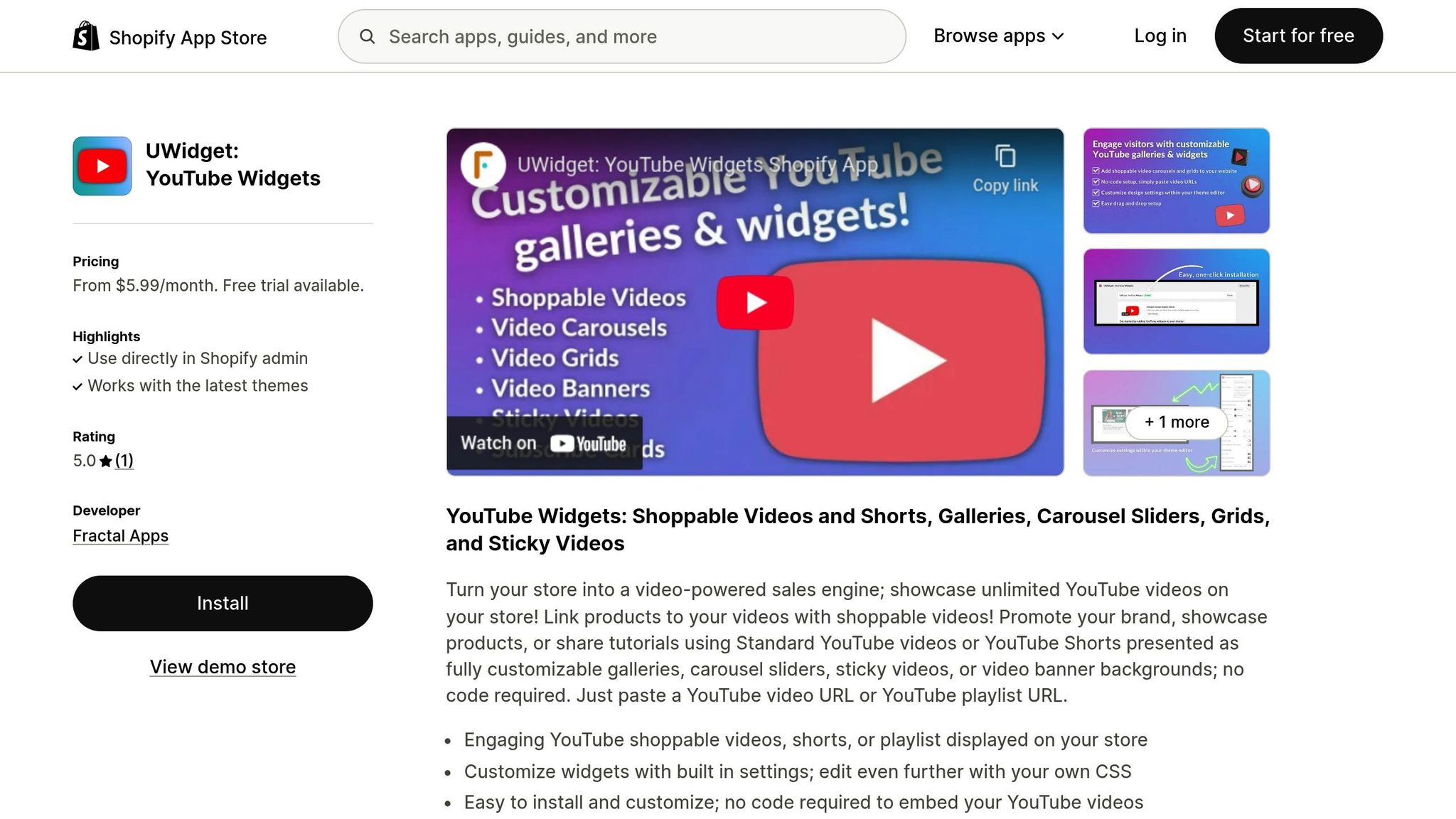
UWidget transforms YouTube videos into shoppable experiences for Shopify stores, letting customers buy products directly from videos. This tool enhances engagement, increases conversion rates, and simplifies the buying journey. By integrating clickable tags and "Add to Cart" buttons, UWidget helps bridge the gap between video views and sales.
Key Benefits of UWidget:
- Boosts Engagement: Increases time spent on-site by 44% and conversions by up to 3.5x.
- Simplifies Shopping: Customers can purchase directly from videos without leaving the player.
- Flexible Placement: Add videos to homepages, product pages, and collection pages.
- Mobile-Friendly: Optimized for mobile shoppers, who account for 38.5% of e-commerce sales.
Quick Setup Tips:
- Install UWidget from the Shopify App Store.
- Add videos to key areas like homepages, product pages, and blogs.
- Use shoppable features like clickable product tags and "Add to Cart" buttons.
- Optimize for mobile with vertical videos, captions, and touch-friendly elements.
With UWidget, you can use video content to drive sales while improving the shopping experience for your customers.
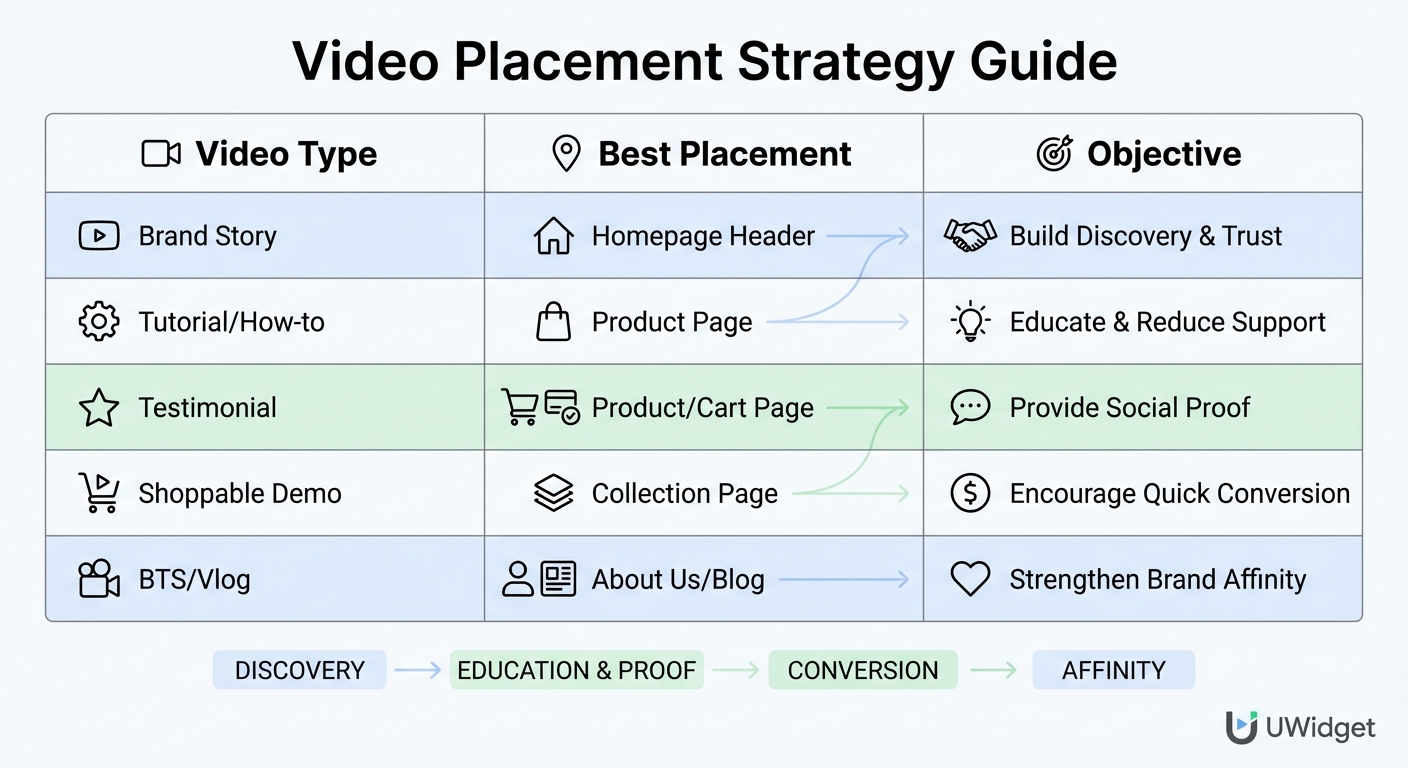
UWidget Video Placement Strategy Guide for Shopify Stores
Planning Your Video Strategy with UWidget
Before uploading any videos, it’s essential to start with a clear plan and defined objectives. Are you introducing your brand, showcasing a product, or aiming for direct conversions? Each video should have a specific purpose. Without a strategy, you risk publishing content that doesn’t connect with your goals.
Setting Goals for Each Video Placement
Every type of video serves a unique role. For instance, brand storytelling and customer success stories work best on your homepage to build trust with visitors. On product pages, educational content like how-to videos, 360° views, and product guides can answer customer questions and reduce the need for support. If your goal is to drive conversions, shoppable videos with "Click-to-Buy" links on product and collection pages create a direct path from interest to purchase.
| Video Type | Best Placement | Objective |
|---|---|---|
| Brand Story | Homepage Header | Build Discovery & Trust |
| Tutorial/How-to | Product Page | Educate & Reduce Support |
| Testimonial | Product/Cart Page | Provide Social Proof |
| Shoppable Demo | Collection Page | Encourage Quick Conversion |
| BTS/Vlog | About Us/Blog | Strengthen Brand Affinity |
Placing UWidget at Key Points in the Customer Journey
Strategic video placement is all about positioning content where it adds the most value. On your homepage, use header videos to highlight your brand’s mission or showcase featured products - this sets the tone for your entire store. On collection pages, short clips like category overviews, styling tips, or product comparisons are ideal. Keep these videos concise (around 10 seconds or 3–10 MB) to ensure they load quickly.
On product pages, customer testimonials or usage tutorials placed near product images can significantly influence purchase decisions. Videos above the fold on these pages can boost engagement by over 50%. On cart and checkout pages, trust-building content like customer reviews can help reduce cart abandonment by reassuring hesitant shoppers.
Finally, don’t forget about mobile optimization - many of your customers are shopping from their phones.
Creating Mobile-First Video Content
With mobile sales making up a large portion of online shopping, your videos need to shine on smaller screens. Use 9:16 vertical videos, which have been shown to increase views by 40%, and keep them short - 30 to 60 seconds is ideal for holding attention. Make sure interactive elements, like "Add to Cart" buttons, are touch-friendly with enough space for easy tapping. Since many mobile users watch videos without sound, include captions and transcripts to ensure your message gets across.
To maintain a smooth browsing experience, use lazy loading and file compression to prevent videos from slowing down your site. Proper optimization can dramatically reduce loading times, cutting them from 3.8 seconds to just 552ms.
Setting Up UWidget on Your Shopify Store
To get started with UWidget, head to the Shopify App Store and search for "UWidget: YouTube Widgets." Click "Add app", enter your store URL, and you're ready to dive in. Simply paste the URL of your YouTube video or playlist, and the app will automatically create a customizable gallery. Options include carousels, sticky videos, or banner backgrounds that work seamlessly with any Shopify theme. This setup allows you to leverage videos effectively, boosting engagement and driving conversions.
Adding Video Galleries to Your Home Page
Once UWidget is installed, focus on placing it strategically on your homepage. Autoplay carousels or video banners are excellent for showcasing top products or seasonal promotions right when visitors arrive. Use the Shopify Theme Customizer to add UWidget as an "App Block" or "Section" - no coding required. To ensure your videos look sharp, use thumbnails sized at 800×450 pixels for landscape formats or 450×800 pixels for portrait ones.
Adding Videos to Product Pages
Product pages can benefit greatly from video content that highlights key details. Place your widgets near product images or above the fold to feature customer reviews, unboxing clips, or tutorials that address common questions. You can choose between "Global Playlists", which display the same videos across all product pages, or "Advanced/Specific Playlists", which allow you to tailor content to individual products. Including video reviews has been shown to significantly improve conversion rates.
Using UWidget on Collection Pages and Blog Posts
Take your video content further by adding UWidget to collection pages and blog posts. On collection pages, short videos offering category overviews, product comparisons, or styling tips can keep visitors engaged. Stick to concise videos (around 10 seconds, 3–10 MB) to maintain quick loading times, and limit each page to 4–6 videos for the best performance. For blog posts, embed tutorials or educational videos to make the content more interactive. Use the "Partial URLs" feature in the "Other Pages" settings to add widgets to multiple posts at once. You can even tag products within these videos to create shoppable galleries, letting customers purchase directly from the content.
Creating Videos That Drive Results
With UWidget integrated into your store, it’s time to focus on crafting videos that grab attention and encourage action. The way you produce your videos can make or break their effectiveness. Research shows that well-planned videos can strongly influence purchase decisions, especially when created with tools like UWidget.
Choosing the Right Video Format and Length
For mobile viewers, stick to vertical 9:16 videos. Keep shoppable interactive content under 30 seconds, product explainers between 30–60 seconds, and brand stories up to 90 seconds. Start every video with a three-second hook that directly addresses a customer pain point.
Take BioLite’s smokeless fire pit video as an example - it opens by highlighting the annoyance of campfire smoke, immediately presenting the product as the perfect solution. A clear structure is key: hook your audience, outline the problem, introduce your solution, and finish with a strong call-to-action like "Buy Now" or "Learn More." Considering that 96% of consumers watch explainer videos to learn about products or services, focusing on one specific topic per video can keep viewers engaged and more likely to act. Use this approach to make your UWidget videos more impactful.
Using Customer Reviews and User-Generated Content
Nothing builds trust like authentic customer testimonials and user-generated content (UGC). In fact, 87% of consumers trust real-life reviews over polished brand messaging. Videos created by actual users - like product demos, unboxing clips, or lifestyle vlogs - can drive 12 times more engagement than traditional marketing content.
Timing matters when asking for reviews. For consumables, send post-purchase emails 7–21 days after fulfillment. For more complex products, wait 30–60 days. Instead of monetary incentives, try offering perks like early product access or loyalty points to encourage participation. Once these authentic reviews are turned into shoppable videos using UWidget, conversion rates can jump by an average of 30%.
Editing Videos for Better Performance
Many mobile viewers watch videos without sound, so always include subtitles or on-screen text to ensure your message gets through. Use consistent lighting - natural light or a simple ring light works well - and make sure your products are clearly visible. While smartphone footage can be fine, poor audio quality can ruin the experience. Invest in lapel or boom mics for voiceovers to elevate your video’s professionalism.
When editing for UWidget’s interactive features, leave room in your video for hotspots, "Buy Now" buttons, and overlay links. Cut out unnecessary pauses or filler words to keep the video moving at a good pace. Adding light background music or subtle sound effects can make your video more engaging without distracting from your message. For a polished look, use smooth transitions, consistent fonts, and your brand’s colors. Always end with a clear and urgent call-to-action to encourage immediate clicks and conversions. Thoughtful editing can take your UWidget-enabled campaigns to the next level.
sbb-itb-d9e5b3a
Tracking and Improving UWidget Performance
Once your widgets are live, it’s crucial to keep an eye on key metrics to understand what’s working and what needs tweaking. Start by focusing on the play rate - the percentage of visitors who click play on your videos. These insights will guide you in fine-tuning your approach to boost conversions.
Metrics to Monitor
To measure how well your UWidget is performing, prioritize a few critical metrics. Engagement metrics like average view duration and completion rate tell you how effectively your videos hold attention. On the conversion side, track direct sales (when viewers add items to their cart directly from the video player) and influenced sales (purchases made after watching at least five seconds of a video). Another important metric is session time added - the extra time visitors spend on your site because of the widget. Additionally, analyze performance by widget type and page placement to pinpoint high-performing areas. For example, a video with 1,000 views and a 90% completion rate is significantly more impactful than one with 10,000 views where most viewers drop off quickly.
Here’s some real-world proof: In 2022, Raghav Somani, founder of Headphonezone.in, introduced automated shoppable video widgets that brought in $570,000 in sales with an average conversion rate of 20.2%. Similarly, Peter Lobanov, Growth Strategist at GelBlaster, saw a 200% spike in video views after adopting a short-format shoppable feed strategy.
Making Changes Based on Data
If your play rates are underwhelming, consider moving widgets above the fold and increasing their size. Experiment with custom thumbnails - action shots or close-ups often perform better. You can also tweak your call-to-action text, testing phrases like “Shop Now” versus “Learn More,” and adjust the timing of buttons within your videos. If viewers are dropping off early, try shortening your videos to under two minutes and cutting out any unnecessary pauses. For instance, Stephen Pinto, Head of Growth at Dr. Squatch, saw revenue per session jump nearly 3.2%, while Daniel Mariano, Director of UX and CRO at goPure Beauty, achieved a 16% increase in both revenue and conversion rates by refining visual content. Consistently applying these data-driven adjustments can significantly enhance your video strategy.
Quick Optimization Checklist
Keep your widgets running smoothly by regularly checking these points:
- Place your most important widgets above the fold, especially on mobile.
- Monitor page weight and blocking time to ensure videos load quickly.
- Refresh thumbnails if play rates dip below your baseline.
- Make sure interactive elements are spaced well for touchscreen users.
- Maintain a detailed change log to track how specific updates impact conversion rates.
This checklist will help you catch issues early and reinforce what’s already working. By staying proactive, you can keep your video strategy sharp and effective.
Using UWidget with Other Fractal Apps
UWidget becomes even more effective when used with other Fractal Apps tailored to improve your Shopify store. These apps address specific stages of the customer journey, ensuring a seamless path from discovery to purchase. By complementing your video strategy, they help optimize every step - from capturing attention to completing a sale.
Pairing UWidget with ILikeThat
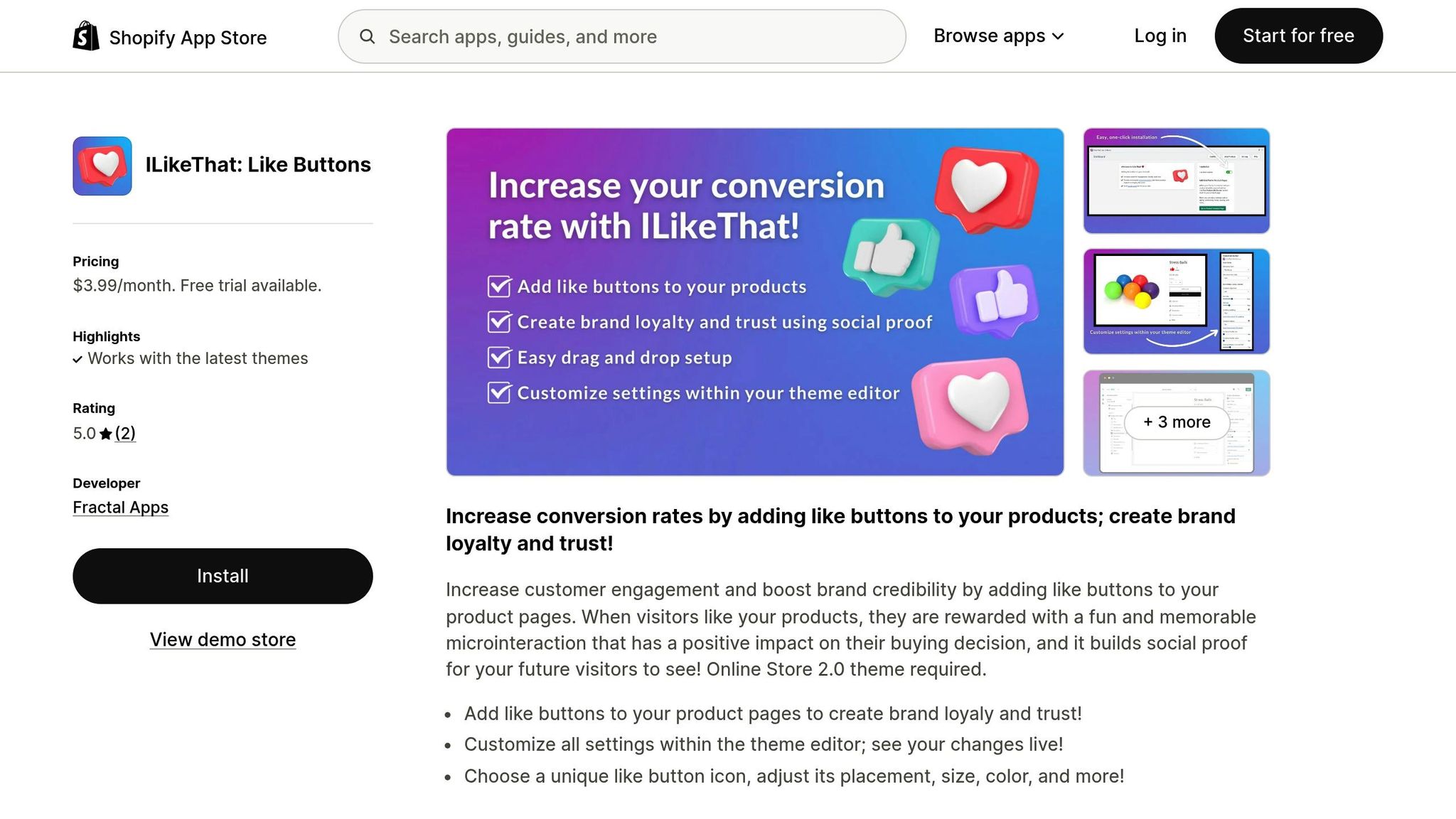
Adding ILikeThat to your video widgets creates a compelling mix of visual appeal and social proof. This combination amplifies UWidget’s ability to convert passive viewers into engaged shoppers. When customers watch a video showcasing a product and see it has numerous likes, it sends a strong message about the product’s value. This matters because 90% of shoppers trust authentic customer content more than polished marketing campaigns. You can place like buttons directly below or on top of video players to capture positive reactions right when viewers are most impressed.
Engagement data from ILikeThat can also guide how you curate video galleries. For instance, if certain products consistently earn more likes, you can feature those items prominently in UWidget carousels on your homepage, ensuring new visitors immediately see the most popular options.
Improving Checkout with CheckIt

Once your shoppable videos drive traffic to checkout, CheckIt helps keep customers on track to complete their purchases. Since 18% of shoppers abandon their carts due to complicated checkout processes, a progress bar simplifies the experience and encourages them to move forward. To make the transition even smoother, use UWidget’s "Add to Cart" buttons in your videos to send viewers directly into the CheckIt-managed checkout flow. This minimizes any friction between video engagement and finalizing a purchase.
Organizing Pages with DivideItUp and Time2Read
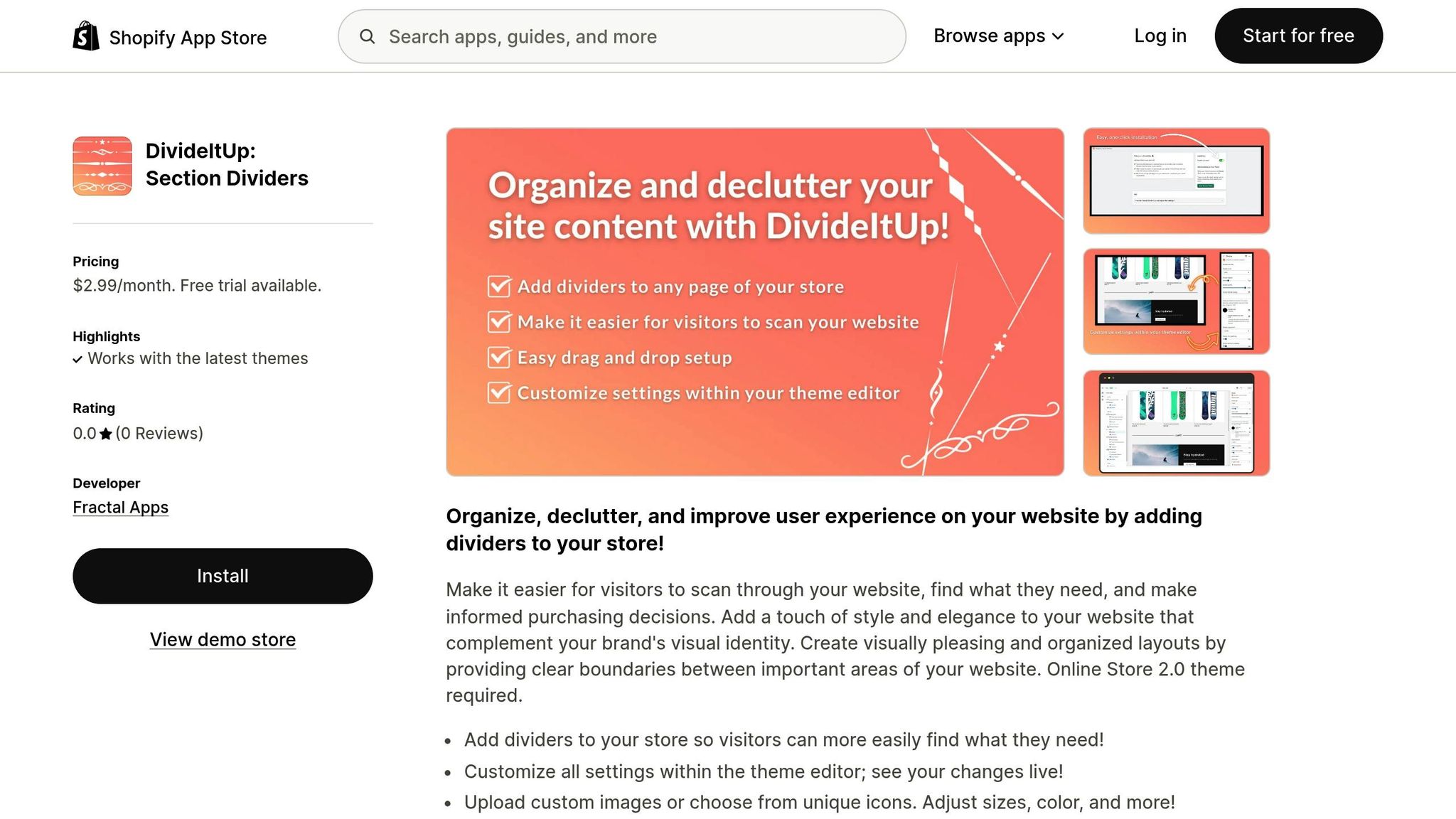
Embedding multiple videos across your store? DivideItUp can help keep things organized by breaking your pages into manageable sections. This prevents visitors from feeling overwhelmed and helps maintain fast page load speeds - stick to 4–6 videos per page for the best results. Clear divisions also make navigation easier and improve your store’s search engine indexing.
Meanwhile, Time2Read enhances blog posts that include embedded videos by displaying estimated reading times. Since videos can boost time spent on a site by up to 88%, showing how long a post will take to read sets clear expectations and may reduce bounce rates. Together, these tools create a tidy and engaging experience that complements the increased visitor attention your video content generates.
Key Takeaways for Using UWidget
What UWidget Offers Your Store
UWidget transforms video views into actionable shopping experiences. By embedding click-to-buy links directly into your video content, it can boost conversions by up to 3.5x. Plus, videos naturally increase engagement, with on-site time jumping by 44%, giving your products more exposure. The app’s touch-friendly, shoppable features make it easier for customers to interact with your store.
UWidget ensures your site stays fast and responsive with optimized video loading. Considering that 38.5% of e-commerce sales happen on mobile devices, its responsive design guarantees a smooth experience across all screen sizes. Pairing video content with user reviews and testimonials adds credibility - especially since 87% of shoppers say video content influences their purchase decisions.
Getting Started with UWidget
Once you’ve outlined your video strategy, set up UWidget by focusing on three primary placements: product pages, your homepage, and collection pages. In the Widgets section, click "New Widget", then choose a format. Carousels are ideal for showcasing multiple products, while single video players work best for detailed product demos.
Design your videos with mobile users in mind, using dimensions like 640x320 pixels and a 4:3 ratio to keep interactive elements touch-friendly. Tag products directly in videos so customers can add items to their cart without leaving the video player. Use the analytics dashboard to track key metrics like play rates, watch time, and revenue influenced by video interactions. These insights will help you refine your approach. Try experimenting with video placements, custom thumbnails (which can improve play rates by 7%), and formats to see what resonates most with your audience. Don’t forget to include closed captions and transcripts to make your videos accessible to all customers.
FAQs
How can UWidget help increase conversions on my Shopify store?
UWidget can help take your Shopify store to the next level by adding shoppable videos right into your product and homepage sections. These interactive, mobile-friendly videos let customers tap-to-buy effortlessly, making shopping more engaging and straightforward.
Brands leveraging UWidget’s tools have seen impressive results, with click-through rates doubling and conversion rates increasing by up to 3.5×. By transforming your video content into a dynamic, actionable experience, UWidget makes it easier to turn casual viewers into paying customers, delivering real results for your online store.
What types of videos work best for different pages on my website?
Different pages on your website can shine when paired with the right type of video content, tailored to match what shoppers are looking for at each stage of their journey.
For product pages, consider using shoppable demo videos. These can bring your products to life by showing them in action, spotlighting their standout features, and even letting customers add items to their cart straight from the video. Adding customer testimonials or unboxing clips can also boost trust and nudge shoppers toward making a purchase.
On homepages, short brand-story or hero videos that autoplay are a smart choice. These snippets can quickly convey your brand's vibe and value, often featuring lifestyle footage or success stories that create an emotional connection and encourage visitors to stick around.
For collection pages, quick styling or comparison videos work wonders. They can demonstrate how products work together, suggest outfit ideas, or highlight different options. These videos are brief enough to guide shoppers without causing delays in page loading.
By aligning your video content with the specific role of each page, you can keep visitors engaged, drive more conversions, and fully utilize UWidget’s interactive capabilities.
How can I optimize my UWidget videos for mobile users?
To make sure your UWidget videos perform well on mobile devices, focus on these essentials:
- Choose mobile-friendly aspect ratios. For platforms like Instagram Stories, TikTok, and YouTube Shorts, go with vertical (9:16). Square (1:1) works well for Instagram feed posts, while horizontal (16:9) is ideal for landscape viewing on platforms like YouTube.
- Optimize file sizes. Keep videos under 30 seconds to 5 MB or less for faster loading. For longer content, break it into shorter clips or use adaptive bitrate streaming to maintain quality without slowing things down.
- Test on actual devices. Always preview your videos on both iOS and Android phones. This helps you ensure smooth playback, correct orientation, and that text or interactive elements are easy to see and use.
By keeping these tips in mind, your UWidget-powered videos will deliver a smooth and engaging experience for mobile users.