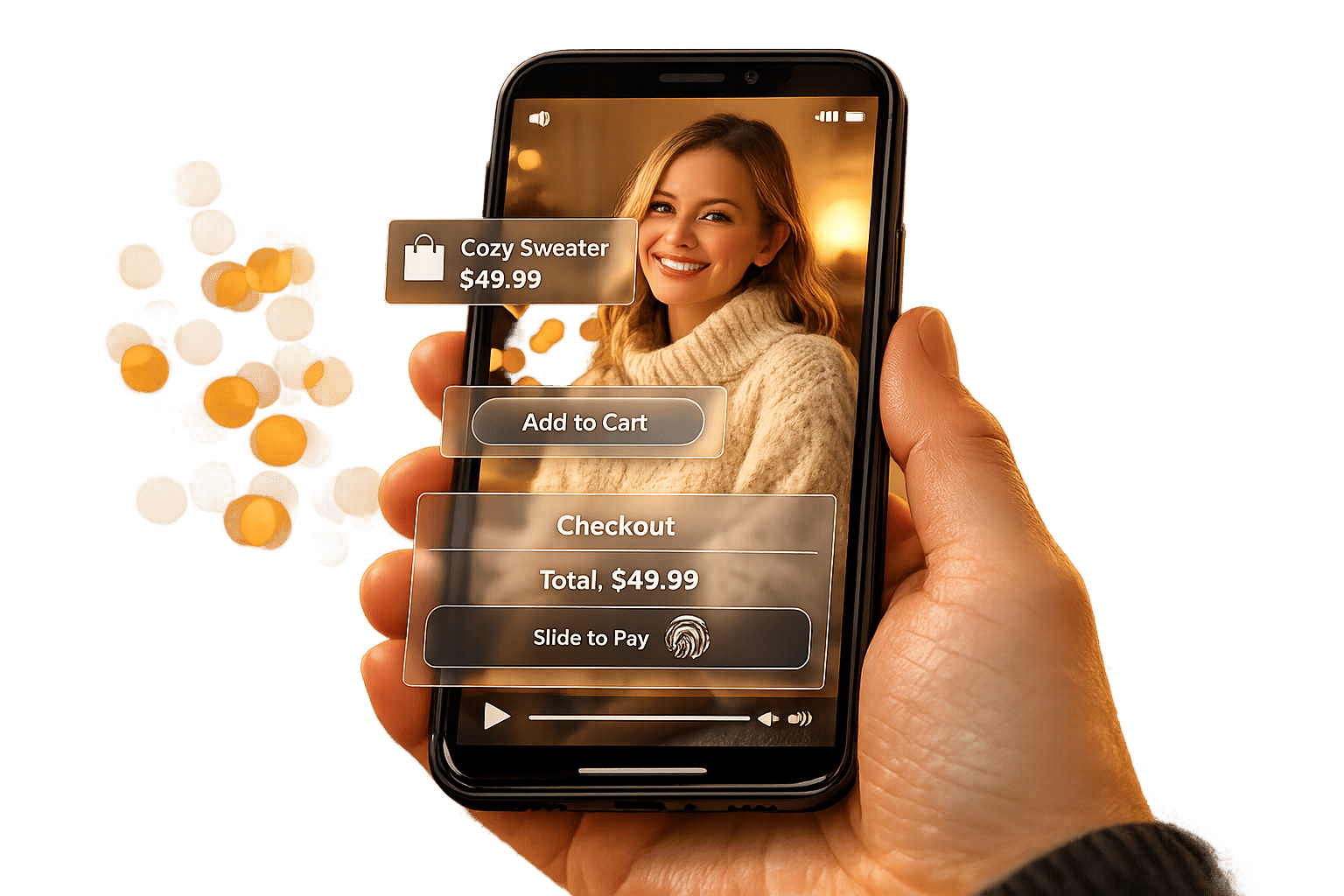
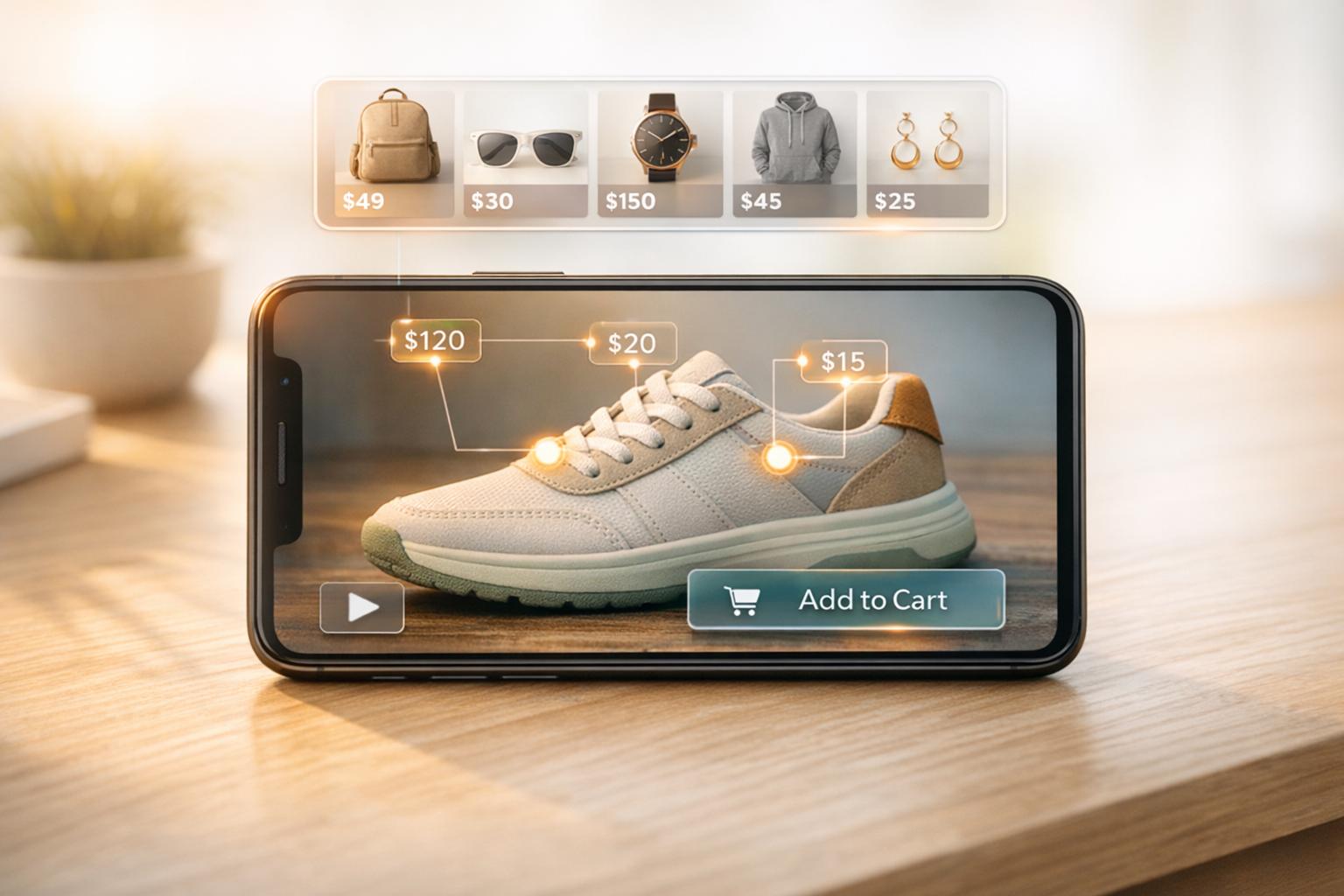
Shoppable videos let customers buy products directly from video content, boosting engagement and sales. UWidget is a tool that helps Shopify store owners turn YouTube videos into interactive shopping experiences. Here's how it works:
- What It Does: Adds product tags to YouTube videos, enabling direct purchases.
- Why Use It: Increases conversion rates by up to 60% compared to traditional video ads.
- Cost: Plans start at $5.99/month with a 7-day free trial.
- Setup: Paste a YouTube URL, tag products, customize the widget, and embed it in your store.
- Widget Options: Choose from video galleries, carousels, sticky players, banners, or grids.
- Performance Tracking: Use built-in analytics to monitor views, clicks, and conversions.
This tool is simple to install, integrates with Shopify's theme editor, and keeps your site fast with lazy-loading technology. Whether for product pages, homepages, or collection pages, UWidget helps deliver a smoother shopping experience.
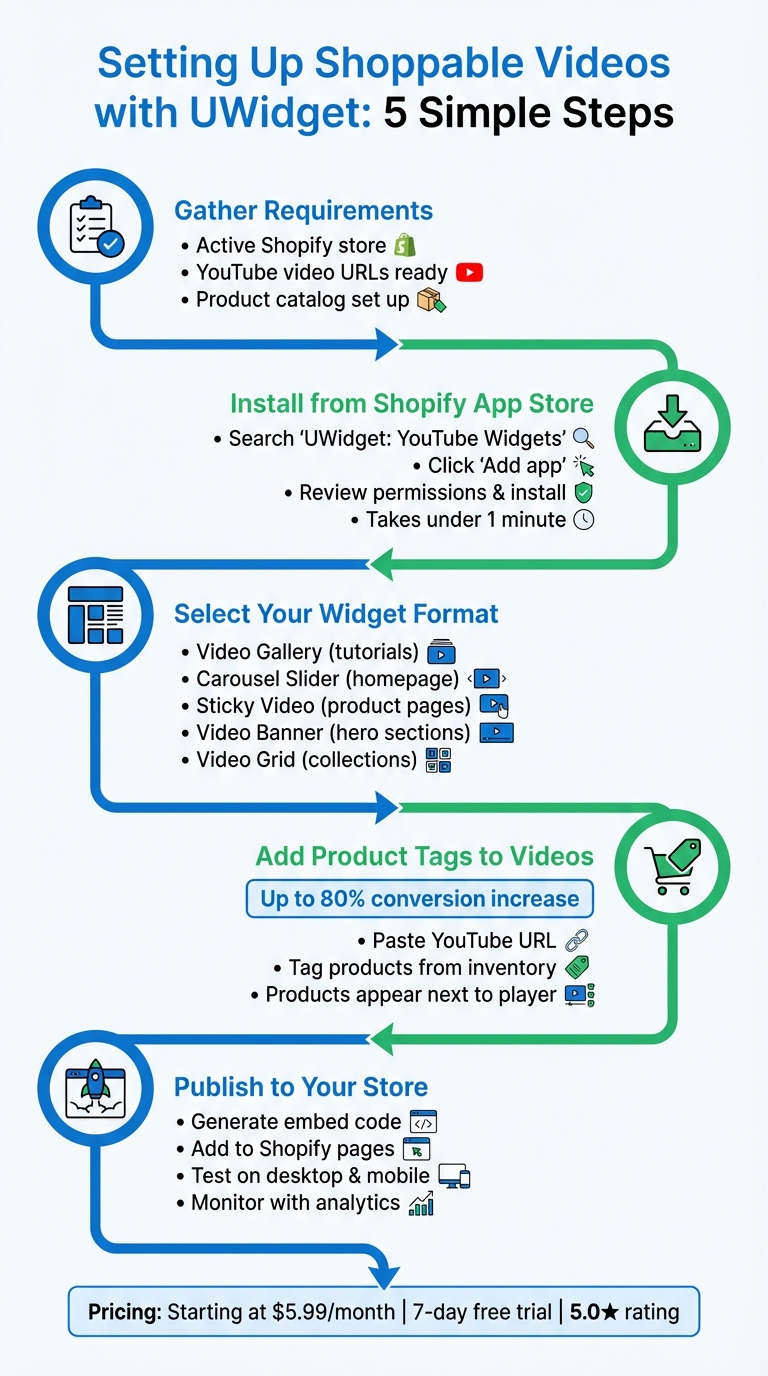
How to Set Up Shoppable Videos with UWidget in 5 Steps
Getting Started with UWidget
What You Need Before Installing
Before diving into UWidget, make sure you have a few things ready to go. First, you'll need an active Shopify store with access to the admin dashboard. Next, gather the YouTube video URLs you plan to use - whether they’re regular videos, Shorts, or playlists - since you’ll be adding these directly into the app. Lastly, ensure your product catalog is set up in Shopify so you can tag products within your videos.
If your store uses Shopify Theme 2.0, UWidget integrates seamlessly as a block within the live theme editor, making installation a breeze. During setup, the app will request permission to access your store’s contact details, products, collections, and theme settings - these permissions are essential for the app to function correctly.
Once you’ve got these basics covered, you’re ready to install UWidget from the Shopify App Store.
Installing UWidget from Shopify App Store
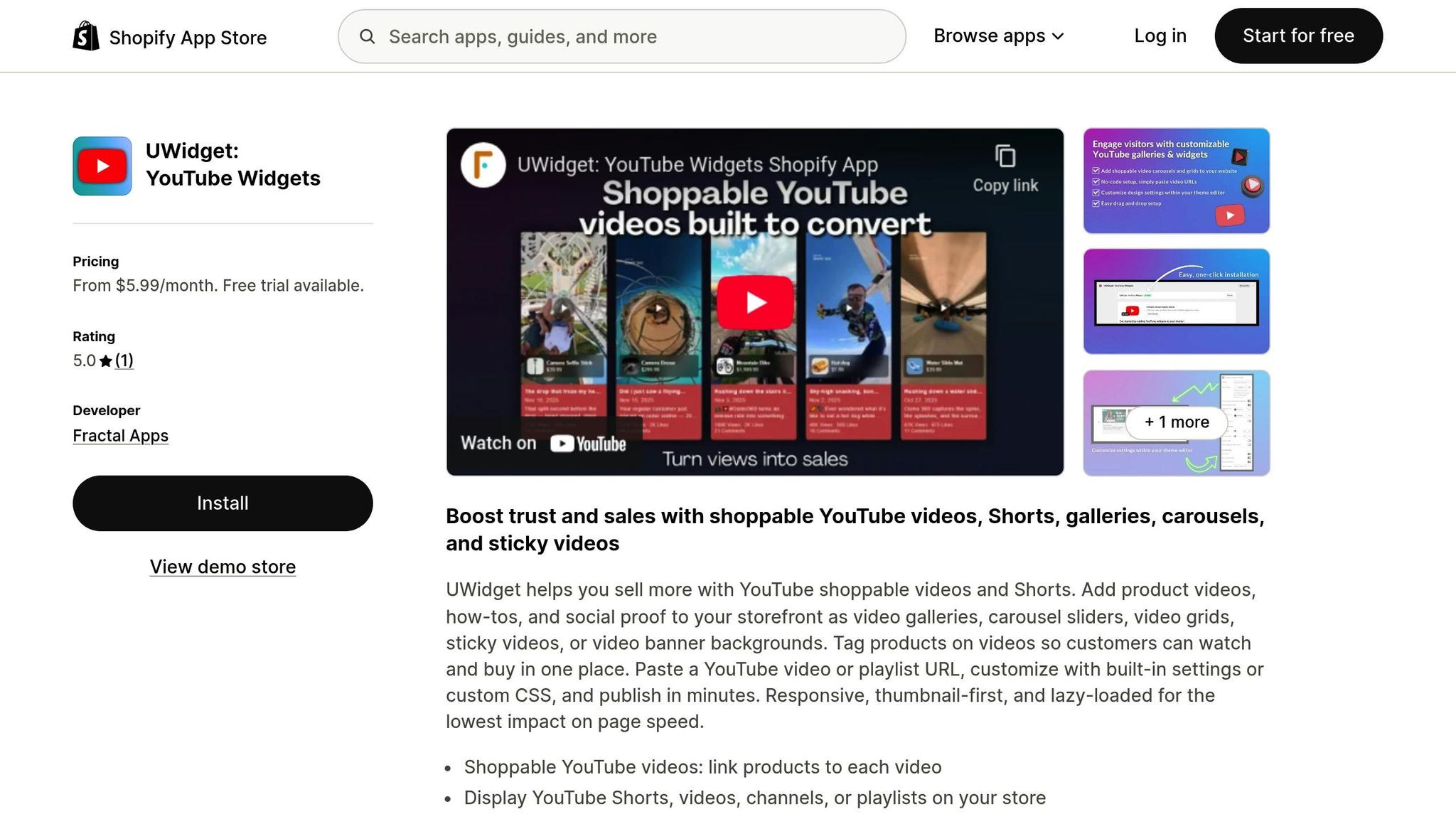
To get started, head over to the Shopify App Store and search for "UWidget: YouTube Widgets". Once you locate the app listing, click the "Add app" button. If prompted, enter your Shopify store URL. Carefully review the permissions screen to see what data the app will access, then click "Install app" to finalize the process.
The installation is quick - usually under a minute. Once it’s done, you’ll find UWidget in the "Apps" section of your Shopify Admin dashboard. From there, you can jump straight into creating your first shoppable video widget.
Using the UWidget Dashboard
The UWidget dashboard is your command center for creating and managing widgets. It’s designed to be user-friendly, letting you build video galleries, carousel sliders, video grids, sticky videos, or even video banner backgrounds all from one place. Each widget type comes with its own layout and customization options.
When you upload YouTube content, the dashboard assigns a "Content #" identifier to each video feed. Be sure to save these identifiers, as you’ll need them to connect widgets to specific theme pages. For those looking to fine-tune the design, the dashboard includes a custom CSS editor, allowing advanced styling beyond the default settings.
Additionally, UWidget provides analytics tools to track how customers interact with your videos. These insights can help you refine widget placement and improve performance over time.
Creating Shoppable Video Widgets
Selecting a Widget Type
In the UWidget dashboard, start by choosing a layout that fits your needs. There are five formats to pick from:
- Video Galleries: Perfect for dedicated pages where customers can explore multiple tutorials or product demos.
- Carousel Sliders: Great for homepages with limited vertical space, allowing visitors to swipe through videos easily.
- Sticky Videos: These stay visible as users scroll down product pages, keeping demonstrations in sight while shoppers review details.
- Video Banners: Ideal for creating immersive backgrounds in hero sections.
- Video Grids: A clean, uniform layout that works well for collection pages or showcasing multiple clips together.
Here’s a quick comparison to help you decide:
| Widget Type | Key Benefits | Best Use Case |
|---|---|---|
| Video Gallery | Showcases multiple videos clearly. | Dedicated "Video" or "Tutorial" pages. |
| Carousel Slider | Saves space; interactive swiping. | Homepages with limited vertical space. |
| Sticky Video | Stays visible while scrolling. | Product pages to highlight key features. |
| Video Banner | High-impact visual background. | Hero sections on the homepage. |
| Video Grid | Organized and uniform display. | Collection pages or "Social Proof" areas. |
Once you've chosen the right layout, connect your products to the widget to boost engagement and drive action.
Adding Product Tags to Videos
Import your video by pasting its YouTube URL into the UWidget dashboard. Then, tag products from your inventory directly in the video. These tagged products will show up next to the video player, making it easy for viewers to shop. This method has been shown to increase conversion rates by up to 80%.
When tagging, make sure the product is clearly visible in the video. For example, if you're highlighting a jacket, it should be easy for viewers to identify it in the footage.
"It allows shorts and videos to be displayed and easily integrated on my e-commerce store." - Wholesale Nursery Co, Shopify Merchant
Customizing Widget Design and Settings
Tailor your widget’s look and feel with layout options, color tweaks, and autoplay settings. For more precise branding, use the custom CSS editor to input exact hex codes for colors or select specific font families beyond the default options.
Widgets are designed to be responsive, ensuring they look great on both desktop and mobile devices. To keep page load times fast, enable lazy loading - this ensures videos load only when customers scroll to them, balancing performance with rich video content.
Embedding Shoppable Videos in Your Shopify Store

Generating the Embed Code
Once you've customized your widget, click Publish in the UWidget dashboard. This will automatically generate the embed code you’ll need. The dashboard also lets you manage all your published widgets, showing their current status and giving you quick access to the embed code for easy integration.
Adding Widgets to Shopify Pages
With your embed code in hand, it’s time to integrate it into your Shopify store. Start by opening your Shopify admin panel and navigating to Online Store > Themes > Customize. Add a new section or block where you want the video to appear, then select either Custom Liquid or Custom HTML. Paste the embed code into the block and save your changes.
For product pages, go to the Product Description editor in Shopify Admin. Switch to HTML view by clicking the </> icon, then paste the embed code. The same approach works for blog posts and static pages - open the page editor, switch to HTML mode, and drop the code into the content field.
Placing Widgets for Better Conversions
Where you place your widgets can make a big difference in how well they perform. On the homepage, try using video banners in hero sections or carousel sliders. These grab attention right away and help visitors quickly connect with your brand.
For product pages, sticky video widgets are particularly effective. They stay visible as customers scroll, making them perfect for tutorials or product demos that address common questions and build trust before checkout. On collection pages, consider adding video grids. These allow shoppers to explore related products within a category, making their browsing experience smoother and more engaging.
sbb-itb-d9e5b3a
Testing and Monitoring Performance
Testing Widgets on Desktop and Mobile
Once you've embedded your shoppable videos, it's time to ensure they work seamlessly on both desktop and mobile devices. This step is crucial, especially as mobile traffic in the US has consistently outpaced desktop traffic by at least 10% since July 2022. Start by visiting your live pages on both types of devices to check how the widgets appear.
Pay close attention to how the widget adapts to different screen sizes. While UWidget is designed to be responsive, it’s important to confirm that product tags are clearly visible, clickable, and don’t overlap with other page elements. On mobile, ensure that tap targets are easy to use and function smoothly. As video strategist Liana Turbureanu from Videowise points out:
"YouTube embed codes are not always responsive - which means your video may not properly resize with other page elements. This challenge negatively affects mobile users."
Also, test how quickly the widgets load on both desktop and mobile. UWidget employs lazy-loading technology, which ensures videos only load when they’re visible on the screen. This approach helps maintain fast page speeds - critical for conversions. For instance, a site that loads in just 1 second can achieve a conversion rate three times higher than one that takes 5 seconds to load. Checking compatibility across devices is essential to fully capitalize on the conversion potential of shoppable videos.
Once you're confident the widgets display correctly and perform well, you can move on to analyzing their performance using UWidget Analytics.
Tracking Performance with UWidget Analytics
The UWidget dashboard serves as your go-to tool for evaluating the effectiveness of your shoppable videos. By diving into analytics, you can ensure your interactive elements are driving conversions as intended. The dashboard provides insights into key metrics like views, clicks, and conversions, helping you fine-tune your strategy. Pay special attention to two types of revenue:
- Direct revenue: This occurs when customers add products to their cart and complete the purchase directly from the video player in the same session.
- Influenced revenue: This happens when viewers watch at least 5 seconds of a video but complete their purchase later in a separate session.
Keep an eye on how product tags perform. If your videos are getting plenty of views but few clicks, consider tweaking the thumbnails or refining product titles. It’s also worth comparing performance across different placements - a carousel on the homepage might behave differently than a sticky video on a product page. Device-specific data is especially valuable here, as mobile often accounts for nearly 75% of eCommerce visits. This means mobile optimization strategies may differ significantly from those for desktop users.
Conclusion
Key Benefits of Shoppable Videos with UWidget
Adding shoppable videos to your Shopify store with UWidget offers a seamless shopping experience by letting customers purchase directly from videos. This "watch and buy" feature simplifies the journey from product discovery to checkout, keeping shoppers engaged while building trust through authentic YouTube content like product demos, customer reviews, or influencer shoutouts.
Performance-wise, UWidget is designed to keep your site fast with its thumbnail-first, lazy-loading setup. Shoppable videos consistently outperform static images and text, driving higher conversion rates. Plus, with a 5.0/5 star rating on the Shopify App Store, the app is praised for its simplicity and effectiveness. By integrating this tool, you're not just enhancing the customer experience - you’re also setting your store up for measurable growth.
Next Steps for Shopify Store Owners
If you're ready to see the impact of shoppable videos, take advantage of a 7-day free trial on any UWidget plan. Plans start at just $5.99/month (Starter), with Pro at $13.99/month and Premium at $19.99/month. Embedding your first shoppable video is as simple as pasting a YouTube URL into the dashboard.
To maximize results, place widgets prominently on home and product pages, use YouTube Shorts for quick product highlights, and keep sticky videos visible for better engagement. Tagging multiple products can help increase the average order value, and testing on both desktop and mobile ensures a smooth experience for all users.
The numbers are clear: 92% of internet users watch videos monthly, and shoppable video widgets have been shown to boost conversion rates by 3–5X. You can launch your first shoppable video in just minutes - start now and see the difference.
FAQs
How can UWidget shoppable videos help increase sales on Shopify?
UWidget's shoppable videos bring your products to life by showing them in action, making them more engaging and relatable for shoppers. With just a click, customers can add items directly to their cart while watching the video, simplifying the buying process and cutting down on extra steps. This smooth and interactive experience helps build trust and confidence, motivating customers to make faster purchase decisions.
How do I add UWidget to my Shopify store?
Getting UWidget: YouTube Widgets up and running on your Shopify store is straightforward. Here’s how you can do it:
- Head over to the Shopify App Store and search for UWidget: YouTube Widgets. You can also go straight to the app’s listing if you have the link handy.
- Click Add app, then enter your store’s URL when prompted.
- Hit Install app, review the permissions requested, and confirm the installation.
- Once the app is installed, navigate to the Apps section in your Shopify admin to finish setting it up. From there, you’ll be ready to embed YouTube videos, playlists, or Shorts directly into your store.
Pricing for UWidget starts at $5.99 USD per month, and there’s a free trial available to help you explore its features. It’s a simple way to make your store more engaging by incorporating shoppable videos that can drive conversions.
How can I measure the performance of my shoppable videos with UWidget?
UWidget doesn’t come with built-in analytics to monitor how your shoppable YouTube videos perform. However, Shopify’s native reporting tools, like sales-by-source and product-view-to-conversion data, can provide valuable insights into how these videos impact your store’s performance.
If you’re looking for more video-specific data, you might want to integrate a video analytics platform compatible with Shopify. These platforms can track metrics such as video-influenced orders, conversion rates, and watch-through rates. This kind of detailed information can help you understand how your videos are driving both sales and engagement.
By combining UWidget’s visual capabilities with external analytics tools, you’ll have the information needed to refine your shoppable video strategy and achieve better outcomes.