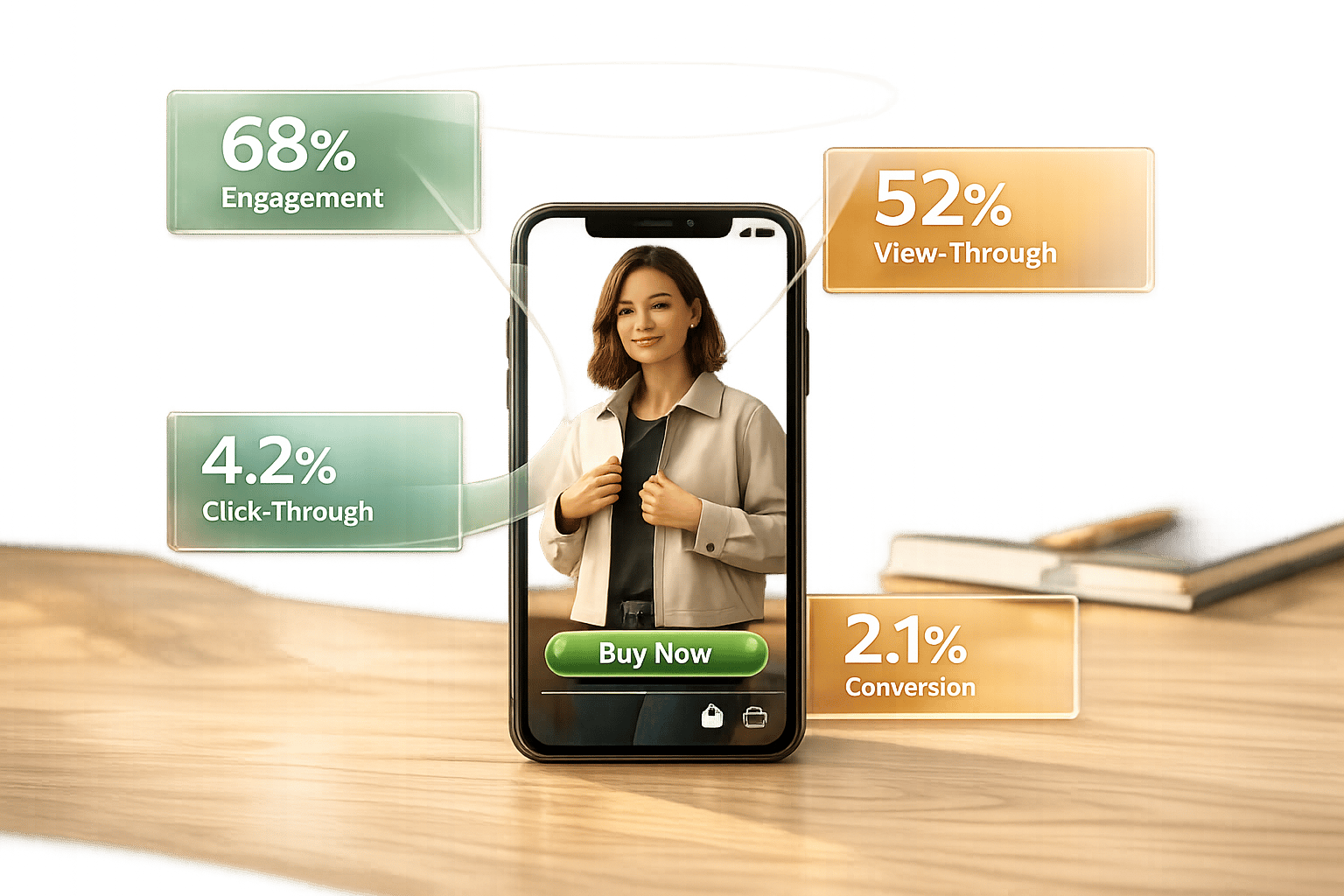
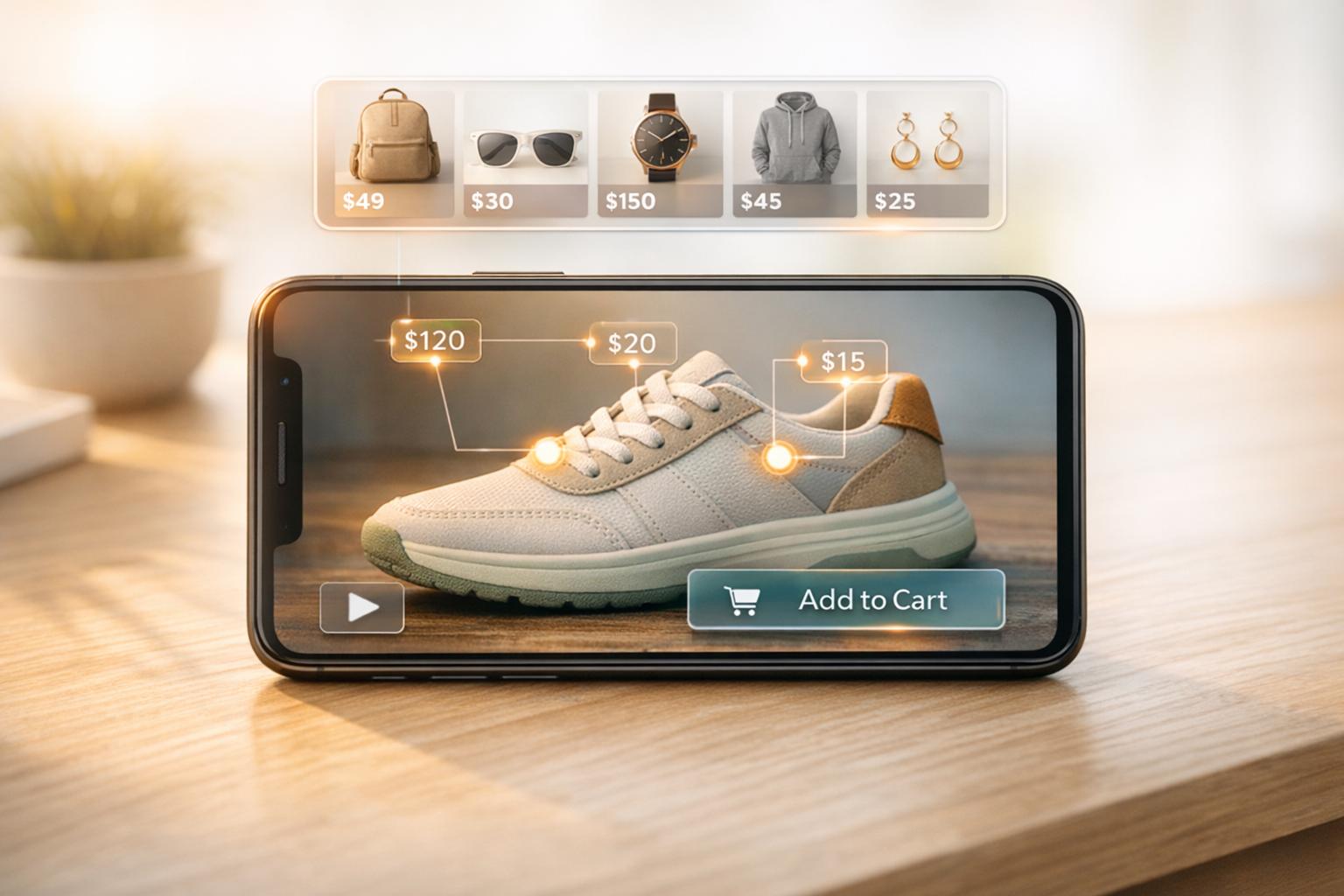
Embedding product videos on Shopify can significantly boost sales, improve customer trust, and enhance user experience. Here’s why it matters and how to do it right:
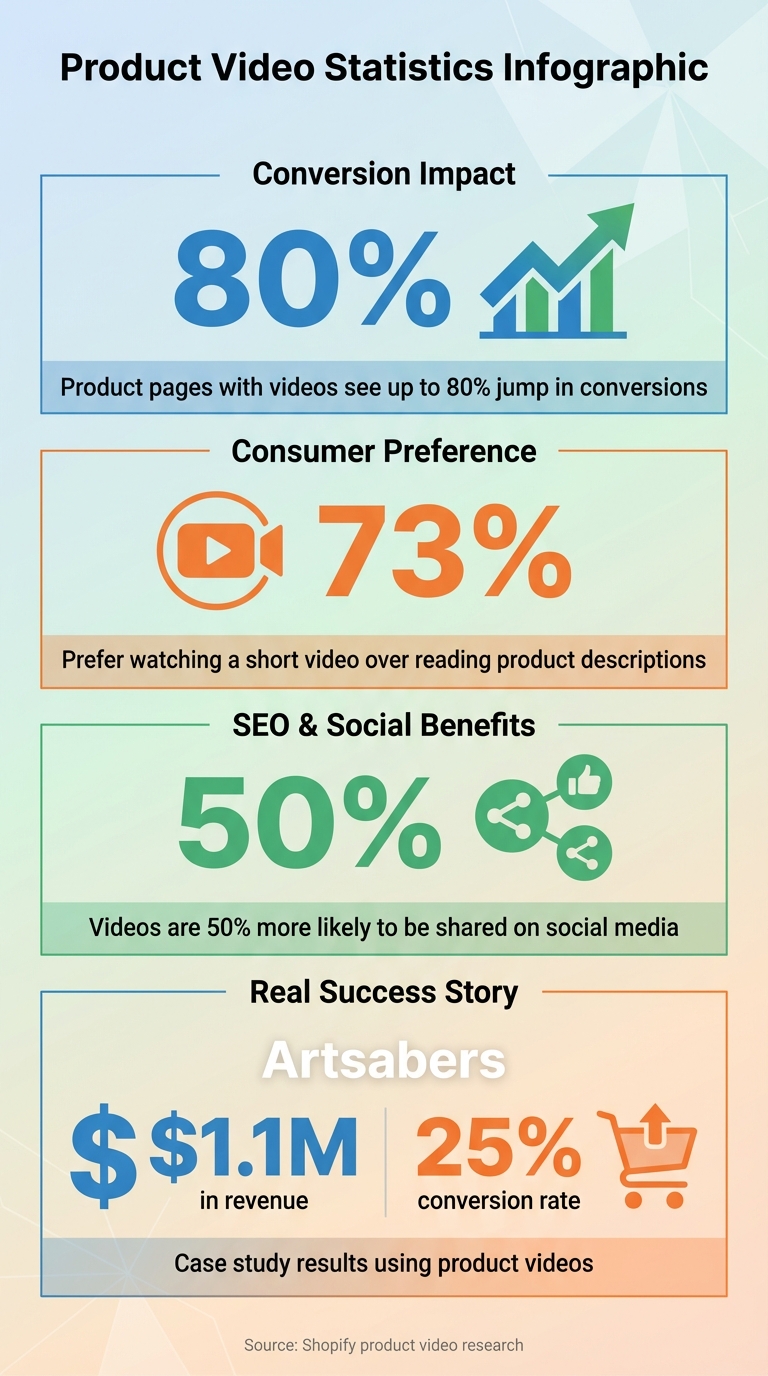
- Videos increase conversions: Product pages with videos can see up to an 80% jump in conversion rates.
- Consumers prefer videos: 73% of shoppers would rather watch a short video than read a product description.
- SEO benefits: Videos improve search rankings and are 50% more likely to be shared on social media.
- Examples of success: Artsabers used product videos to generate $1.1M in revenue and achieve a 25% conversion rate.
Quick Tips for Success:
- Use MP4 (H.264) files for compatibility and keep file sizes under 20 MB for faster loading.
- Stick to 1080p resolution with a 24–30 fps frame rate for quality without buffering.
- Place videos in the product image gallery for maximum visibility.
- Add clear CTAs like “Buy Now” or “Add to Cart” within or after videos.
- Optimize for mobile with responsive embed codes and lazy loading to improve page speed.
- Monitor metrics like watch time, completion rate, and video-assisted sales to refine strategy.
By following these steps, you can make videos a powerful tool for driving sales and improving your Shopify store’s performance.
Product Video Impact Statistics for Shopify Stores
Tutorial: How to Embed Videos on Shopify Pages, Products, and Themes

Technical Requirements for Adding Videos to Shopify
To ensure your videos display seamlessly on Shopify across all devices, it’s important to follow the platform’s specific guidelines for format, size, and quality. Here's what you need to know.
Video File Formats and Sizes
Shopify works best with MP4 (H.264) files, as they’re compatible with nearly all browsers and devices. While the platform also accepts .mov and .webm uploads, Shopify automatically converts everything to .mp4 or HLS format to maximize compatibility.
Even though Shopify supports files up to 1 GB, it’s better to keep your videos lightweight - aim for 5 to 10 MB (and definitely under 20 MB) to ensure faster page loading times. Using compression tools can help reduce file size without significantly affecting quality.
Resolution and Quality Guidelines
Stick to a maximum resolution of 1080p to balance professional quality with quick loading speeds. While 4K videos may look impressive, they often lead to buffering issues, especially on mobile devices.
For 1080p resolution, aim for a 2–5 Mbps bitrate and a frame rate of 24–30 fps. If your primary audience is on mobile, 720p resolution is a practical choice. For audio, use AAC compression at 128 kbps - this ensures clear sound without unnecessarily increasing file size.
Optimal Video Duration
Once your video meets the technical requirements, focus on tailoring its length to your audience and purpose.
- Short clips (15 seconds) work well for emphasizing a single feature.
- Longer videos (90 seconds to 2 minutes) are ideal for showcasing a product’s broader story.
- Detailed tutorials or demonstrations can go up to 10 minutes, which is also Shopify’s upload limit for direct video files.
Keeping videos between 30 and 60 seconds is often the sweet spot for grabbing attention and delivering key details efficiently. Adjust your video length based on its goal, whether it’s a quick highlight or an in-depth explanation.
Methods for Embedding Videos on Shopify Pages
Shopify provides multiple ways to integrate videos into your product pages. Depending on your workflow and needs, you can choose from direct uploads, third-party hosting platforms, or Shopify themes and apps. Here's how each method works:
Direct Upload via Shopify's Product Media Section
The easiest option is uploading videos directly through Shopify's media manager. On a desktop, go to Products in your Shopify admin, select the product you want to update, and look for the Media section. Click Upload new to drag and drop your video files or choose from previously uploaded media. On mobile, open the Shopify app, select the product, and tap + in the Media section to add your video.
Shopify's media manager supports smooth playback across devices, but storage limits depend on your plan. For example, the Basic plan includes 50 GB of storage, while Shopify Plus offers up to 1 TB. Keep in mind, each product can hold up to 250 media items.
Using Third-Party Platforms (YouTube, Vimeo)
If you're working with larger files or want to reuse existing YouTube content, embedding from platforms like YouTube or Vimeo is a great alternative. On desktop, go to the Media section, select Add from URL, and paste the video link. For mobile users, look for the YouTube or Vimeo URL field and enter the link there. Ensure YouTube videos are set to "Public" or "Unlisted", and enable external embedding for Vimeo content.
A quick tip: YouTube Shorts URLs won't work directly in Shopify's URL field. To make them compatible, convert the link to the standard format: https://youtube.com/watch?v=[video-id].
For more control over how your YouTube videos appear, consider using tools like UWidget. This app offers customizable video displays, including carousel layouts and video grids, and supports YouTube Shorts. Its lazy-loading design helps maintain fast page speeds, with pricing starting at $5.99/month for the Starter plan and going up to $19.99/month for the Premium plan.
Using Shopify Themes and Page Builder Apps
For greater customization, Shopify themes and page builder apps are excellent options. Many modern Shopify themes built on Online Store 2.0 - like Dawn, Debut, and Brooklyn - natively support product videos. These themes automatically optimize video responsiveness through the product media section, making setup simple.
If you're looking for advanced features, page builder apps can add shoppable tags or enable bulk video embedding. Many of these apps feature drag-and-drop interfaces and are designed with performance in mind, ensuring your store remains fast and user-friendly.
Design and Placement Tips for Product Videos
Where to Place Videos on Product Pages
The product image gallery at the top of your page is the ideal spot for product videos. Studies reveal that 41% of users actively look for videos and expect to find them alongside product images. By placing videos prominently in the gallery, you align with customer expectations and make them easy to find.
Avoid tucking videos away in the product description or behind tabs. Instead, ensure they are front and center in the gallery, marked with a clear play icon overlay to grab attention.
For longer product pages, you can include additional videos - such as customer testimonials - within the description section. This approach reinforces your message and keeps users engaged. However, your primary video should always remain in the gallery, where buying intent tends to be the strongest.
Visibility is key - it sets the foundation for driving conversions through well-placed calls to action.
Adding Clear Calls to Action (CTAs)
To turn video views into purchases, include clear, actionable CTAs like "Add to Cart" or "Buy Now" directly within or immediately following your videos. For shoppable videos, interactive product tags allow customers to click on items as they appear on the screen, creating a seamless shopping experience.
Make sure your CTAs are mobile-friendly, using large, easy-to-tap buttons. Experiment with different wording, such as "Buy Now" versus "Learn More", to see which generates the best response.
A well-thought-out layout can amplify the impact of these strategies, which brings us to the importance of organizing content effectively.
Using Section Dividers to Organize Content
For long product pages, clear visual organization is essential. Section dividers can break up dense text and video content, making the page easier to navigate. Tools like DivideItUp let you add customizable dividers that create clean, logical breaks between sections like video content, product details, and customer reviews. These visual cues reduce clutter and help guide shoppers through the page smoothly.
| Placement Location | Best For | Key Consideration |
|---|---|---|
| Product Image Gallery | Maximum visibility; aligns with user expectations | Always use a clear play icon overlay |
| Dedicated Video Section | Social proof and testimonials | Repeat key videos in the gallery |
sbb-itb-d9e5b3a
Optimizing Videos for Mobile and Responsive Design
Since July 2022, mobile traffic in the United States has consistently outpaced desktop traffic by at least 10%. This shift makes it crucial to optimize videos for mobile users to tap into this audience and boost conversion rates. Beyond following the file and format guidelines, focus on ensuring videos are responsive and load quickly on smaller screens. A video that looks flawless on a desktop can disrupt layouts or cause horizontal scrolling on mobile if not properly optimized.
Using Responsive Embed Codes
To make your videos truly adaptable to any screen size, use the CSS aspect-ratio property (e.g., aspect-ratio: 16/9). This approach simplifies scaling for different devices and replaces outdated methods with cleaner, more manageable code. For videos hosted on platforms like YouTube or Vimeo, wrap them in a responsive container to avoid layout issues. When embedding YouTube videos, opt for the youtube-nocookie.com URL to enable Privacy-Enhanced Mode, and always include a title attribute on iframes to improve accessibility.
Once you've set up responsive embeds, prioritize fast loading by incorporating lazy loading techniques.
Lazy Loading for Faster Page Speed
YouTube embed scripts can be hefty, often exceeding 600 KB, which can significantly slow down your page's initial load time. By using native lazy loading, you can defer video loading until the user scrolls the content into view. Simply add the loading="lazy" attribute to your iframe. For example, Artsabers implemented a "load-on-click" player that reduced script weight from around 600 KB to just 100 KB, saving valuable load time.
After addressing load times, ensure your videos perform seamlessly across different devices and browsers.
Testing Across Devices and Browsers
Don’t assume your videos will function perfectly on all devices without testing. Use tools like Chrome DevTools with Lighthouse, Embed Responsively, and Shopify Analyzer to audit performance, confirm responsive embed codes, and catch any issues early.
It’s essential to test on both iOS (Safari) and Android (Chrome) devices. Keep in mind that some formats, like WebM, may not work on older Apple devices, so providing an MP4 fallback is a smart move.
| Video Format | Mobile Compatibility | Best Use Case |
|---|---|---|
| MP4 (H.264) | Universal (High) | General product videos, social media |
| WebM | High (except older Safari/iOS) | Background loops, fast-loading motion |
| AV1 | Moderate (Limited on Apple) | High-efficiency compression for Chrome/Android |
Monitoring and Analyzing Video Performance
Keeping tabs on how videos perform in your Shopify store can reveal a lot about their impact on sales. It’s important to distinguish between two types of video-driven sales: direct sales, where customers make a purchase immediately after watching, and influenced sales, where a video sparks interest that leads to a purchase later on. Both types offer insights into how videos shape the customer journey.
"Direct sales revenue is the holy grail of on-site video marketing. A higher number indicates that your videos are compelling enough for visitors to take immediate action."
- Liana Turbureanu, Videowise
Key Metrics to Monitor
When analyzing video performance, focus on metrics that truly matter. For example, watch time is more informative than just counting views, as platforms like YouTube prioritize total viewing minutes. Other critical metrics include:
- Average view duration: How long viewers stick around.
- Completion rate: The percentage of people who watch your video all the way through.
- Engagement rate: The percentage of visitors interacting with your video widget.
- Average video order value: Total revenue from video-related purchases divided by the number of those orders.
- Session time added: How much longer shoppers stay on your site after watching a video.
These numbers help you understand how well your videos retain viewers and contribute to sales.
Using Analytics Tools
To get a clearer picture of video performance, link Shopify to GA4 through the Google & YouTube channel. This integration lets you see how video interactions tie into your store’s overall performance. For videos hosted on YouTube, YouTube Studio provides detailed insights, such as audience retention and the search terms driving traffic to your content.
If you’re using Shopify apps like UWidget (from Fractal Apps: Exclusive Shopify Apps) to embed YouTube widgets, their built-in dashboards can track shoppable metrics that traditional analytics might miss. Real-time reporting is another great feature for spotting view spikes as they happen.
Finally, don’t forget to experiment. A/B test different video lengths and calls-to-action (CTAs). For instance, compare a 15-second version of a video to a 60-second one to see which drives the most conversions. These tests can uncover what resonates best with your audience.
Conclusion
To ensure smooth video delivery, stick to the technical basics: use MP4 (H.264) for compatibility, compress files to stay under 20MB, and enable lazy loading for faster page performance. As Chloe West from Shopify aptly says, "If a picture is worth 1,000 words, then video has the ability to convey an incredible amount of information very quickly".
Make sure your videos are easy to spot and pair them with clear calls to action. Keep them short - 30 to 60 seconds works well for showcasing products - and always include a direct prompt like "Buy Now" or "Learn More." If you're juggling multiple videos, tools like UWidget from Fractal Apps can simplify embedding YouTube content while keeping load times in check.
These strategies do more than just improve user experience - they deliver results. Data backs this up: product videos boost trust and conversions. For example, Artsabers saw impressive outcomes, generating over $1.1M in revenue with a 25% conversion rate after adopting shoppable video widgets.
Don’t forget to keep an eye on your videos’ performance. Regularly analyze metrics like watch time, completion rates, and video-assisted sales through platforms like GA4. A/B testing different video lengths - such as 15 seconds versus 60 seconds - can also help you fine-tune engagement. These insights are crucial for improving your strategy and maximizing ROI.
Start small with one or two high-quality product videos, implement these best practices, and monitor the results. By combining smart optimization, strategic placement, and ongoing performance checks, you can improve the shopping experience and drive meaningful revenue growth for your store.
FAQs
What are the best ways to make product videos load faster on Shopify?
To make sure your product videos load faster on Shopify, consider hosting them on platforms like YouTube. These platforms automatically adjust video quality based on the viewer's internet speed, which helps keep your page loading quickly.
Another smart approach is using lazy loading. With this method, you display a thumbnail image first, and the video loads only when a user clicks on it. This keeps the initial page load lighter and improves overall performance. Steer clear of embedding large video files directly into your Shopify pages, as that can significantly slow down your site.
You can also optimize further by deferring or loading video scripts asynchronously. Tools like UWidget for YouTube widgets can be a great way to maintain site speed while keeping your videos engaging for users.
Why is the MP4 format ideal for embedding product videos on Shopify?
The MP4 format stands out for offering great video quality while maintaining manageable file sizes. This combination helps websites load faster, which is crucial for ensuring a seamless shopping experience and keeping visitors interested.
On top of that, MP4 works well with most devices and browsers, making it a dependable option for connecting with a wide audience without running into technical hiccups. Its flexibility and efficiency make it an excellent choice for adding product videos to Shopify pages.
How can I monitor the performance of product videos on my Shopify store?
To get a clear picture of how your product videos are performing on Shopify, you'll need an analytics tool that tracks video engagement and its influence on your store's results. Pay attention to metrics like video-influenced orders, average session duration, and on-site engagement rates. These numbers reveal how your videos are resonating with customers and contributing to sales.
By analyzing these metrics, you can fine-tune your video content and adjust where it's placed on your site. This ensures you're connecting with your audience effectively and boosting conversions.