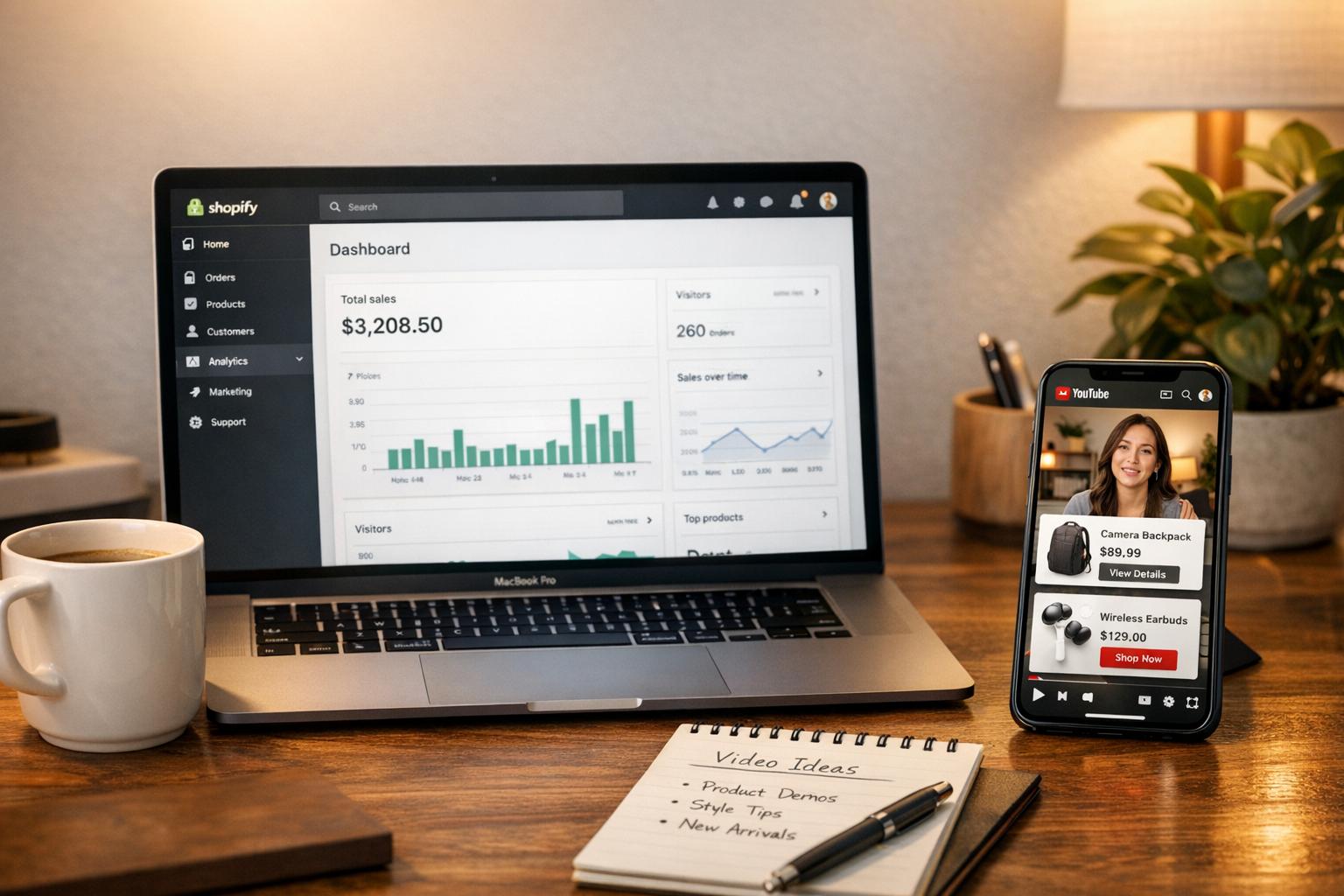
Shoppable YouTube galleries let you turn videos into shopping tools. Instead of customers leaving your site to search for products, these galleries allow them to shop directly while watching videos. Here's how they work:
- Embed YouTube videos, Shorts, or channels directly into your Shopify store.
- Tag products in videos, enabling customers to add items to their cart without leaving the page.
- Display videos in formats like grids, sliders, or sticky players that follow users as they scroll.
Why use them?
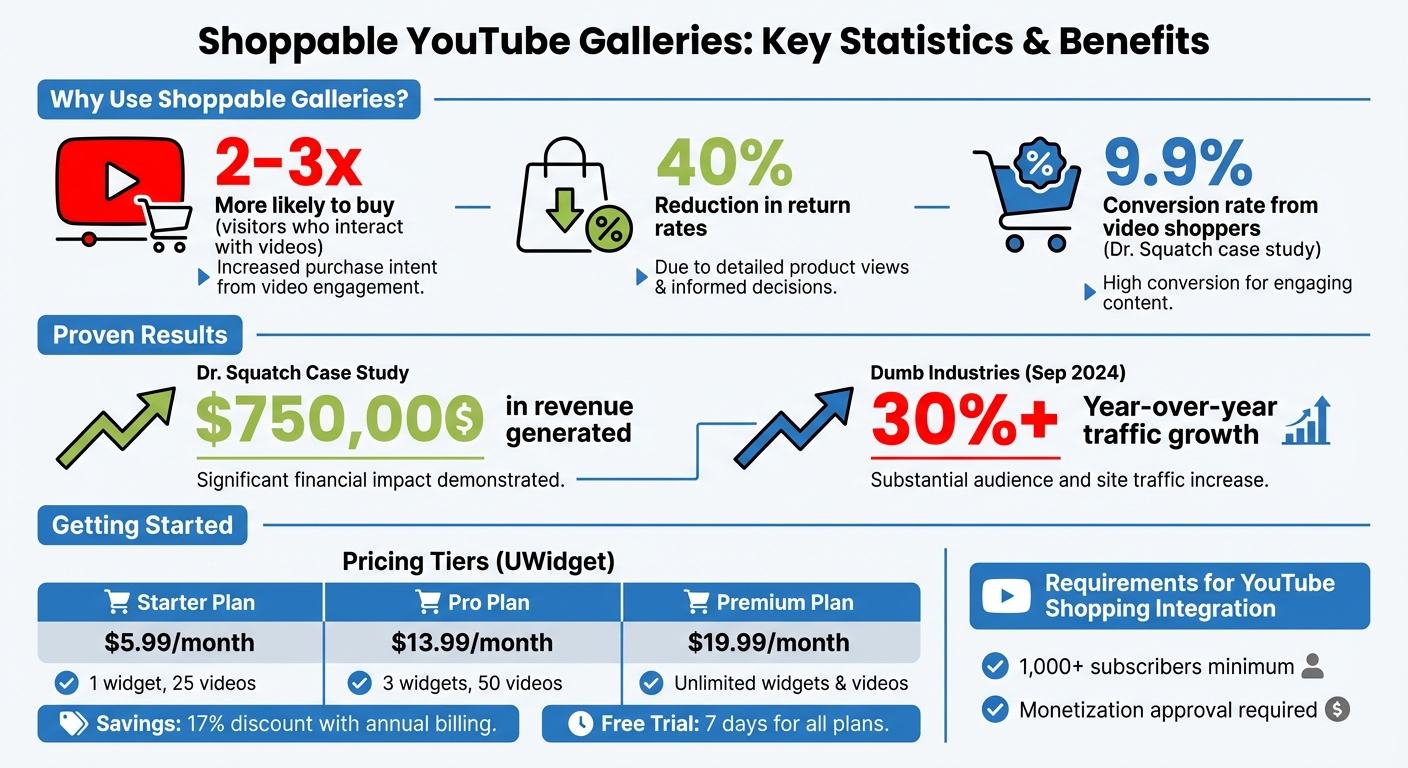
- Video content boosts engagement and conversions: Visitors who interact with videos are 2-3 times more likely to buy.
- Reduce returns: Videos provide detailed product views, cutting return rates by 40%.
- Proven results: Brands like Dr. Squatch saw a 9.9% conversion rate from video shoppers, generating $750,000 in revenue.
How to get started:
- Install apps like UWidget on Shopify (starting at $5.99/month).
- Paste YouTube links, tag products, and customize the gallery layout. To maximize impact, focus on creating compelling video content tailored to your specific audience.
- Place galleries on key pages like the homepage, product pages, and blogs.
Shoppable galleries turn passive viewers into buyers, making them a smart addition to any online store.
Shoppable YouTube Gallery Benefits and ROI Statistics
Setting Up Your First Shoppable Gallery
Installing UWidget
Getting started with UWidget is quick and straightforward. Head over to the Shopify App Store and search for "UWidget: YouTube Widgets." Click on "Add app", enter your store's URL, and confirm the installation. The app will request permission to access your Shopify Admin to view your products and collections and to modify your Online Store theme. These permissions are essential for the widget to work correctly.
UWidget offers a 7-day free trial for all plans. Pricing begins at $5.99/month for the Starter plan (1 widget, 25 videos), $13.99/month for the Pro plan (3 widgets, 50 videos), and $19.99/month for the Premium plan, which includes unlimited widgets and videos. If you opt for annual billing, you can save around 17% compared to monthly payments.
Once installed, you're ready to set up your first gallery.
Creating and Configuring Your Gallery
With UWidget now installed, it's time to create your shoppable gallery. Open UWidget from your Shopify admin panel. To add content, simply paste a YouTube video, playlist, or channel URL. The app will automatically fetch the content and display thumbnails for each video.
To make your gallery interactive, you can tag products to specific videos. This allows customers to click on a product linked to a video and add it directly to their cart - without ever leaving the video player. You can choose from various display options, such as video galleries, carousel sliders, video grids, sticky videos that follow users as they scroll, or even video banner backgrounds.
The app uses lazy loading with a thumbnail-first approach, ensuring that your page remains fast even with multiple videos. You can further customize the gallery's appearance using built-in settings or custom CSS. It’s fully responsive and works seamlessly with YouTube Shorts, making it ideal for vertical video formats on mobile devices.
"I am pleased with this app. It allows shorts and videos to be displayed."
Once you've configured your gallery, publishing the widget to your storefront takes just a few minutes.
sbb-itb-d9e5b3a
Customizing and Improving Gallery Performance
Adjusting Design and Layout
Your gallery should feel like a natural extension of your store, blending seamlessly with your brand's aesthetics. Using the RGBA color pickers in UWidget, you can match headers, buttons, tabs, and backgrounds to your store's color scheme. Whether you’re on the Starter plan ($5.99/month) or the Premium plan ($19.99/month), you also have access to custom CSS for advanced styling.
When choosing a layout, think about what fits your content's purpose. Grid layouts are perfect for showcasing multiple videos at once, making them ideal for dedicated video sections. List layouts give more space for descriptions, which works well for tutorials or storytelling. If you want to add some motion to your homepage, sliders and carousels are great options. For video playback, consider whether inline viewing (keeping users on the page) or popup lightboxes (focused viewing) suits your needs better.
If your store has a large video library, organizing content is key. Use categories like "Tutorials", "Customer Stories", or "Behind the Scenes" and add navigation tabs. Features like search bars and navigation controls (arrows, dots, or scroll) can help customers quickly find what they’re looking for.
Don’t forget to preview your gallery on mobile devices. Adjust the column count to 1–2 for smaller screens and ensure buttons and links are easy to tap. UWidget's responsive design and lazy loading features also help maintain fast page speeds, even with multiple videos.
These design tweaks create a polished, user-friendly gallery that’s ready to support better conversions.
Improving Conversion Rates
An engaging, well-placed video gallery can make all the difference in driving sales. To maximize impact, tag products directly in your videos for instant shopping opportunities. Place product demo galleries on product pages, include unboxing videos under product descriptions, and showcase customer testimonials prominently on your homepage. Sticky video players are another great tool - they keep high-converting content visible as users scroll.
To refine your strategy, track your gallery’s performance. Focus on metrics like engagement rates (how many users click on a widget) and completion rates (how many viewers watch an entire video). If viewers aren’t finishing videos, try shortening them or making the opening seconds more attention-grabbing. Pay attention to videos that drive the most revenue, and replicate their format, style, or length in future content.
Experiment with placement across your store. Use analytics to identify which pages - homepage, product pages, or collection pages - generate the most engagement with video galleries. Once you know the hotspots, prioritize those areas. Also, configure videos to play inline or in popup lightboxes instead of redirecting users to YouTube. Keeping visitors on your Shopify store increases the chances of conversion.
Placing Galleries Throughout Your Store
Strategically positioning galleries across your store can do more than just enhance their performance - it can also boost conversions.
Adding Galleries to Key Pages
Placing a shoppable YouTube gallery in the right spots can turn it into a powerful sales tool. For example, adding a gallery to your homepage can highlight brand stories, new product launches, or key video content. A grid layout works well for showcasing featured videos, while sliders are perfect for dynamic content that doesn't take up too much space.
On product pages, placing galleries below product descriptions allows shoppers to watch unboxing videos, tutorials, or reviews right where they’re making purchase decisions. Similarly, collection pages can benefit from galleries that visually explain the distinct appeal of a product category.
For blog posts and static pages, embedding galleries into how-to guides or educational articles can keep readers engaged while subtly promoting your products.
Using Analytics to Improve Results
Once your galleries are in place, analytics can help you measure their effectiveness and fine-tune your strategy. A key metric to track is the engagement rate by page, which is calculated by dividing widget clicks by the total number of page visitors. For instance, if a homepage gallery receives 500 clicks from 2,000 visitors, that’s a 25% engagement rate - a useful benchmark.
It’s also important to differentiate between purchases made immediately after watching a video and those influenced by brief views that lead to later sales. Another valuable metric is session duration. If visitors spend more time on a page with video content, it’s a strong indicator that the placement is working. Use top pages reports to identify which URLs generate the most video-driven revenue and test different gallery formats - like grids or carousels - to see which one gets the best results.
Regular A/B testing between sessions with video engagement and those without can provide further insights, helping you refine your strategy. These adjustments ensure your video galleries are optimized for maximum impact while preparing you to address any integration challenges down the line.
Fixing Common Problems
After setting up your shoppable gallery, you might run into a few bumps, like display glitches or product syncing hiccups. Most of these fall into two main categories: display issues and product sync failures. Here's how to troubleshoot them effectively.
Fixing Embedding and Display Issues
If your gallery isn't showing up, the first step is to double-check where you pasted the widget code. It should go into Shopify's HTML/Liquid editor, not the visual editor.
For YouTube integration, ensure you're using the correct channel ID-based URL (e.g., youtube.com/channel/UCkRfArvrzheW2E7b6SVT7vQ) instead of a custom handle. To locate your channel ID, log into YouTube, navigate to Settings > Advanced settings, and copy the "Channel ID" to create the proper URL.
If videos appear as blank frames or only display when you're logged in, review your YouTube video settings. In YouTube Studio, ensure "Allow embedding" is enabled under the "License and distribution" section. Videos that are private or have embedding disabled won't show up in your gallery.
Testing your gallery in an incognito browser window can rule out interference from ad blockers or privacy tools. If it works fine in incognito mode but not in your regular browser, the issue is likely caused by one of these extensions.
For "This video is unavailable" errors, you may need to tweak your theme's video settings. Open the video.liquid file in your theme and change the video loading attribute from lazy to eager. This forces the video to load immediately, resolving the issue.
Once your display problems are sorted, it's time to tackle potential product sync issues.
Resolving Product Sync Issues
Product sync problems in YouTube Shopping with Shopify often stem from incomplete setup steps. Start by ensuring your YouTube channel meets the basic requirements: at least 1,000 subscribers and approval for monetization. Also, confirm that the email registered with your YouTube channel matches a Shopify staff account with full permissions.
Next, check your product data in the Google & YouTube sales channel for any "red errors." These errors often pop up when products are missing GTINs or barcodes or aren't assigned to the "Google" market in Shopify. If product images are pending a crawl or experiencing crawl errors, syncing will stall until those issues are resolved.
If synced products are redirecting customers to your online store instead of enabling in-app checkout, make sure you've completed the setup under Sales channels > Google & YouTube > Settings > YouTube embedded checkout. Also, verify that your shipping settings are fully configured in your Google Merchant Center account.
Finally, avoid using multiple data feed apps. Stick to one to prevent conflicts. As Shopify Partner EmmanuelFlossie advises:
"For Google Merchant Center you should only use 1 data feed app, to avoid issues."
Using multiple feeds can create problems, as the Google & YouTube app API may overwrite settings from other third-party tools. By sticking to a single feed source, you can avoid unnecessary errors and keep your sync running smoothly.
Conclusion
Shoppable YouTube galleries give Shopify store owners a practical way to turn video content into direct sales. By tagging products in videos, you can create a seamless watch-and-buy experience that keeps customers engaged and moves them quickly toward checkout.
There’s flexibility in how you can implement this. Apps like UWidget offer straightforward setups with adjustable layouts, while the official YouTube Shopping integration is ideal for channels with over 1,000 subscribers. Both options let you showcase videos as grids, sliders, or carousels, whether you’re placing them on your homepage for storytelling, product pages for tutorials, or blog posts to deepen customer engagement.
Once set up, execution matters. Opt for widgets that use lazy-loading and thumbnail-first displays to maintain fast page speeds, and always test your gallery on mobile devices since most shoppers browse on their phones. To make navigation easier, organize videos into tabs like “Tutorials” or “Customer Stories.” Customizing the gallery’s colors to match your branding ensures it blends seamlessly with your store’s design.
The impact can be significant. For example, in September 2024, Dumb Industries added a centralized YouTube gallery to their homepage and saw their website traffic grow by over 30% year-over-year. This demonstrates how well-structured video galleries can boost engagement and drive results.
Whether you’re building from scratch or refining an existing setup, shoppable galleries bridge the gap between your social media presence and your e-commerce efforts. They not only help grow your subscriber base but also turn video content into a powerful sales tool.
FAQs
Will shoppable YouTube galleries slow down my Shopify store?
Shoppable YouTube galleries can increase engagement on your Shopify store without compromising its speed - if optimized correctly. To keep things running smoothly, focus on a few key practices:
- Compress videos: Smaller file sizes mean faster load times.
- Enable lazy loading: This ensures videos load only when needed, reducing the initial page load burden.
- Leverage YouTube's CDN: Hosting videos on YouTube's Content Delivery Network takes the strain off your own server.
These steps help maintain your store's performance while keeping the interactive features intact.
What’s the best place to add a shoppable video gallery on my site?
The ideal spot for a shoppable video gallery depends on what you’re aiming to achieve and how your customers navigate your site. A common choice is the homepage - it’s perfect for catching attention and sparking interest right away. Another great option is on product pages, where you can showcase specific items and drive purchases. Placing the gallery in these key areas makes it easier for customers to find, explore, and shop directly from your videos.
Why aren’t my YouTube videos or tagged products showing up?
If your YouTube videos or tagged products aren't showing up, it could be due to a few common issues. Here's what to look out for:
- Product Tags Timing: Make sure product tags are added at the right moments in your videos to align with relevant scenes or actions.
- Tag Visibility: Tags should be clear, unobstructed, and easy for viewers to notice without distractions.
- Video Embedding: Double-check that your videos are embedded properly on your website.
Additionally, confirm that your setup works well on mobile devices, and review app settings to ensure tags are placed correctly within the video timeline.