<article>
7 Steps to Optimize Shopify Video Load Times
Make Your Shopify Store Faster: Compress Videos the Right Way

Slow videos can hurt your Shopify store in big ways: lower search rankings, frustrated shoppers, and lost sales. But with the right steps, you can fix this quickly. Here’s what works:
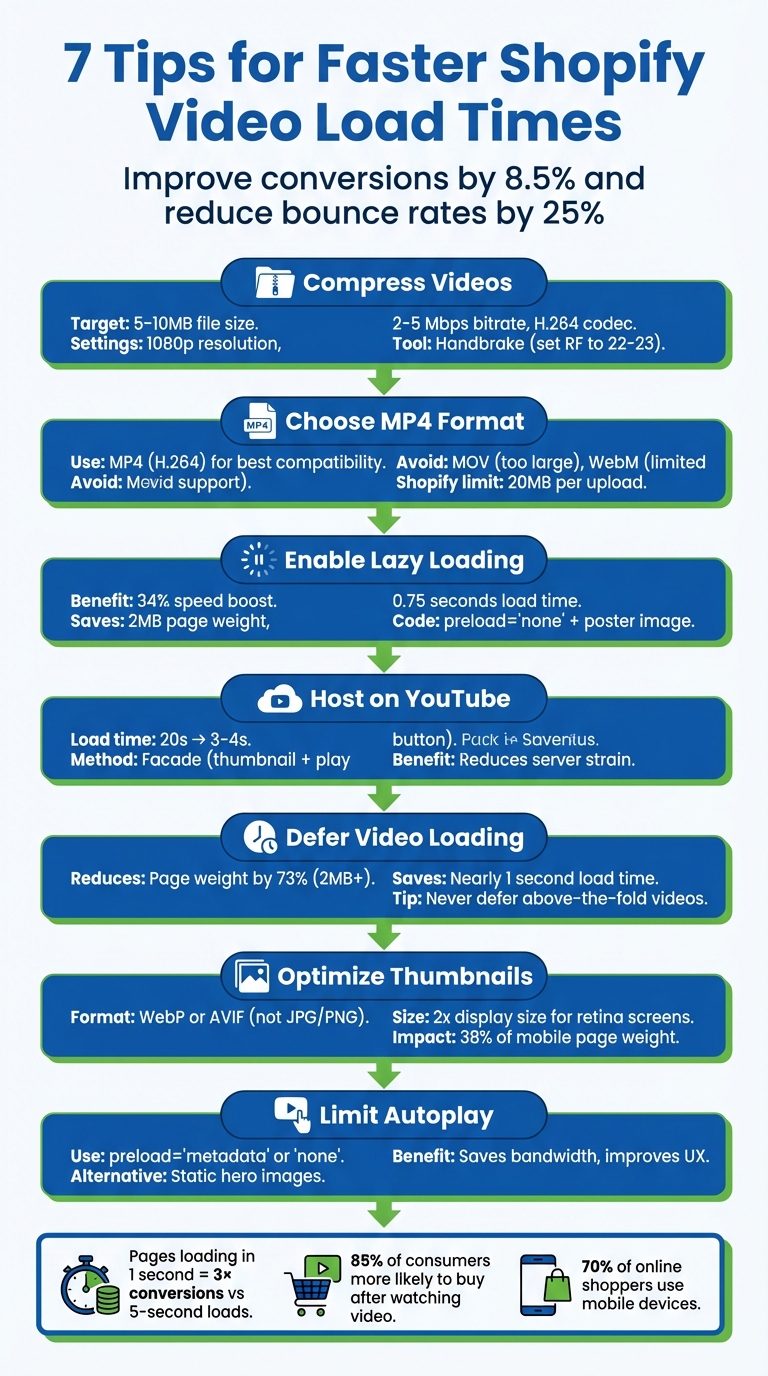
- Compress video files: Smaller files load faster. Aim for 5-10MB using tools like Handbrake. Stick to 1080p resolution and H.264 codec for an ideal balance of quality and speed.
- Use MP4 format: Shopify supports .mp4 and .mov, but MP4 (H.264) is the best choice for fast, compatible videos across all browsers.
- Enable lazy loading: Delay video downloads until they’re needed. This reduces page load times and improves user experience, especially on mobile.
- Host videos on YouTube: Use YouTube’s CDN to reduce server strain. For faster loading, display a thumbnail and load the video only when clicked.
- Defer video player loading: Show a simple thumbnail until users press play. This keeps your page lightweight and responsive.
- Optimize thumbnails: Use modern formats like WebP or AVIF. High-quality, lightweight thumbnails improve load times and user engagement.
- Avoid autoplay: Let users choose to play videos. Autoplay slows pages and uses unnecessary bandwidth.
Fast-loading videos don’t just improve user experience - they boost conversions and SEO. Pages that load in 1 second can see 3× the conversions of slower ones. Follow these tips to make your Shopify store faster, more efficient, and ready for mobile shoppers. </article>
1. Compress Videos Before Uploading
Compressing videos is a smart way to shrink file sizes while keeping them visually sharp. It works by stripping out data that viewers don’t notice, which means your pages load faster and you can stay within Shopify’s 20MB limit for uploads.
For the best results, aim for video files between 5-10MB. This size ensures quick loading, especially on mobile devices. To hit this sweet spot, focus on three key settings: resolution, bitrate, and codec. Stick with 1080p resolution (or drop to 720p for mobile-focused designs), set the bitrate to 2-5 Mbps for 1080p (or 1-2 Mbps for 720p), and always use the H.264 codec in an MP4 format. Adjust these settings to balance quality and file size effectively.
Once you’ve figured out your ideal settings, it’s time to put them into action. Handbrake is a fantastic free tool for this. It’s open-source, easy to use, and produces professional-grade results. Make sure to check the "Web Optimized" box in Handbrake to enable progressive downloading, so your videos start playing right away instead of waiting for the entire file to load. For the best quality-to-size ratio, set the Constant Quality (RF) to 22 or 23.
Here’s a tip: Dropping the resolution from 1080p to 720p can cut file sizes in half, and the quality difference is barely noticeable on smaller screens. You can also trim unnecessary parts of your video to make the file even smaller.
"Optimizing videos helps load pages quickly and improves conversion rates." - Carl Weische, CRO Specialist
2. Choose the Right Video File Format
Picking the right video format can make or break your site's performance. It affects how quickly your videos load, whether they work across devices, and how long visitors stick around. For Shopify, MP4 (H.264) is the best choice. It delivers great quality with manageable file sizes and works seamlessly across all browsers. Since Shopify only supports .mp4 and .mov uploads, MP4 should be your default option. But understanding other formats like WebM and MOV can still be helpful.
WebM is a smart option for certain cases, like background loops or mobile-first designs. It produces smaller files than MP4, which can speed up load times. The downside? WebM doesn't work on older Safari versions or some iOS devices, so you'll need an MP4 fallback to cover all your bases. On the other hand, MOV files offer exceptional quality, almost lossless, but their large size can slow down your page speed significantly. Use MOV files during editing but always convert them to MP4 before uploading.
"MP4 hits the sweet spot between good quality and low hassle. Unless you've got a specific use case - like editing raw footage or targeting only Android users - this is the one to use." - Rob LeFebvre, Shopify
For MP4 files, always stick with the H.264 codec. Shopify doesn’t fully support newer codecs like H.265, and using a resolution of 1080p with a bitrate between 5,000–8,000 kbps strikes the right balance between quality and Shopify’s upload limits. While Shopify does support 4K, the larger file size can actually hurt your site’s conversion rates more than the extra resolution helps. These settings ensure your videos load quickly and keep your store running smoothly.
Choosing the wrong format can have serious consequences. Pages that load in just one second see 3× the conversion rate of those that take five seconds or more. Slow-loading videos or compatibility issues don’t just frustrate visitors - they can directly hurt your sales. Stick with MP4 (H.264) to keep your store fast, accessible, and ready for every customer.
3. Use Lazy Loading for Videos
Lazy loading is a smart way to delay video downloads until a user either scrolls near or interacts with the video itself. Without this feature, your browser immediately starts downloading every video file on the page as soon as it loads. Imagine landing on a page and unknowingly downloading 30–50MB of video data before even scrolling or clicking - this can slow things down significantly, especially on pages with multiple videos.
The benefits of lazy loading are hard to ignore. For instance, using this technique can boost site speed by up to 34%. A Shopify test showed that deferring videos saved 2MB of page weight and shaved 0.75 seconds off load times. That might seem minor, but even small improvements in load time can directly influence user experience and conversions. Lazy loading fits seamlessly with other methods to optimize video delivery on Shopify stores.
"The solution isn't removing videos (they're too valuable for conversions). The solution is loading them intelligently." - bs-devshop.com
To implement lazy loading, add preload="none" to non-autoplay videos and include a lightweight poster image. For more precise control, the Intersection Observer API is a great tool - it triggers video downloads only when the video enters the viewport. Shopify themes make this even easier with Liquid logic. For example: {% if section.index > 2 %} loading="lazy" {% endif %} ensures lazy loading is applied only to videos further down the page.
However, avoid lazy loading for videos above the fold, as this can negatively affect your Largest Contentful Paint (LCP) score. A great example of this strategy in action is the apparel brand True Classic, which optimized over 700 product pages in 2024 by integrating lazy-loaded video widgets alongside asynchronous scripts. This approach allowed them to maintain high-quality video performance while keeping their page speed scores strong on both mobile and desktop. The key takeaway? Focus on deferring videos users might not even scroll to, while keeping the hero content front and center.
sbb-itb-d9e5b3a
4. Host Videos on YouTube with Embedded Widgets
Switching your videos from being hosted directly on Shopify to YouTube can make a noticeable difference in your site's performance. Hosting videos on your own server forces it to handle large video files every time a page loads, which can slow down your entire site. YouTube, on the other hand, uses a powerful CDN to deliver content efficiently. This approach works hand-in-hand with other performance tips by reducing the load on your Shopify server.
"To improve load time, the best option would be to upload to and embed from YouTube. By doing this, it reduces the resources required from Shopify." – Bluesoft_Design, Shopify Partner
Hosting videos on YouTube not only eases server strain but also speeds up page load times significantly. With YouTube's CDN, load times can drop from 20 seconds to as low as 3–4 seconds. And here's the kicker - pages that load in just 1 second can achieve up to three times the conversions of those that take 5 seconds or more.
However, standard YouTube embeds can still add 4–7 seconds to your load time if not optimized. A better option is the Facade Method, where a lightweight thumbnail with a play button is displayed, and the full YouTube player loads only when a user interacts with it. Pair this with lazy loading to ensure videos only load when they're actually needed, keeping your site fast and responsive. Tools like UWidget can help automate this process, using small, asynchronous scripts that won’t block your page from rendering.
For videos placed below the fold, you can further optimize by adding loading="lazy" to the iframe. This defers loading until the user scrolls down to the video. Combined with YouTube’s automatic format and browser compatibility handling, this strategy ensures your server has the bandwidth to focus on other essential tasks.
5. Apply Deferred Video Loading
Deferred video loading is a smart way to manage heavy video players by holding off on their initialization until they're actually needed. Unlike lazy loading, which only delays the video download, deferred loading postpones the setup of the entire video player and its scripts. Instead of loading the full player right away, you can display a lightweight thumbnail with a play button, ensuring the video assets only load when users click to play.
This approach focuses on what truly matters during those crucial first seconds - your text, product images, and interactive elements - by preventing bulky video scripts from clogging the main thread. By using deferred loading, you can cut down your page weight by over 2MB (up to 73%), which can trim nearly a full second off your load times.
"A video embedded into a site is always going to show a thumbnail image and a play button. Why should the browser load the actual video before the user decides to click play?" – Speedboostr
Implementing this method is relatively simple. For an easy fix, add loading="lazy" to your video iframes - modern browsers will handle the rest without requiring additional JavaScript. If you want more control, try using the Intersection Observer API to swap a thumbnail for the actual video player only when it scrolls into view. Alternatively, you can use a video facade, where a static poster image mimics a video player until someone clicks on it. This keeps the initial load as light as possible while maintaining functionality.
One important note: always load above-the-fold content immediately. Never defer videos located at the top of your page, as this can harm your Largest Contentful Paint score and cause frustrating layout shifts. Save deferred loading for videos further down the page, where it can improve performance without affecting the user's initial experience. This level of control over video loading can significantly improve your site's speed and overall user experience.
6. Optimize Video Thumbnails and Metadata
Optimizing video thumbnails and metadata is just as important as ensuring your video files are fast-loading. Did you know that poorly optimized video thumbnails can account for up to 38% of mobile page weight? To keep things running smoothly, switch to modern image formats like WebP or AVIF instead of sticking with older formats like JPG or PNG. By uploading pre-optimized WebP or AVIF images, you can significantly cut down load times.
Custom thumbnails also make a big difference. They should not only reflect your brand but also cater to high-resolution screens. For example, if your video player displays a 200×200 pixel thumbnail, upload a 400×400 pixel version to ensure crisp quality. Custom thumbnails aren’t just about looks - they work. In fact, 90% of top-performing videos use custom thumbnails. And here’s another reason to prioritize them: 39% of visitors might stop engaging with your content if images don’t load quickly.
"The best way to optimize an image without losing quality is to serve the right image size using the right image format for a given situation." – Mark Hayes, Shopify
But optimizing doesn’t stop at thumbnails. Metadata is just as critical. Use the preload="metadata" attribute for your video tags. This ensures only essential data is fetched without loading the entire video, which improves metrics like Largest Contentful Paint (LCP). Don’t forget to include concise alt tags with relevant keywords to boost both SEO and accessibility. Also, keep video titles short - under 60 characters - so they don’t get cut off in search results.
Finally, take advantage of Schema.org markup and submit an XML video sitemap through Google Search Console. This helps search engines efficiently index your videos without needing to process the full files. While each of these tweaks might seem minor on its own, together they create noticeable improvements in your site’s performance - especially when applied consistently.
7. Limit Video Autoplay and Add User Controls
Autoplaying videos might grab attention, but they come with a cost - slower load times and higher bandwidth usage. When a video autoplays, the browser starts downloading the entire video file right away, even if the viewer has no intention of watching it. This can be especially frustrating for mobile users, who account for 70% of online shoppers. For those on limited data plans, autoplayed videos can feel like an unnecessary burden. Switching to user-initiated playback not only saves bandwidth but also speeds up overall page performance.
Autoplay relies on the preload="auto" attribute, which tells the browser to download the full video as soon as the page loads. By disabling autoplay and opting for preload="metadata" or preload="none", you can limit the download to basic information - or nothing at all - until the user decides to hit play. This approach, similar to lazy loading, significantly reduces unnecessary data usage and improves performance.
"Don't embed any autoplay videos. Not only do they strain page load speeds, but they are also distracting and can take away from the UX." – Shreelekha Singh, Content Writer, Videowise
Beyond performance, giving users control over video playback enhances their experience. Simple play and pause buttons empower visitors to engage with content on their own terms. For background videos, if autoplay is absolutely necessary, ensure they are muted and include the playsinline attribute. This prevents iOS devices from forcing full-screen mode. However, a smarter alternative might be to replace autoplaying background videos with static hero images, which can immediately boost your Largest Contentful Paint (LCP) scores.
Conclusion
Faster video load times can lead to big wins: 40-60% quicker page loading, 8.5% higher conversion rates, and 25% fewer bounce rates. Plus, pages that load in just one second see 3x the conversions compared to those that take five seconds.
These improvements don’t just enhance user experience - they also help your search rankings. Optimized videos contribute to better Core Web Vitals, especially Largest Contentful Paint (LCP), which Google considers a ranking factor. Higher rankings mean more people finding your store, and with 85% of consumers more likely to buy after watching a video, fast-loading videos can directly boost sales.
Every step you take to optimize removes barriers for your shoppers. Compress your videos, stick to MP4 format, use lazy loading, and let users control playback. Mobile users - who dominate online shopping - will especially appreciate the smoother experience, even on slower connections.
By combining these strategies, you can improve both user experience and SEO. Start with compressing your videos and switching to MP4, then add lazy loading and explore hosting options like YouTube with embedded widgets. To make this process easier, consider using UWidget from Fractal Apps for seamless video integration that won’t slow your store.
Your videos should enhance the shopping journey, not get in the way. By applying these optimization techniques, you’re setting the stage for longer visits, stronger engagement, and more completed purchases.
FAQs
Why does compressing videos help improve my Shopify store's performance?
Compressing videos helps shrink their file size, which means your Shopify store pages load quicker. Faster loading pages improve the experience for your visitors by cutting down on delays and also reduce bandwidth usage - great news for users with slower internet connections.
On top of that, quicker load times can boost your SEO rankings. Search engines favor websites that perform well, and optimized videos ensure your store stays visually appealing without compromising speed or functionality.
Why is MP4 the best format for videos on Shopify?
MP4 is the go-to format for Shopify videos because it works perfectly with the platform, ensuring smooth playback without any compatibility hiccups. Plus, MP4 files are much smaller in size compared to formats like AVI or MOV, thanks to their high compression. This not only speeds up video load times but also helps your store run faster, creating a better experience for your customers.
How does lazy loading improve video load times on Shopify?
Lazy loading is a technique that holds off on loading videos until they're just about to come into view on a user’s screen. This method helps cut down the initial page load time, making your Shopify store feel quicker and more responsive. By focusing on loading only the content that's immediately visible, lazy loading not only creates a smoother browsing experience for your customers but also reduces unnecessary data consumption.