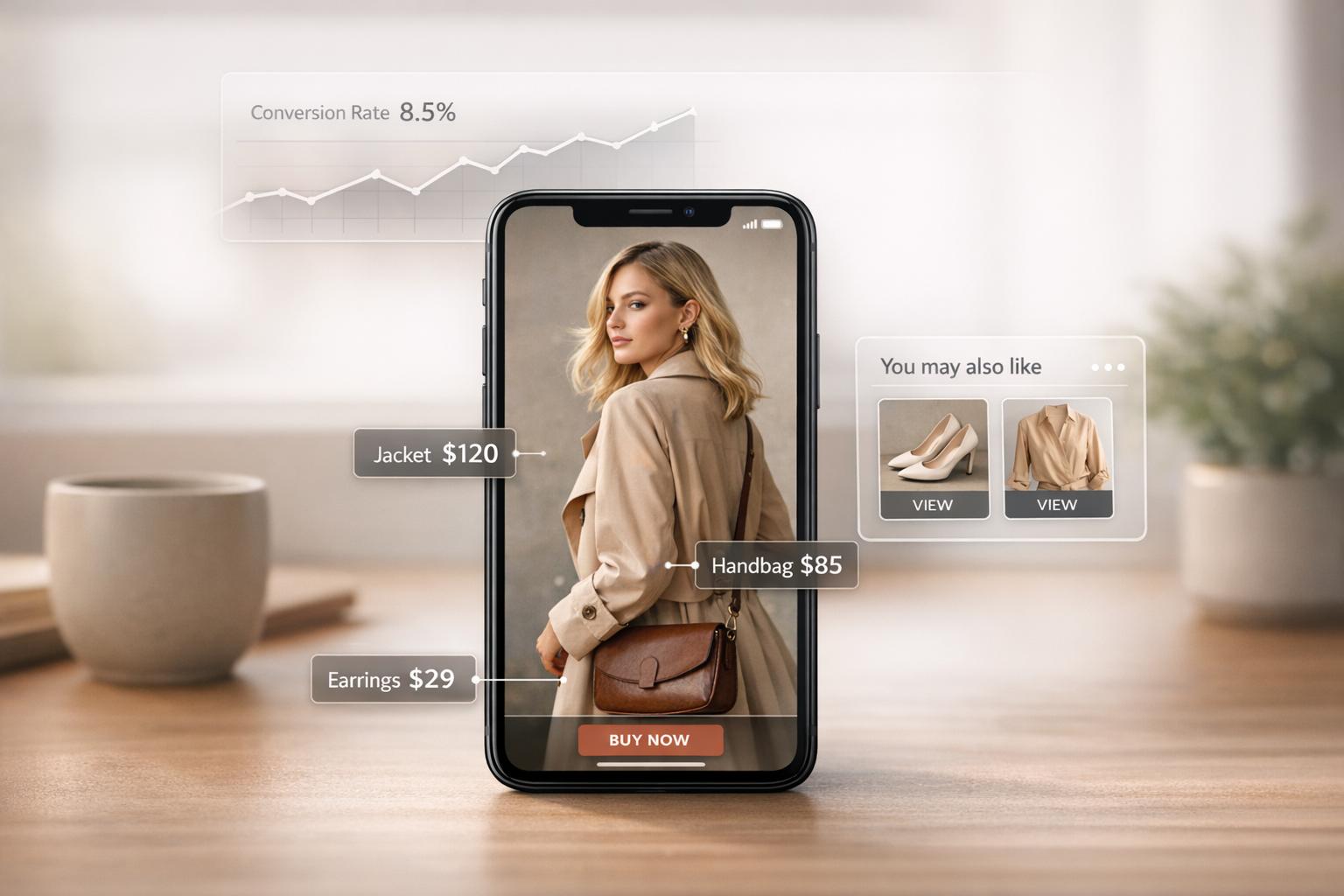
Mobile video shopping is transforming e-commerce, and UWidget is here to simplify the process for Shopify store owners. With 75% of e-commerce traffic now coming from mobile devices and 82% of web traffic driven by video, integrating shoppable videos into your store isn’t just useful - it’s necessary.
Here’s what UWidget offers:
- Seamlessly integrates YouTube Shorts and videos into Shopify stores.
- Lets customers watch, tap, and buy directly from videos.
- Includes features like carousels, grids, sticky players, and product tagging.
- Optimized for mobile with fast-loading, swipe-friendly designs.
Launched in December 2025, UWidget already boasts a 5-star rating on the Shopify App Store. Plans start at $5.99/month, with a 7-day free trial. Whether you’re showcasing tutorials, product demos, or collections, UWidget helps you turn video views into sales while keeping your store mobile-friendly and engaging.
Keep reading to learn how to install UWidget, create widgets, and boost conversions with video shopping tools.
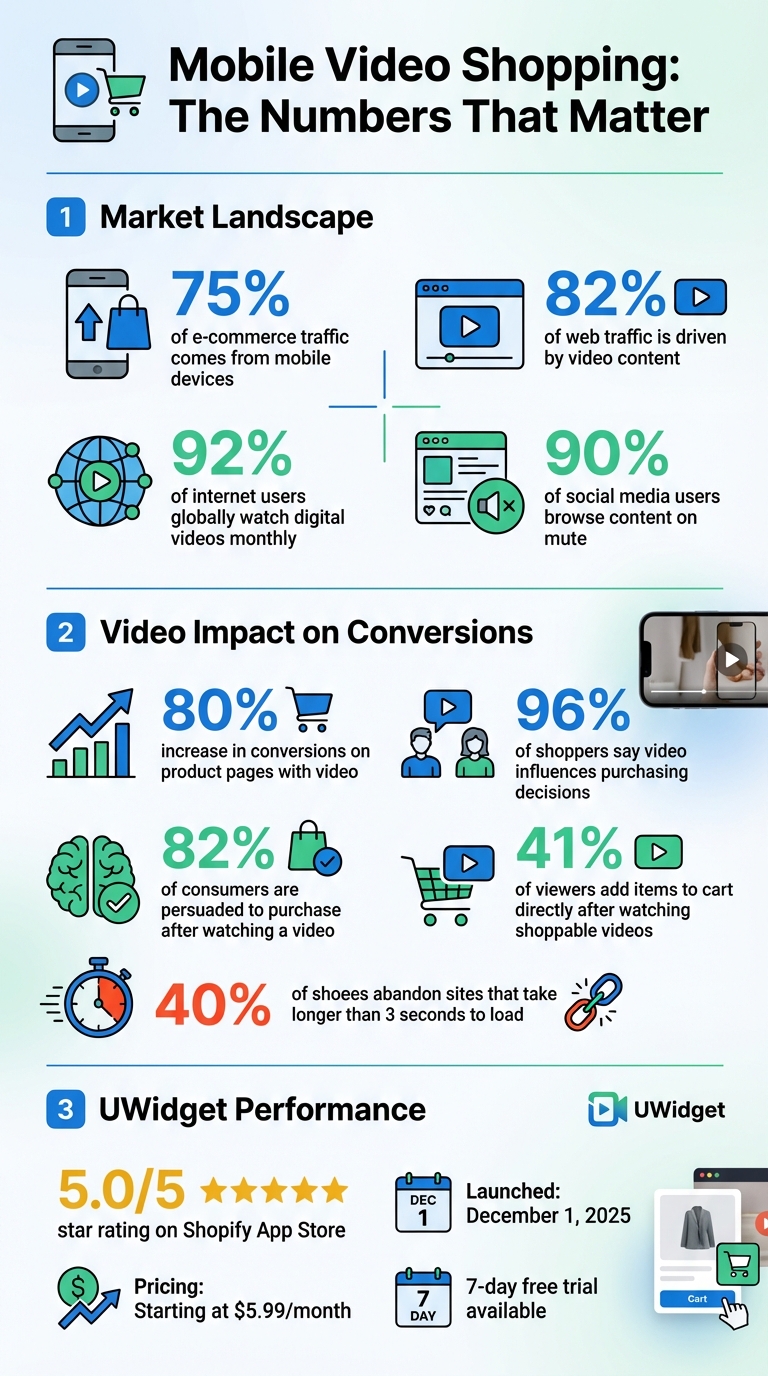
Mobile Video Shopping Statistics and UWidget Impact on E-commerce Conversions
Installing UWidget on Your Shopify Store
Finding and Installing UWidget
Setting up UWidget is quick and simple. Start by visiting the Shopify App Store and searching for "UWidget: YouTube Widgets." Alternatively, you can use the direct app link. Once you're on the app page, click Install and, if prompted, enter your store URL.
You'll need to authorize UWidget to access your store’s products, collections, and theme settings. This permission allows the app to tag products in your videos and ensures it integrates smoothly with your store's design. Complete the setup by clicking Install in your Shopify admin.
UWidget made its debut on December 1, 2025, and has already achieved a perfect 5.0/5 star rating on the Shopify App Store. One satisfied merchant from Wholesale Nursery Co shared, "It allows shorts and videos to be displayed and easily integrated on my e-commerce store." UWidget offers a 7-day free trial for all plans, with pricing starting at $5.99/month for the Starter plan (1 widget, 25 videos) and $19.99/month for the Premium plan (unlimited widgets and videos).
Adding UWidget to Your Shopify Theme
Once installed, you can integrate UWidget into your Shopify theme to make an immediate impact, particularly for mobile shoppers. Navigate to Online Store > Themes and click Customize to open the live Theme editor. From there, you can add UWidget blocks to your pages by going to the sidebar, finding the "Apps" section, and selecting Add block or Add section.
Choose a mobile-friendly UWidget layout - Carousel, Grid, or Slider - to ensure fast load times on mobile devices. After selecting your layout, link the widget to your YouTube videos or playlists by entering the Content ID from your UWidget dashboard.
UWidget is designed to work seamlessly with Shopify Online Store 2.0 themes using App Blocks, so future theme updates won’t interfere with the widget. Before publishing, use the Theme editor’s mobile view toggle to confirm that your carousels and grids display correctly on smaller screens. This ensures your customers enjoy a smooth, mobile-first video shopping experience.
Creating YouTube Widgets for Mobile
Setting Up Galleries, Carousels, and Sliders
Thanks to UWidget's mobile-first approach, you can easily design widgets that fit seamlessly into your store's layout. Start by heading to the UWidget dashboard and choosing a layout - gallery, carousel, or grid. Simply paste your YouTube URL, and UWidget will handle the rest, optimizing the video layout for mobile devices.
To ensure quick load times, UWidget initially displays lightweight thumbnails and only loads videos when they come into view. This is a crucial feature since slow-loading pages can drive mobile shoppers away, directly affecting your conversion rates.
For the best results, use YouTube Shorts or vertical videos to make the most of mobile screen space and provide a familiar experience similar to native apps. When creating carousels, make them swipe-friendly with smooth transitions - this is especially important given that mobile traffic now makes up nearly 75% of all eCommerce visits. To save time and maintain a consistent theme, consider using playlists. By pasting a single playlist URL, you can instantly populate your widgets with related content, perfect for showcasing product tutorials or demonstrations.
Next, we’ll explore how to keep your videos visible as customers browse with sticky video features.
Adding Sticky Videos and Playlists
Sticky videos are a great way to keep your content front and center while users scroll through your store. To set this up, go to your UWidget dashboard, select the sticky video layout, and paste your YouTube URL. The video will stay visible in a minimized format - usually in a corner of the screen - so it keeps playing without covering key elements like the "Add to Cart" button.
Placement is key for sticky videos. Test corner positions to ensure they don’t block navigation or checkout buttons, especially on smaller screens. This feature is particularly useful for product demos or how-to guides, as it lets customers watch while reviewing product details or comparing options.
Embedding playlists is another way to boost engagement. Playlists create a swipeable video library, encouraging users to explore multiple related videos without leaving your site. This setup works perfectly for tutorial series, product collections, or customer testimonials. Considering that around 92% of internet users globally watch digital videos each month, incorporating video content effectively can significantly enhance mobile engagement.
Linking Products to Videos for Mobile Shoppers
Tagging Products in Your Videos
You can now tag your Shopify products directly in YouTube videos, making it easier to turn viewers into buyers. Through the UWidget dashboard, simply paste the URL of your YouTube video - whether it’s a standard video, Short, or playlist. From there, use the tagging feature to search for and select the products you want to feature. The app will then embed clickable product cards right into the video. These cards allow viewers to add items to their cart without ever leaving the video player.
When tagging products that come in multiple variants, like different sizes or colors, make sure to include specific details. This ensures the correct option is pre-selected at checkout. It’s worth noting that 82% of consumers report being persuaded to make a purchase after watching a video, and 41% of viewers have added items to their carts directly after watching a shoppable video. Clearly, thoughtful product tagging can significantly boost conversions.
To maximize engagement, aim for videos that are 30–90 seconds long. Since 90% of social media users browse content on mute, make sure product tags are visually distinct. Also, place "Shop Now" buttons right after showcasing the key benefits of your product for an immediate call to action.
Adding Subscribe Cards for More Engagement
UWidget also offers a feature to help you grow your audience: subscribe cards. By enabling the subscribe button in the dashboard settings, you can add a clickable YouTube subscribe card directly within your video widget. This encourages mobile shoppers to follow your channel while they browse your products.
Subscribe cards are especially effective in product demonstration videos, tutorials, or unboxings - basically, any content where viewers are likely to want updates or related videos. The subscribe button remains visible even in sticky video mode, so it stays on-screen as users scroll through your store. With 96% of marketers emphasizing video content as a key part of their strategy, turning casual shoppers into subscribers creates a valuable connection for future product launches and promotions. This approach helps shift your mobile shopping experience from a one-time transaction to an ongoing relationship, keeping your brand at the forefront of your audience’s minds.
sbb-itb-d9e5b3a
Customizing Widgets for Mobile Shopping
Using Built-in Settings
UWidget comes with mobile-friendly settings that are ready to use - no coding needed. One standout feature is the carousel slider layout, designed for mobile homepages. This layout delivers a swipeable, touch-friendly experience that feels familiar, much like scrolling through social media feeds. Picking the right layout can make a big difference in how users interact with your mobile store.
Another handy feature is the sticky video player, which keeps your video visible as shoppers scroll through product details. This ensures that product demos or customer reviews stay in view, helping to keep shoppers engaged. The app also uses a thumbnail-first approach with lazy loading, which balances fast page load times with strong visuals.
For vertical content, YouTube Shorts integrate seamlessly into mobile layouts, offering a natural fit. If you're looking to go further with styling, check out the next section on custom CSS modifications.
CSS Customization for Advanced Users
If you're comfortable with CSS, you can tweak the mobile settings to better match your store's design. Paid plans - starting at $5.99/month for the Starter tier - include access to a custom CSS field for advanced styling. You’ll find this option in two places: the Widget Custom CSS Panel inside the app or the Shopify Theme App Block configuration. When using the Widget Custom CSS Panel, class names don’t need the xgen- prefix. However, if you're styling through a Shopify Theme App Block, you'll need to include the full class name with the prefix (e.g., .xgen-recommendation-heading).
Keep in mind, Shopify limits CSS input in App Blocks to 500 characters. If your design calls for more complex styling - like detailed media queries - you can add your code directly to your theme's main stylesheet. To do this, navigate to Online Store > Themes > Edit Code > assets/theme.css. Use your browser's "Inspect Element" tool to pinpoint specific class names for mobile elements. If your styles aren’t applying, try using more specific selectors or the !important flag to override existing rules.
Testing Widget Performance on Mobile
Checking Load Speeds and Responsiveness
To ensure your widgets perform well on mobile devices after customization, it's crucial to test load speeds and responsiveness. Shopify measures app performance using a weighted average across three key page types: Home pages (17%), Product details (40%), and Collection pages (43%). Since product pages carry the most weight, they have the biggest impact on your overall performance score.
Start by running baseline tests using Google PageSpeed Insights. Grab the URLs for your Home, Product, and Collection pages, then test them on the Mobile tab before installing UWidget. Record these initial scores, install and configure your widgets, and retest. Calculate the weighted average to measure the exact impact. For more reliable results, run multiple tests, as Lighthouse scores can vary.
Pay close attention to the three Core Web Vitals: Largest Contentful Paint (loading speed), Cumulative Layout Shift (visual stability), and Interaction to Next Paint (responsiveness). Use developer tools to identify scripts that slow down loading or cause layout shifts. Additionally, test on real devices with various internet speeds to get a clear picture of actual user experiences. This hands-on testing approach aligns perfectly with UWidget's mobile-first design principles.
Running A/B Tests to Improve Conversions
Once your widgets are optimized for speed and responsiveness, shift focus to improving conversions. Start with a clear test hypothesis, like: "Adding a sticky video player will increase add-to-cart rates compared to a standard grid layout". This ensures your tests stay focused and measurable.
Stick to testing one variable at a time to identify what drives results. For example, compare a carousel slider with a video grid on product pages or evaluate whether YouTube Shorts outperform traditional videos in engagement. Run these tests for at least two to four weeks to account for variations in traffic and buyer behavior. Break down the results by device type (iOS vs. Android) and visitor type (new vs. returning) to uncover deeper insights.
"A/B testing allows you to answer important business questions, helps you generate more revenue from the traffic you already have, and sets the foundation for a data-informed marketing strategy." - Shanelle Mullin, Shopify
To prioritize your tests, consider using frameworks like ICE (Impact, Confidence, Ease) to decide which widget placements to experiment with first. Keep in mind that 40% of shoppers abandon websites that take longer than three seconds to load, so monitor your PageSpeed scores throughout the testing process to ensure your experiments don't negatively affect performance.
Conclusion
UWidget offers a powerful way to elevate the shopping experience for mobile users. In an era where consumers crave seamless "watch and buy" interactions, UWidget transforms YouTube videos into shoppable moments that engage users and drive sales - all while ensuring fast load times.
Its smart design, featuring thumbnail-first and lazy-loaded elements, keeps pages running smoothly while allowing shoppers to interact with products effortlessly. Features like sticky players, swipe-friendly layouts, carousel sliders, and direct product tagging create an engaging and intuitive browsing experience. These tools encourage instant purchases, especially during key moments like product demonstrations or tutorials.
The numbers speak for themselves: product pages with video can boost conversions by up to 80%, and 96% of shoppers say video content influences their purchasing decisions . By integrating YouTube Shorts and traditional videos into your Shopify store, you’re meeting your customers where they already spend their time - on mobile devices, ready to explore and shop.
With UWidget, you can create a mobile-friendly shopping experience that not only boosts trust but also reduces returns and enhances customer satisfaction. Whether you’re spotlighting seasonal collections or adding product demos, UWidget’s features are built to align with the expectations of today’s mobile-first shoppers. Start transforming your store today with UWidget!
FAQs
How does UWidget make mobile video shopping better?
UWidget makes mobile video shopping more interactive by enabling you to craft custom YouTube video widgets such as galleries, carousels, sticky videos, and banners. These widgets let you highlight products, share tutorials, or feature brand content in a visually appealing way - all without requiring any coding knowledge.
By adding dynamic video elements to your Shopify store, UWidget enhances customer engagement, builds trust, and delivers a more interactive shopping experience designed specifically for mobile users.
What features does UWidget offer for Shopify stores?
UWidget equips Shopify store owners with tools to design YouTube video widgets tailored for mobile shopping. These tools let you create video galleries, carousels, sticky videos, and video backgrounds. With UWidget, you can display products, emphasize your brand, and craft interactive, shoppable video content - all without requiring any coding expertise.
How do I improve UWidget's mobile performance?
If you want UWidget to shine on mobile devices, start by focusing on loading speed and user experience. A good first step is compressing videos to reduce their file sizes. Keep them within 5–10 MB while maintaining a 1080p resolution to strike a balance between quality and performance. Hosting your videos on YouTube is another smart move - it takes advantage of their fast servers and helps cut down on bandwidth usage.
Another way to enhance performance is by enabling lazy loading. This ensures that videos load only when users need them, saving resources. For thumbnails, use lightweight formats like WebP, which load faster and improve the visual experience. Lastly, avoid autoplay features - they can drain bandwidth and may lead to a less smooth experience for mobile users. These tweaks can make UWidget load faster and offer a more enjoyable shopping journey.