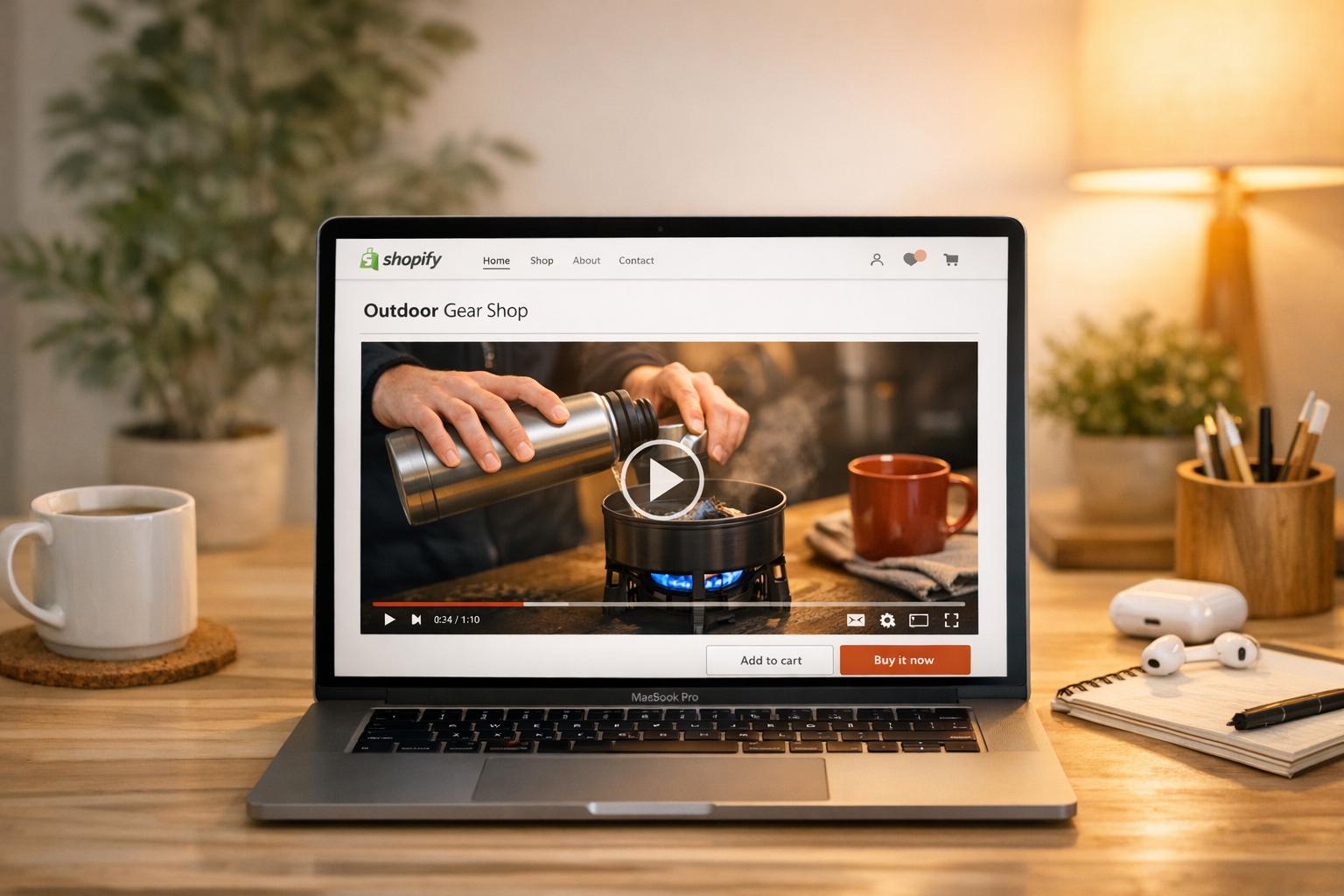
Embedding YouTube videos on your Shopify store can help boost engagement and sales by showcasing product demos, tutorials, and testimonials. There are two main ways to do this:
- Manual Embedding: Use YouTube’s embed codes for individual videos. Customize settings like autoplay, start time, and privacy mode, then paste the code into your Shopify page using the HTML editor.
- Dynamic Feeds with UWidget: Automate the process by syncing your YouTube channel, playlists, or collections. UWidget adds features like shoppable tags, responsive layouts (grids, carousels), and lazy loading to improve performance and usability.
For single videos, manual embedding works well. For ongoing YouTube content and interactive features, UWidget simplifies management while keeping your store visually engaging and functional. Plans start at $5.99/month with a free trial available.
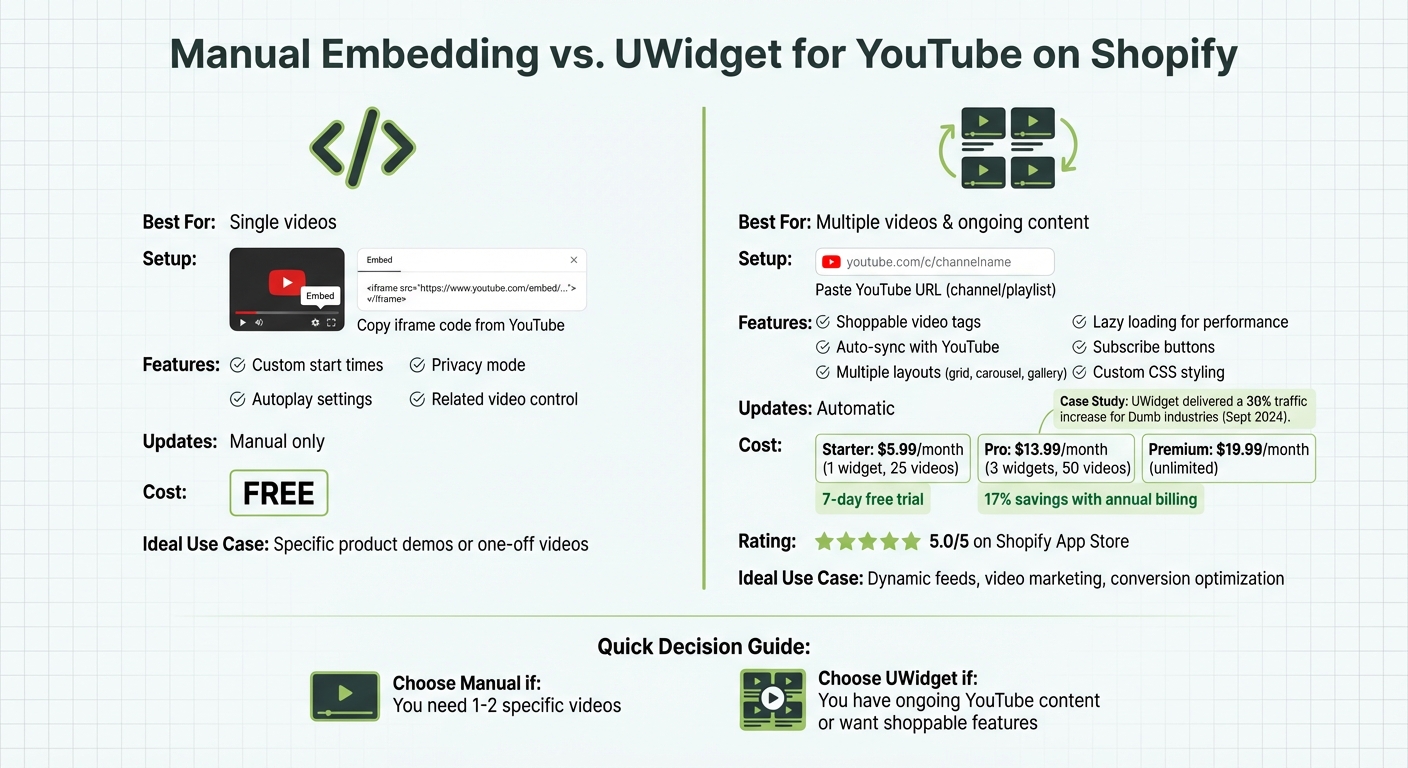
Manual Embedding vs UWidget for YouTube on Shopify: Features and Pricing Comparison
How to embed YouTube videos into Shopify

sbb-itb-d9e5b3a
Manual Method: Embedding Single YouTube Videos
Adding a YouTube video to your Shopify store manually is a straightforward way to showcase content like product demos, tutorials, or customer testimonials to drive traffic to your Shopify store. This method is ideal when you want to embed specific videos without relying on automated updates or dynamic feeds.
Finding the Embed Code on YouTube
Start by opening the YouTube video you want to feature. Below the video player, click the SHARE button and select Embed. YouTube will provide an <iframe> code snippet that you can copy.
Before copying the code, you can adjust some settings directly on YouTube. For example:
- To enable privacy-enhanced mode, replace the domain in the URL with
https://www.youtube-nocookie.com. This prevents YouTube from tracking viewer behavior for ad personalization. - If you want the video to begin at a specific time, append
?start=followed by the time in seconds (e.g.,?start=90starts the video at 1:30). - To limit related videos to only those from your channel after playback ends, add
?rel=0.
Here’s a quick reference for customizing your embed code:
| Feature | URL Parameter | Example |
|---|---|---|
| Privacy Mode | Change domain | https://www.youtube-nocookie.com/embed/VIDEO_ID |
| Start Time | ?start=[seconds] |
?start=60 (starts at 1:00) |
| Limit Related Videos | ?rel=0 |
Shows only your channel's videos |
| Autoplay | &autoplay=1 |
Starts playing automatically |
Once you've customized the settings, copy the updated embed code.
Adding the Embed Code to Shopify Pages
After you’ve copied the embed code, log in to your Shopify admin panel and navigate to the page, product description, or blog post where you want the video to appear. In the rich text editor, click the Show HTML button (represented by the <> icon) to switch to HTML mode. Paste the <iframe> code here. Avoid pasting it into the visual editor, as Shopify will display it as plain text instead of rendering the video.
If your store requires unique videos for multiple products, Shopify metafields can simplify the process. Metafields allow you to store YouTube URLs for individual products. Here’s how you can use them:
-
Create a metafield of type "URL" (e.g.,
product.metafields.custom.embed_url). -
Add the following Liquid code to your product template:
{% if product.metafields.custom.embed_url %}
  <iframe width="560" height="315" src="{{ product.metafields.custom.embed_url }}" frameborder="0" allowfullscreen></iframe>
{% endif %}
Finally, test your embedded video in an incognito browser window to ensure it displays correctly and isn’t blocked by ad blockers.
Using UWidget for Dynamic YouTube Feeds
Manual embedding is fine for showcasing a single video, but it falls short when you want to display an entire YouTube feed. That’s where UWidget comes in. Designed by Fractal Apps, UWidget makes it simple to sync your YouTube content - whether it’s your channel, playlists, or specific video collections - and present it in a responsive, shoppable format directly on your Shopify store.
What sets UWidget apart is its ability to turn YouTube videos into interactive shopping tools. For example, customers can watch a product demo and add the featured item to their cart - all without leaving the video player. Wholesale Nursery Co, a U.S.-based merchant, shared their experience:
"I am pleased with this app. It allows shorts and videos to be displayed and easily integrated on my e-commerce store."
With a perfect 5.0/5 rating on the Shopify App Store, UWidget has become a go-to for businesses looking to combine video marketing with direct sales.
Installing UWidget from Shopify App Store
To get started, search for "UWidget: Youtube Widgets" in the Shopify App Store and hit Add app. After entering your store URL and confirming permissions, the app will integrate with your store. It requires access to your store’s theme, product data, and metaobjects to enable its shoppable features and proper widget placement.
UWidget offers a 7-day free trial for all plans. Pricing starts at $5.99/month for the Starter plan (1 widget, 25 videos), $13.99/month for the Pro plan (3 widgets, 50 videos), and $19.99/month for the Premium plan (unlimited widgets and videos). Opting for annual billing saves you about 17% compared to monthly payments.
Configuring UWidget for Channels, Playlists, and Galleries
Once installed, simply paste a YouTube video, playlist, or channel URL into the app’s settings. The app will automatically update your feed whenever you upload new content.
You can choose from several display formats, including galleries, carousels, grids, sticky players, or banner backgrounds. To ensure your site’s performance isn’t affected, UWidget uses lazy loading - videos appear as thumbnails and load fully only when clicked.
For customization, UWidget offers built-in styling tools for quick adjustments and the option to add custom CSS for a more tailored look. You can even embed YouTube subscribe buttons directly within the widgets, helping you grow your channel audience while boosting sales. This seamless integration makes your product pages more engaging and enhances your video marketing efforts, ultimately driving more conversions.
Adding YouTube Feeds to Shopify Theme Sections and Pages
Once you've set up UWidget, it's time to strategically place your YouTube feeds to grab attention and boost engagement. Modern Shopify themes make it easy to add video content virtually anywhere - whether it's your homepage or individual product pages. Focus on embedding feeds in high-visibility areas like the homepage and collection pages to make an impact.
Embedding Feeds on the Homepage and Collection Pages
The homepage is prime real estate for grabbing your audience's attention. To embed a YouTube feed, go to Online Store > Themes > Customize in your Shopify admin. From there, select the Homepage and click Add Section. Choose either Custom Liquid or Custom HTML, paste your UWidget embed code, and click Save.
Want to make your videos stand out even more? Use sticky players or video banners to keep them front and center. For collection pages, consider a grid layout to showcase product demonstration videos in a clean, organized way. If you're tight on space, a carousel slider works well to display multiple videos without overwhelming the page. You can even match specific YouTube playlists to product categories - for instance, pairing a "Skincare Tutorials" playlist with your skincare collection. This approach ensures shoppers see content tailored to their interests, keeping them engaged longer.
Embedding Feeds in Product Descriptions
Take things a step further by adding videos directly to product descriptions. This creates a more immersive shopping experience and helps customers make informed decisions. Using the metafield setup mentioned earlier, you can embed product-specific videos seamlessly. Start by creating a product metafield (e.g., product.metafields.custom.embed_url) in your Shopify admin. Then, input the YouTube embed URL in the format https://www.youtube.com/embed/[VIDEO_ID] for each product.
To display these videos, edit your theme's Liquid code - typically in the main-product.liquid file. Add a conditional iframe block that only shows the video when a URL is present. This method is incredibly scalable, so you can easily add videos to hundreds of products without needing custom templates. With UWidget, you can even create shoppable feeds. These allow customers to watch a video, see tagged products, and add items to their cart - all without leaving the video player.
Customizing Feeds for Video Marketing and Conversions
Tailoring your YouTube feeds to match your brand can significantly boost engagement and drive conversions. Start by choosing a layout that complements your feed's purpose: grids work well for organized sections, carousels showcase multiple videos dynamically, and vertical lists accommodate extra descriptions.
With UWidget, you can elevate your visual branding. Its tools, like custom color pickers and CSS options, allow you to match headers, buttons, and backgrounds to your brand's color scheme. If you're comfortable with coding, custom CSS offers even more flexibility, letting you adjust thumbnail sizes, text alignment, and spacing. You can also fine-tune playback modes for conversions: inline players keep users on your page, popups focus their attention, and direct links encourage subscriptions.
Design isn't the only priority - performance matters too. To improve page speed while delivering engaging video content, try the Facade Method. This approach uses a compressed image with a play icon that loads the video only when clicked. As Ryan-Mathias from Strength World explains:
"What this does is allow you place a compressed image with a play icon over it so when anyone clicks the image it then loads the YouTube video... This takes the page loading pressure off of your site and puts it on YouTube".
For businesses with extensive video libraries, adding search bars and Source Group tabs can simplify navigation. This tactic worked wonders for Dumb Industries, which saw a 30% year-over-year increase in website visits after launching a centralized YouTube gallery in September 2024. Also, don’t overlook mobile optimization - reduce column counts on smaller screens and ensure tap targets are large enough for easy use.
Another way to drive conversions is by incorporating shoppable tags, which allow customers to add products to their cart directly from the video player. Additionally, you can control what viewers see after your video ends by adding parameters like ?rel=0 to your embed URL, ensuring only videos from your channel are suggested. For autoplay, use ?autoplay=1, but remember that most browsers block autoplay with sound - pairing it with &mute=1 is a smart workaround.
Up next, learn how to troubleshoot common embedding issues for a seamless video experience.
Troubleshooting Common Embedding Issues
Let’s dive into some common problems you might face when embedding videos and how to fix them.
YouTube Embeds on Mobile Devices
Sometimes, videos that play perfectly on desktops may show a blank screen on mobile devices - this happens a lot on iPhones, especially when using your theme's built-in video sections. To resolve this, switch to a Custom Liquid or Custom HTML block and paste the YouTube iframe code directly. Adding "autoplay": true in the code can help mobile browsers load the player properly.
Videos Not Displaying for Customers
If your video works fine for you as the admin but disappears in incognito mode or for customers, the problem is likely with YouTube's settings. Go to YouTube Studio, check your video settings, and make sure the "Allow embedding" option is enabled. Without this, your video won’t show up on external sites.
Formatting Problems
Sometimes, your video might stretch to full width, even if you’ve specified smaller dimensions. This is usually caused by your theme’s CSS overriding your settings. To fix this, wrap your iframe in a <div class='responsive-container'> and add the following CSS to your theme file:
.responsive-container {
  position: relative;
  width: 100%;
  padding-bottom: 56.25%;
  height: 0;
}

.responsive-container iframe {
  position: absolute;
  top: 0;
  left: 0;
  width: 100%;
  height: 100%;
}
The 56.25% padding ensures your videos maintain the standard 16:9 aspect ratio across all screen sizes.
Page Load Speed Issues
YouTube iframes can slow down your page by 4–7 seconds due to heavy scripts. For videos below the fold, add loading="lazy" to the iframe tag. This way, the video only loads when users scroll near it. For videos above the fold, consider using the facade method or tools like UWidget, which include lazy-loading features.
Unrelated Video Recommendations
If unrelated videos pop up at the end of playback, it can distract visitors from your content. To fix this, append ?rel=0 to the YouTube URL in the iframe's src attribute. This ensures only videos from your channel are recommended, keeping your audience focused on your products.
Conclusion
Adding YouTube feeds to your Shopify store can turn static product pages into dynamic, engaging experiences. Whether it’s unboxing videos, tutorials, or customer reviews, video content helps build trust and gives shoppers the confidence they need to make a purchase. Features like shoppable videos make the process even smoother, allowing customers to watch and shop without interruptions - minimizing barriers to buying.
That’s where UWidget comes in handy. With this tool, all it takes is pasting a YouTube URL, tweaking the layout to fit your brand, and publishing your feed in minutes. Rated 5.0/5 on the Shopify App Store, it’s a favorite among merchants for its seamless integration, whether you’re using standard videos or YouTube Shorts.
Performance is another standout feature. Using techniques like thumbnail-first loading and lazy-loading, UWidget ensures your videos won’t slow down your store. Dynamic feeds also keep your content fresh by automatically updating with your latest YouTube uploads. For instance, in September 2024, Dumb Industries saw a 30% year-over-year traffic increase after showcasing a YouTube gallery on their homepage.
With plans starting at just $5.99/month and a 7-day free trial, UWidget makes it easy to elevate your product pages. Ready to see the difference? Check out UWidget and start leveraging video content that drives conversions.
FAQs
Which Shopify pages should I add YouTube feeds to?
To make the most of your video content, strategically add YouTube feeds to pages where they’ll grab attention and boost engagement:
- Product Pages: Position videos prominently, ideally before the product details. This is the perfect spot for demos, tutorials, or customer testimonials that can help potential buyers make a decision.
- Homepage or Landing Pages: Use videos here to introduce your brand, tell your story, or showcase featured products. A well-placed video can create a strong first impression.
While blogs or collection pages can also be good options, product pages and homepages tend to deliver the greatest impact.
How do I make YouTube embeds load faster on Shopify?
To make YouTube embeds load faster on Shopify, you can use lazy loading by adding loading="lazy" to your iframe tags. For videos that appear above the fold, consider replacing the embed with a static thumbnail. This way, the video only loads when the thumbnail is clicked. Another option is to use JavaScript to dynamically load the iframe when it's actually needed. Additionally, removing any extra YouTube scripts that aren't essential can help improve your page's loading speed.
Why isn’t my YouTube video showing for customers?
If your YouTube video isn’t showing up, there could be a few reasons behind it. First, double-check that the embedding code is accurate and works with your website’s theme. Also, make sure the video is set to public - private or unlisted videos won’t display properly. Some themes may require specific settings to support embedded videos, so ensure those are enabled.
If you’re using tools like UWidget, verify that they’re installed and configured correctly. Additionally, browser settings, ad blockers, or device restrictions might block videos from loading. To troubleshoot, try accessing the video on different devices or browsers to pinpoint the issue.