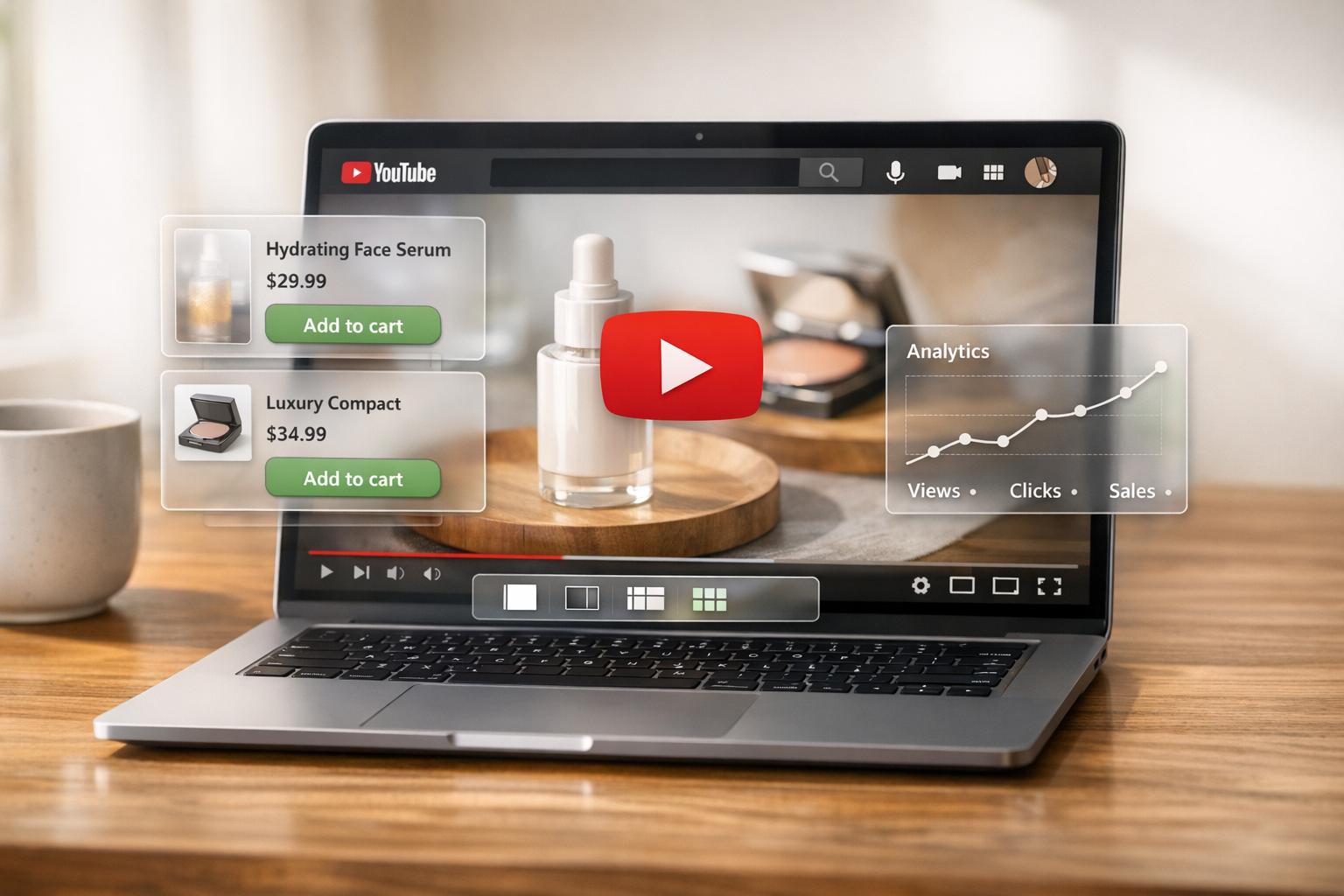
Turn your YouTube live streams into shopping hubs. With YouTube Live Shopping integrated with Shopify, U.S. merchants can sync inventory in real-time, enabling customers to shop directly within YouTube. For international buyers, transactions redirect to Shopify, ensuring a smooth process.
In 2023, YouTube users spent 30 billion hours watching shopping-related videos, and live e-commerce sales in the U.S. hit $50 billion, projected to grow to $67.8 billion by 2026. By leveraging this integration, sellers can tag up to 30 products per stream, manage orders through Shopify, and boost conversions with onsite checkout for U.S. customers.
Key Setup Steps:
- Eligibility: Your YouTube channel must be in the Partner Program, have at least 1,000 subscribers, and meet monetization criteria. Shopify stores must be public, with valid payment methods and policies displayed.
- Account Linking: Connect your Shopify store to YouTube Studio via the Google & YouTube app.
- Product Syncing: Ensure your products are approved in Google Merchant Center and visible in YouTube Studio.
- Live Stream Setup: Tag products in the YouTube Live Control Room, pin featured items, and schedule your stream.
Pro Tips:
- Test everything with an unlisted stream before going live.
- Use pinned products and interactive chat to engage viewers.
- Leave products tagged post-stream for replay viewers.
This integration simplifies live selling, turning engagement into revenue while keeping operations centralized in Shopify.

YouTube Live Shopping with Shopify Setup Process: 4-Step Integration Guide
YouTube Shopping Tutorial: The Best Way To Sell Your Shopify Products on YouTube LIVE

Requirements for Integration
If you're planning to sell on YouTube Live, both your YouTube channel and Shopify store need to meet specific criteria. Here’s what you should know:
YouTube Live Shopping Eligibility
To start, your YouTube channel must be part of the YouTube Partner Program (YPP) and approved for monetization. You’ll also need at least 1,000 subscribers to promote your own products. If you’re joining the affiliate program to promote products from other brands, the subscriber requirement increases to 10,000.
Your channel cannot be set as "Made for Kids" and should have minimal content designated as such. Additionally, it must not have any active Hate Speech Community Guideline strikes. For music channels, being an Official Artist Channel is mandatory.
The email linked to your YouTube channel must have owner or manager access and match a Shopify staff account with full permissions. To confirm eligibility, log in to YouTube Studio, click on Earnings (or Monetization), and then select the Shopping tab. Alternatively, you can check eligibility in Shopify by going to Sales channels > Google & YouTube and clicking Get started in the YouTube Shopping section.
Once your YouTube channel is ready, make sure your Shopify store meets the required setup conditions.
Shopify Store Setup Requirements
Your Shopify store must be publicly accessible, so remove any password protection. Ensure you’ve set up a valid payment provider and display at least one contact method, such as an email, phone number, or mailing address.
Don’t forget to include your Refund Policy and Terms of Service in the Shopify admin and display them in your store’s footer. This is a critical requirement for Google Merchant Center that’s often overlooked.
Sync your products with Google Merchant Center using the Google & YouTube app. Assign a Google Product Category to each item, along with either a GTIN or a combination of MPN and Brand. Also, make sure all product variants are listed in English.
Finally, complete your YouTube store onboarding process at least 4 weeks before your first live stream to allow time for product data to sync and be approved. Avoid making changes to product data, images, or landing pages within 72 hours of your live stream to prevent delays.
How to Set Up YouTube Live Shopping with Shopify
If your channel and store meet the necessary requirements, you're ready to connect the two platforms. The process involves three key steps: linking your accounts, verifying your product feed, and tagging products for your live streams.
Connect Your Shopify Store to YouTube Studio

Start by signing in to YouTube Studio and heading to the Earn tab. From there, select Shopping, click Connect store, and choose Shopify. You'll be directed to complete the setup in your Shopify account.
In Shopify, go to your admin panel and install the Google & YouTube app. Navigate to Sales Channels > Google & YouTube, and click Get Started under the YouTube Shopping section. Make sure the email linked to your YouTube channel matches a Shopify staff account with full permissions. Also, ensure your Google account has admin access to Google Merchant Center.
Verify Product Sync and Channel Eligibility
Your Shopify products will sync to Google Merchant Center using the Google & YouTube app. Check the Overview page in Shopify to monitor the status of your product listings. Google typically reviews synced products for compliance within a few business days. Once approved, products will appear in YouTube Studio for tagging, usually within 24 to 48 hours.
Confirm that your store's domain is verified and claimed in Google Merchant Center. This step is often completed during setup, but it's worth double-checking. If you're using any third-party feed providers, disable their product syncing while onboarding the Google & YouTube app to avoid any tracking issues.
Once your product feed is synced and approved, you can move on to tagging items for your live stream.
Tag Products for Live Streams
To tag products, open the Live Control Room in YouTube Studio and select the Shopping tab under the stream preview. Click Edit, then search your Shopify inventory to tag items. You can tag up to 30 products per stream. For products with multiple variants (like size or color), tag each variant separately and use clear labels to help viewers easily identify them.
Make sure to complete tagging at least 30 minutes before your stream starts. You can also pin certain products to highlight them during the stream. If you're using a desktop, enable automatic rotation to showcase pinned items, cycling through them every 60 seconds.
Schedule and Launch Your Live Shopping Stream
Create a Live Stream with Shopping Features
To kick off your live shopping event, head over to YouTube Studio, click Create, and then select Go Live to start setting up your broadcast. From there, choose either Stream or Manage to configure your settings. If your channel has over 1,000 subscribers, you can schedule a Premiere to generate excitement and anticipation for your event.
In the live stream preview, navigate to the Shopping tab and click Edit to tag products from your synced Shopify catalog. You can tag up to 30 products per stream. Want to spotlight specific items during your broadcast? Use the Pin product icon to feature them. On desktop, you can enable auto-rotation for these pinned products, ensuring they refresh every 60 seconds, keeping your audience engaged with a rotating display of featured items.
For special product launches, take advantage of Product Drops, which let you create a countdown or an instant reveal. Make sure your product data is up-to-date and consistent, as this avoids any delays caused by re-reviews.
Once your stream is scheduled and your products are tagged, you’re ready to prepare for the big event. Let’s dive into some tips to make your live shopping stream a success.
Tips for Running Live Shopping Streams
A seamless live shopping stream doesn’t happen by chance - it takes preparation and a little strategy.
Start early. Complete your YouTube store onboarding at least four weeks before your event. Address any product data issues no later than two weeks prior. To ensure everything runs smoothly, practice with an Unlisted dress rehearsal about a week before going live. This is a great way to get familiar with tagging and pinning products, so you’ll feel confident when the real event begins.
If you’re planning promotions or discounts, set them up in Shopify at least five days before the stream. This gives enough time for the deals to sync and get approved for YouTube. During the live broadcast, enlist a moderator or a friend to manage the chat. This way, you can focus entirely on showcasing products and engaging with your audience.
For a stable HD stream, make sure your internet upload speed is between 3 to 10 Mbps. After the event wraps up, leave your products tagged. This ensures they remain shoppable for viewers catching the replay.
With these steps in place, your live shopping stream will be well-prepared to captivate and convert your audience.
sbb-itb-d9e5b3a
Test and Optimize Your Live Shopping Experience
Test Product Displays and Inventory Sync
Before going live, it’s a good idea to run an unlisted practice stream about a week before your event. This lets you get familiar with the tagging tools and ensures your product carousels are working correctly without broadcasting to your audience. Think of it as a behind-the-scenes rehearsal to see exactly what your viewers will experience during the stream.
Head to the "Product listings" section in the Google & YouTube app within your Shopify admin to confirm that all your products have an "Approved" status. Once approved, products usually show up as taggable in YouTube Studio within 24 to 48 hours. Planning to debut a new product? Use a low-performing SKU during your test run to practice tagging and displaying products without spoiling your actual launch item.
Make sure to lock in all product details - like descriptions, landing pages, and images - at least 72 hours before your live stream. Even small changes can prompt a re-review, potentially making products untaggable when you need them most. And don’t forget to check that inventory levels are syncing in real time between Shopify and YouTube Shopping to avoid any stock issues during the event.
Once the technical side is sorted, shift your attention to creating an engaging experience for your audience.
Increase Audience Engagement During Live Streams
A successful live shopping event isn’t just about showing off products - it’s about connecting with your audience. Rather than focusing on hard sales tactics, aim for authenticity and educational content that highlights the value of your products.
Mimi Ikonn, Co-founder of Luxy Hair, shared her approach:
Whenever I made the videos, it was very much an organic sell. Whenever I told people to buy the products, it was very much just educational.
You can tag up to 30 products per stream and strategically pin key items at the right moments. For merchants in the U.S., the in-app checkout feature makes it even easier for viewers to shop without leaving the stream - the video only pauses if they start the checkout process.
Finally, use YouTube Analytics both during and after your stream to monitor viewer engagement and spot any technical hiccups, like display issues, that might need attention.
Use Fractal Apps to Improve Your Integration

Once you've set up live shopping, these Shopify apps can seamlessly connect your live streams to your store. They make it easier for customers to browse, engage, and buy your products directly during live events.
Add YouTube Widgets with UWidget
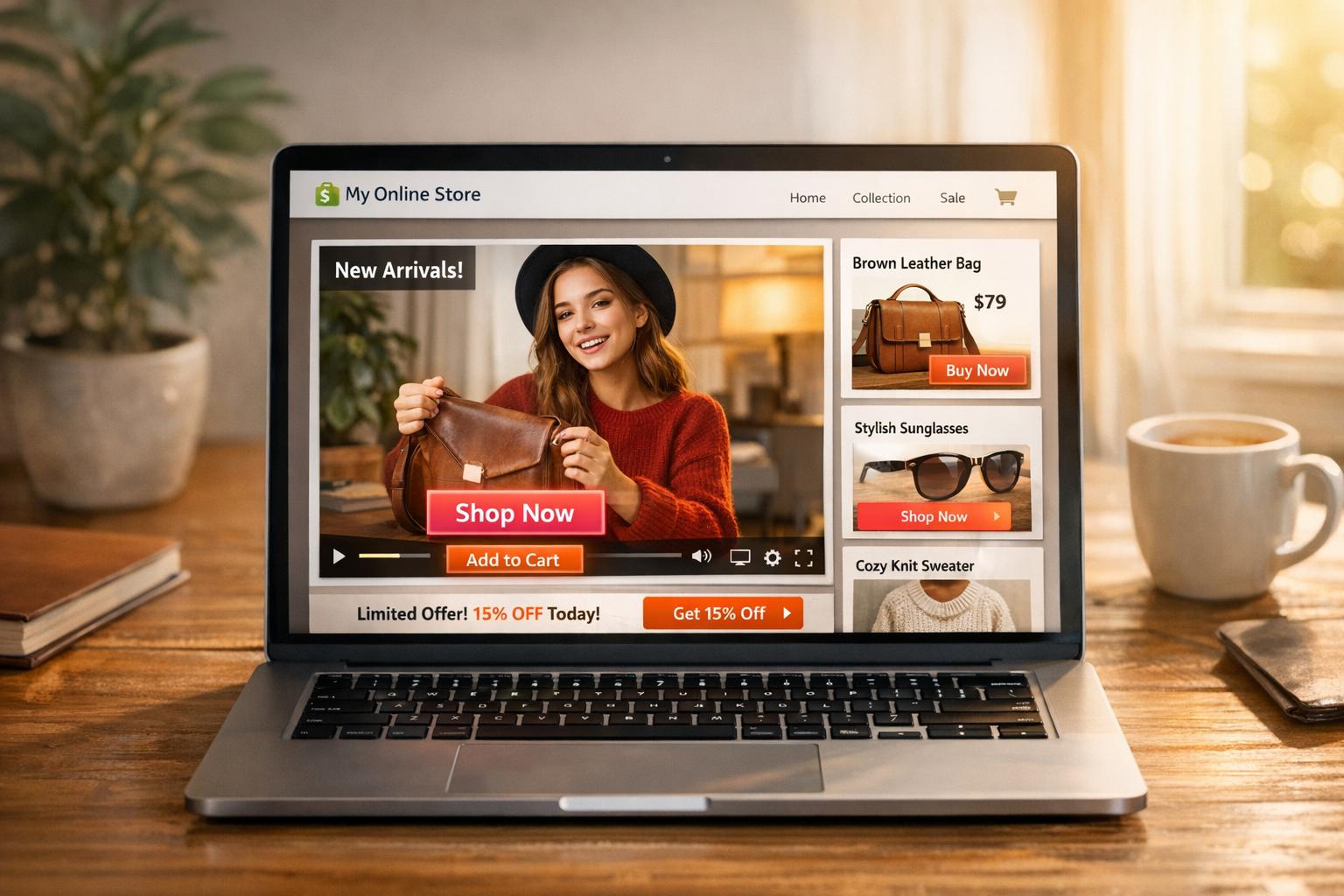
With UWidget, you can embed YouTube live streams into your Shopify store. This app lets you tag products so viewers can shop without leaving your site. You can choose from layouts like carousel sliders, video grids, galleries, or even banner backgrounds. Features like a sticky video player and lazy loading ensure your videos stay visible while keeping your site fast. Pricing starts at $5.99/month for the Starter plan (1 widget, up to 25 videos), $13.99/month for Pro (3 widgets, up to 50 videos), and $19.99/month for Premium (unlimited widgets and videos). A 7-day free trial is available.
Add Product Like Buttons with ILikeThat

ILikeThat helps you boost engagement by adding "like" buttons to your products during live streams. This feature encourages interaction and creates social proof by spotlighting trending items in real time.
Add a Checkout Progress Bar with CheckIt

CheckIt simplifies the checkout experience by adding a progress bar that shows remaining steps. For US customers, the live video pauses during checkout, while international users see a progress bar that ensures a smooth transition.
Conclusion
Setting up YouTube Live Shopping with Shopify involves a few essential steps: linking your YouTube channel, syncing your product feed, and tagging up to 30 products per stream. Once everything is connected, you can manage orders and payments effortlessly through your Shopify admin. These preparations pave the way for an interactive live event where real-time engagement can translate into sales.
As Paul Jauregui, Co-founder of BK Beauty, put it:
I was always the big believer that the sale takes place while the consumer is watching and consuming the content.
- Paul Jauregui, Co-founder of BK Beauty
This integration allows you to meet your audience where they already spend their time. You can interact live, answer questions on the spot, and convert viewers into customers - all without requiring them to leave the platform.
Even after the live stream ends, YouTube archives the video, giving it ongoing potential to generate sales. Plus, the platform’s analytics provide valuable insights into viewer engagement, helping you fine-tune your strategy for future streams. To make the most of your live event, test your equipment ahead of time, promote your stream early using YouTube's Premiere feature, and stay active in the live chat to build trust and credibility with your audience.
FAQs
What do I need to start using YouTube Live Shopping with Shopify?
To connect YouTube Live Shopping with Shopify, your Shopify store must meet a few key requirements. It needs to be active, publicly accessible (not hidden behind a password), and include essential details like a valid payment provider, refund policy, terms of service, and visible contact information.
Your YouTube channel also has to meet specific criteria:
- It must be managed by an email address that matches a full-permission staff account on Shopify.
- It needs at least 1,000 subscribers.
- The channel must be approved for monetization in a country where the YouTube Partner Program is available.
- It cannot be marked as Made for Kids.
- There should be no major policy violations or hate-speech strikes.
For music-related channels, there's an additional requirement: it must be an Official Artist Channel. Ensuring all these conditions are met will allow you to integrate YouTube Live Shopping with Shopify smoothly.
What steps do I need to take to get my products approved for YouTube Live Shopping?
To get your products approved for YouTube Live Shopping, make sure your YouTube channel meets these key requirements:
- The channel's email must have owner or manager access and match a full-permission staff account in Shopify.
- Your channel needs at least 1,000 subscribers and must be approved for monetization.
- It cannot be marked as “Made for Kids” and must comply with all YouTube policies.
- The channel must operate in a supported country for YouTube Shopping.
Once you've confirmed these conditions, submit your YouTube Shopping integration through Shopify. The approval process typically takes a few business days.
How can I keep my audience engaged during a YouTube Live shopping event?
To keep your audience hooked and drive sales during your YouTube Live shopping stream, start by promoting the event ahead of time. Share the date, time (like January 20, 2026, at 7:00 PM PT), and tease exclusive deals to build anticipation.
During the livestream, make it personal - greet viewers by name and engage with their live comments or questions. Address inquiries about product details, pricing (e.g., $49.99), or availability to create a sense of connection and trust.
Show off your products in real time, focusing on their features, and take requests for closer looks to keep the audience engaged. Add urgency to the mix by offering limited-time discounts, such as 20% off $79.99, and mentioning a countdown to ramp up excitement. Bringing in a guest or co-host can also make the session more lively and entertaining.
To make shopping seamless, use tools like Fractal Apps' UWidget. This feature lets you display clickable product widgets directly in the stream, so viewers can shop without ever leaving the video.