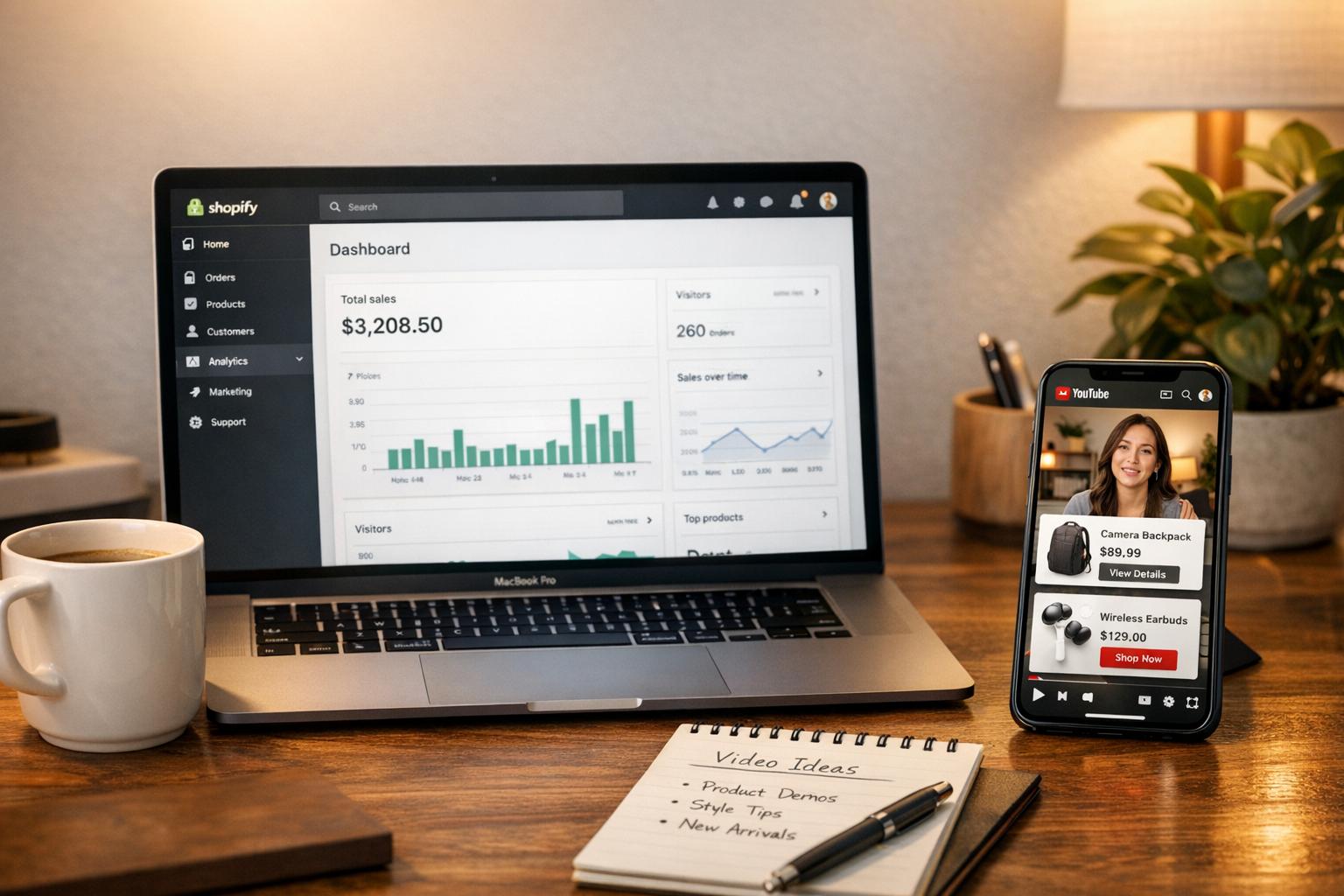
YouTube video carousels allow Shopify store owners to showcase multiple YouTube videos, Shorts, or playlists in an interactive slider format. This feature enhances customer engagement by displaying tutorials, product demos, or testimonials directly on your store. Using tools like UWidget, you can even tag products in videos, enabling a seamless shopping experience. Carousels are optimized for speed with lazy-loading and thumbnail-first designs, ensuring your store remains fast and user-friendly.
Key Highlights:
- Interactive Video Display: Feature multiple YouTube videos in a carousel or grid format.
- Shoppable Integration: Tag products within videos to simplify purchasing.
- Easy Setup: Paste YouTube URLs, customize settings, and embed using Shopify's Theme Editor.
- Mobile & Desktop Friendly: Customize layouts for different devices to ensure a smooth experience.
- Boost Conversions: Use videos for tutorials, testimonials, and customer stories to build trust and drive sales.
This guide explains how to install, configure, and optimize YouTube carousels with UWidget, along with video marketing strategies for placement and maximizing their impact on your Shopify store.
Setting Up YouTube Video Carousels with UWidget
How to Set Up YouTube Video Carousels on Shopify with UWidget
What You Need Before Starting
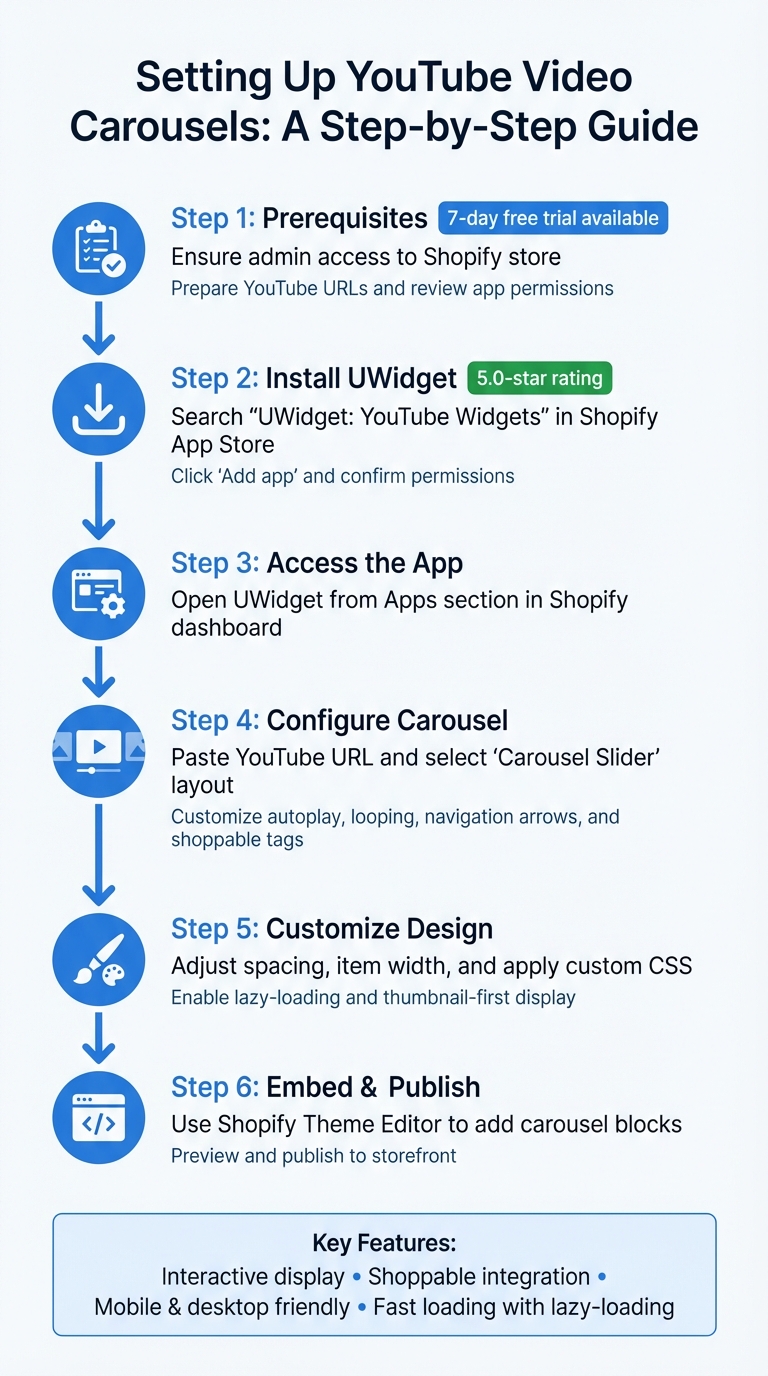
Before diving in, make sure you have admin access to your Shopify store and have all your YouTube URLs ready. UWidget requires permissions to access store owner details, products, collections, and to edit your Online Store theme and metaobjects. You can review these permissions directly in your Shopify Admin. Every plan includes a 7-day free trial, giving you time to test how the carousel performs on both mobile and desktop before committing to a subscription.
Installing UWidget from the Shopify App Store
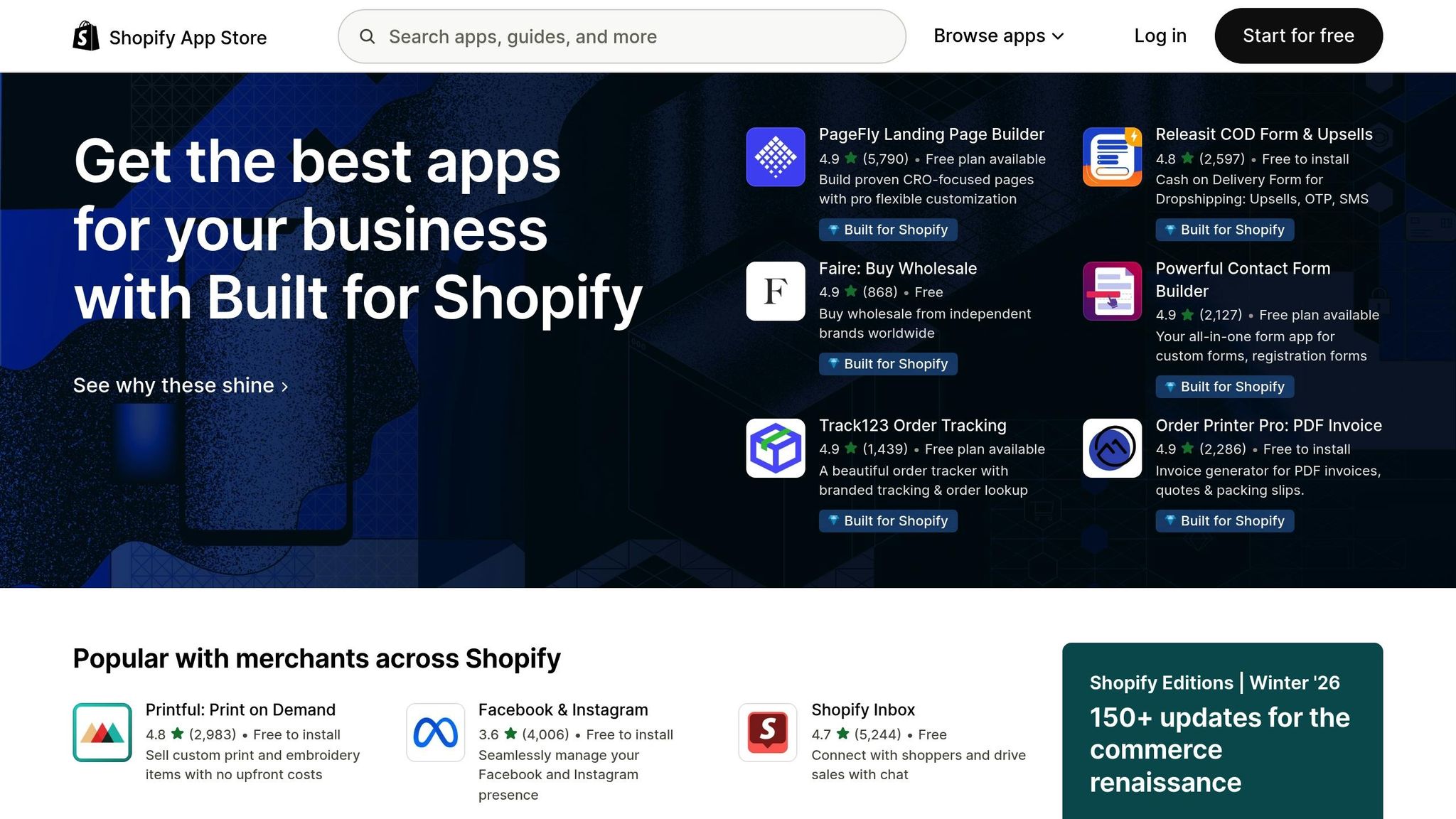
To install, go to the Shopify App Store and search for "UWidget: YouTube Widgets." Click the "Add app" button and, if prompted, enter your Shopify store URL. Once the permissions screen appears, confirm the installation through your Shopify admin.
After installation, open UWidget from the "Apps" section in your Shopify dashboard. UWidget has earned a 5.0-star rating, with users praising its seamless integration and support for both standard YouTube videos and Shorts.
Configuring YouTube Video Carousels in UWidget
Once inside the UWidget app, paste your YouTube URL into the configuration field. Choose "Carousel Slider" as your layout, though you can explore other formats like video grids, galleries, or sticky video players later.
The configuration panel offers several customization options. For instance, you can enable autoplay, so videos start playing as they come into view, or activate looping for continuous playback. Add navigation arrows for easier browsing, include YouTube subscribe buttons, and link specific Shopify products to your videos. This shoppable feature transforms your video content - like tutorials or demos - into direct purchase opportunities.
| Carousel Setting | Description |
|---|---|
| Source Type | Choose from Video, Playlist, or Channel |
| Layout | Options include Carousel Slider, Video Gallery Grid, or Sticky Video |
| Interaction | Configure autoplay, looping, and subscribe buttons |
| Shoppable Tags | Tag Shopify products to create interactive video content |
| Design | Customize thumbnails or add your own CSS for branding |
UWidget also uses lazy-loading and thumbnail-first displays to ensure pages load quickly. For advanced users, the app supports custom CSS, allowing you to align the carousel's design with your store's branding. Once you're happy with the settings, publish the widget to your storefront using UWidget's app blocks for seamless integration with your Shopify theme.
From there, you can fine-tune the carousel's look and functionality to match your brand and boost conversions.
sbb-itb-d9e5b3a
Customizing Your Carousel's Appearance and Behavior
Adjusting Design Elements
Once you've set up the basics, it's time to fine-tune your carousel's appearance to match your store's branding. With UWidget, you can tweak the visual aspects using built-in settings or custom CSS. Adjust elements like spacing, item width, and layout style (carousel, grid, or sticky player) directly in the app. Need specific colors or fonts that aren't available by default? Use the Custom CSS feature to apply your brand's hex codes and typography, ensuring your carousel fits seamlessly into your store's theme.
Optimizing for Mobile and Desktop
To make your carousel shine across devices, define different item widths for mobile and desktop. For mobile, set item widths to around 80% with captions below the videos. This layout hints at additional content users can swipe through, enhancing navigation. On desktops, you can display multiple videos at once by setting item widths between 20% and 80%, which improves browsing efficiency. Use the Snap Alignment feature to ensure videos align perfectly in the center or at the start after swiping, avoiding awkward half-visible thumbnails. Once your design is responsive, you can focus on interactive features to boost engagement further.
Configuring Autoplay, Looping, and Interaction Features
Autoplay can be a powerful tool, but it works best when paired with mute (autoplay=1 and mute=1) to comply with browser policies. Want videos to play on repeat? Add loop=1 - this is especially effective for creating compelling video content for product demos or background visuals. If you're showcasing multiple videos, make sure only the active one plays to avoid overlapping audio and performance issues. You can also enable Subscribe buttons directly on the carousel and tag specific Shopify products, making your videos shoppable. This not only boosts video engagement but also creates a smoother shopping experience, encouraging conversions right from the carousel.
Best Practices for Driving Conversions with YouTube Carousels
Once your YouTube carousel is set up, these strategies can help you boost engagement and turn views into conversions.
Showcasing Product Tutorials and Demos
Tutorial videos are incredibly persuasive. In fact, 89% of viewers say a video convinced them to make a purchase, and 96% have watched an explainer video at least once. Use how-to videos to demonstrate your products in action and address common customer pain points. Keep product-focused videos short and punchy - 30 to 60 seconds is ideal. For more detailed tutorials, aim for 2 to 10 minutes.
Take advantage of tools like UWidget's shoppable tagging feature. This allows you to link products directly within your videos, letting viewers seamlessly purchase without leaving the carousel. Place these tutorial carousels on product pages, just below the main product details, to give shoppers the context they need to buy.
Once you've nailed product demos, it's time to build trust with real customer stories.
Highlighting Customer Testimonials
Video testimonials provide powerful social proof. Nearly 48% of YouTube users interact with brands on the platform weekly. Create a dedicated carousel for testimonials, using tabs like "Customer Stories" to organize the content. Encourage user-generated videos - such as unboxings or reviews - to highlight real customer experiences. Placing testimonial carousels on your homepage can immediately establish credibility with new visitors.
Where to Place Carousels for Maximum Impact
Even the best content needs the right placement to drive results. Your homepage is perfect for brand storytelling and showcasing fresh uploads. On product pages, focus on context-specific videos like tutorials, unboxings, or reviews that directly relate to the product being viewed.
For example, in September 2024, Dumb Industries added a YouTube Gallery widget to their homepage, featuring livestream replays and clips. The result? A more cohesive video experience and a year-over-year website traffic increase of over 30%.
Sticky video widgets are another great option for high-priority promotions or calls to action, like encouraging subscriptions. Collection pages, on the other hand, are ideal for category-specific tutorials that apply to multiple products.
| Placement | Best Content Type | Objective |
|---|---|---|
| Homepage | Brand stories, featured products, latest uploads | Awareness & engagement |
| Product Pages | Tutorials, unboxings, customer video reviews | Conversion & trust |
| Blog Posts | Deep-dive how-tos, behind-the-scenes content | Education & storytelling |
| Sticky Widget | High-priority promos, subscribe buttons | Constant visibility |
Embedding and Testing Carousels on Shopify Pages

Here's how you can embed and test your customized carousel on your Shopify store.
How to Embed Carousels Using UWidget
Once you've set up your carousel in UWidget, embedding it through the Shopify Theme Editor is a straightforward process. This tool integrates seamlessly with your Shopify Admin and Online Store themes, allowing you to publish widgets quickly.
To embed, open the Shopify Theme Editor and add the carousel block to your desired page - whether it’s your homepage, a product page, or a blog post. From there, select the correct Content # or Widget ID from the UWidget dashboard to ensure the right carousel appears in the right spot. Use the Live Preview feature in the Theme Editor to confirm placement before publishing.
For those with HTML experience, you can paste custom embed codes directly into the HTML/Code view. Advanced users looking to display carousels on specific pages can use a Liquid if statement with page.handle to target specific pages based on their URL-friendly identifiers.
Once embedded, double-check functionality across devices to ensure everything runs smoothly.
Testing Your Carousel
After embedding, test your carousel on various devices, including desktops, tablets, and smartphones. Make sure the layout adjusts automatically, and touch targets are easy to use on smaller screens. For accurate testing, try using incognito mode to avoid interference from browser extensions.
Check how videos open - whether inline, in a popup lightbox, or redirecting to YouTube - and ensure the behavior matches your preferences. Pay attention to loading speed as well. UWidget’s "thumbnail-first" and lazy-loading approach helps keep your site fast by loading only the initial videos upfront, even when multiple videos are included.
Finally, watch for any visual issues, such as cut-off titles, distorted thumbnails, or awkward popup behavior. Remember, new YouTube uploads may take up to 24 hours to sync and appear in your carousel.
Fixing Common Problems
If your carousel isn’t displaying as expected, here are some quick troubleshooting tips:
| Issue | Possible Cause | Troubleshooting Step |
|---|---|---|
| Widget not appearing | Code placed in the wrong editor mode | Ensure the code is pasted into the HTML/Code view, not the visual editor |
| Wrong videos showing | Incorrect Content ID | Match the Content ID in the app dashboard with the theme block settings |
| Slow page load | Heavy video files | Enable lazy loading or use the thumbnail-first setting |
| Playback won’t start | Device or browser glitch | Restart your device or clear your browser cache |
| Videos on wrong pages | Missing conditional logic | Use a Liquid if statement with page.handle to target specific pages |
For playback issues, such as videos not starting or error messages about retrieving sharing information, try clearing your browser cache or restarting your device. If you encounter security errors, review your store’s Content Security Policy (CSP) to ensure it permits scripts from UWidget’s CDN domains.
Conclusion and Key Takeaways
Summary of Benefits
YouTube video carousels are a powerful way to use YouTube to drive traffic to your Shopify store while bringing a fresh, interactive edge to your site by featuring product tutorials, customer stories, and how-to videos that boost both engagement and conversions. With shoppable integration, customers can seamlessly watch videos and make purchases, streamlining the journey from discovery to checkout. Plus, modern carousel tools ensure your site stays fast and performs well, keeping Core Web Vitals intact.
Carousels are incredibly flexible - you can add them to homepage hero sections, product pages, or even blog posts. Their layouts automatically adapt to mobile and desktop, making them a great fit for any device. Whether you’re showcasing unboxing videos, user-generated content, or brand stories, carousels offer a dynamic, eye-catching alternative to static images, helping you create deeper connections with your audience and drive more sales.
Getting Started with UWidget
If you're ready to take advantage of these benefits, UWidget makes it simple to add YouTube video carousels to your Shopify store. The process is straightforward - just paste a YouTube URL, customize the design, and embed it using the Shopify Theme Editor. UWidget even offers a free trial, giving you the chance to experiment with layouts and see the impact on engagement firsthand.
With a 5.0/5 star rating on the Shopify App Store, UWidget has earned high praise for its seamless integration of YouTube Shorts and videos into storefronts. Don’t wait - install UWidget today and transform your video content into a tool for driving conversions.
FAQs
Will the carousel slow down my Shopify store?
Adding a YouTube video carousel can affect your store's loading speed, especially if the videos are large or not properly optimized. To keep things running smoothly, consider these tips: compress your videos, stick to the MP4 format, enable lazy loading, and host your videos directly on YouTube. These strategies help you maintain good performance while adding engaging features to your store.
Can I tag multiple Shopify products in one video?
Yes, it’s possible to tag multiple Shopify products in a single video, but there are some restrictions to keep in mind. Using compatible apps, you can add clickable product tags at specific points in the video, making it easier for viewers to shop directly. However, the number of products you can tag depends on the app you’re using and the video format. To ensure a smooth shopping experience, make sure the tags are easy to see and don’t interfere with the video content.
Why aren’t my newest YouTube videos showing up yet?
Your latest YouTube videos might not show up right away because the widget relies on caching to speed up load times. It updates video data from YouTube every 24 hours. If you want your new videos to appear sooner, you’ll either need to wait for the cache to refresh or manually clear it - if the widget includes that feature.